Hi @ronald. Thanks for your questions.
Let me start by sharing a high-level summary of how I leverage @DanThomas's Quick Access Palette (QAP) to create Conflict Palettes. The bulk of this hinges on understanding the power of QAP.
-
QAP is installed in a new macro group named Quick Access Macro Editor Palette. The brains of QAP is in a macro named Add Selected Macro to Quick Access Palette which is configured to appear in the Keyboard Maestro Status Menu and (with KM 10+) on a dedicated group menu on the mac menubar. On the mac menubar, it appears as a yellow star when KM is the frontmost application.
-
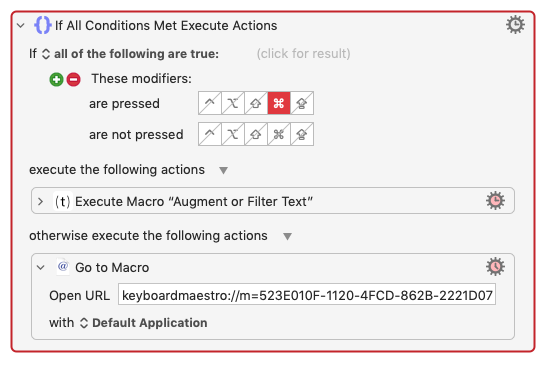
You can navigate to any macro group in your KM Macro Library, select one of the contained macros, and then select the QAP macro (Add Selected Macro to Quick Access Palette) from either menu mentioned above. The QAP macro then creates a new macro in its macro group (i.e., the macro group that houses the QAP macro, NOT the macro group that houses the selected macro). Here's a sample macro created by QAP.
-
The name of the above QAP-generated macro will be some prefix (for macro group sorting) followed by the name of the macro that was selected immediately before the QAP macro was run. In the above example, the name of this QAP-generated macro is: 10)Augment or Filter Text. Below I'll refer to the original Augment or Filter Text as the target macro.
-
As shown above, each QAP-generated macro has two functions:
- Execute the target macro (if ⌘ is pressed).
- Open the target macro in the KM editor (the default action).
-
So with QAP, you can build up a set of macros (in the QAP group) that target various macros throughout your KM Macro Library. This is a beautiful thing—thank you, @DanThomas!
-
None of the above is directly related to KM native Conflict Palettes. However, one could edit each of the QAP-generated macros and assign a common Hot Key trigger, e.g., ⌃⌥⇧⌘P. Then if ⌃⌥⇧⌘P was pressed, the Keyboard Maestro Engine would render a Conflict Palette that includes each of the macros that was assigned a ⌃⌥⇧⌘P Hot Key trigger. (Since this is standard Conflict Palette functionality, any macro in any macro group with the ⌃⌥⇧⌘P Hot Key assignment, would also be included in the rendered Conflict Palette). Now if one did do this, the Conflict Palette would function differently than most, in that clicking a QAP-generated item (or selection by typing—my preferred method) would open the target macro in the KM Editor, not execute the target macro. Of course, due to the logic within the QAP-generated macros, the target macros could be run by pressing ⌘ before selecting the item on the Conflict Palette.
-
Okay, all of the above is related to QAP, not this tutorial: Easily Create Conflict Palettes—Then Run or Edit the Underlying Macros
-
In the tutorial, the basic steps are:
- Duplicate the QAP macro group and rename it.
- In the renamed group, rename Add Selected Macro to Quick Access Palette to
 Create Conflict Palette)
 - Use the renamed macro to build up a set of macros (in the renamed group, not the standard QAP group) to target macros of choice throughout your KM Library.
- In each of the generated macros: a) assign a common Hot Key trigger, and 2) reverse the logic so that execute occurs by default and edit occurs if ⌘ is pressed.
@ronald, with that background information, I think I can more effectively answer your questions.
See above.
No, macros that have a common Hot Key trigger (for use with a Conflict Palette) can have additional triggers*. This is one of the great features @peternlewis built into Keyboard Maestro.
*a macro can even appear in multiple Conflict Palettes.
Sorry, but I'm not sure I understand this question. However, assuming you follow the steps in this tutorial, Easily Create Conflict Palettes—Then Run or Edit the Underlying Macros, you'll be able to run and edit your target macros.
No, the beauty of @DanThomas's Quick Access Palette (QAP) is that it creates macros that edit and run target macros—it does not copy them.