The steps are:
- Start on the Mac that has all your Macros as you want them.
In Keyboard Maestro Preferences on that Mac, check "Sync Macros"

This will bring up this Dialog and (on the first Mac) you choose "Create New"
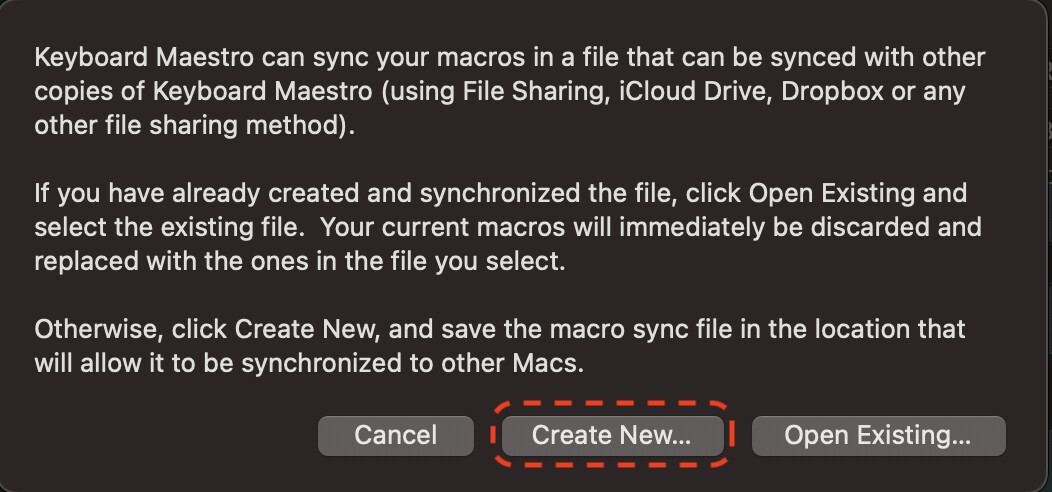
This will bring up the standard Mac Navigation Dialog, where you can navigate to a Folder on your Dropbox (where you want to store the Sync File).
- Now, on the second Mac (the one that you want to replace all its Macros with your Master version you just made) you do the same steps but choose "Open Existing..."
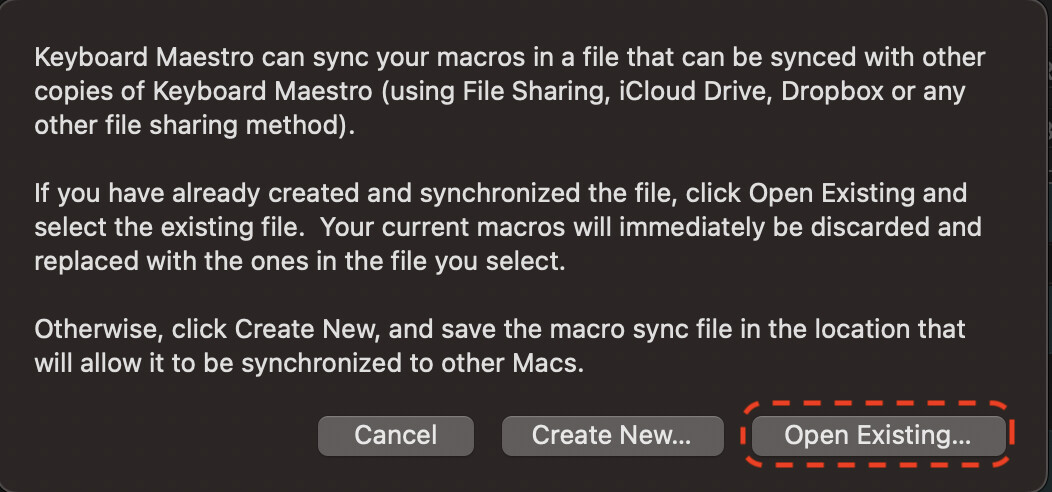
You will get a warning that this will replace all the Macros on this machine.
From here, you navigate to the Sync File that you made in step 1. And you select it. It will look like this:

The really important thing to bear in mind is that each additional Mac you add to the syncing will initially have all its Macros replaced by you Master sync version.
But from now on all the Macros will stay in sync, no matter which of the Macs you make changes on. You can add additional Macs by repeating step 2.
If you already have two Macs, with very different collections of Macros, before trying to sync you need to make sure you have all the Macros you want on the first Mac by manually copying them over. In other words, make the KM Library on the first Mac exactly as you want all your Macs to be going forward before you attempt any syncing.
And... make sure Dropbox has fully done all its syncing of files before adding Mac 2.
Which leads to... always a good idea to have backups before you attempt any of this... 
It's also worth reading through this:
https://wiki.keyboardmaestro.com/manual/Macro_Syncing?s[]=sync