This is my first post here, and I have to say I dont know why it has taken me so long to get into KM!!
Anyway, my issue is that I am using a trigger to execute a JS file inside Chrome. The JS is good, and executes if I manually use it in Dev tools/console, and also works as a standalone trigger inside my Macro.
However, when it is being executed as a part of my Macro, it does not execute. The exact same one does execute earlier on in the same macro (the JS is looking for a button with text content).
I found that if I insrted a simulate cmd+R before the action, it does work!
I am happy to supply the JS code, but it is all valid, and as I say runs in isolation, but not without forcing a browser refresh.
I am sure there are others with this issue, so keen to hear any replies!
Thanks in anticipation!!!
I don't understand what you mean that "it works inside my macro" but "not as part of my macro"...
Without seeing your JavaScript code and understanding what you are trying to do, we can only begin by ruling out potential issues.
If a Cmd+R refresh fixes it, maybe it means that your macro is just running too fast for the browser. The JavaScript is firing before the button it's looking for has even appeared on the page. When you run it by itself, the page is already sitting there, loaded and with all the elements ready.
1. Add a Pause [Quick Fix]
If you want something simple, you can just toss in a "Pause" action for a second or so right before the JavaScript step. A slightly smarter version is using "Pause Until" with the "[BROWSER] to Finish Loading" condition. It's better than a fixed delay but might still not be enough for pages that load stuff in the background.
2. Wait for the Element
Instead of a blind pause, adjust your JS code so that it waits for the DOM content to be loaded or even better, for the X element to exist. This way, the macro waits perfectly every time, whether the page loads fast or slow.
And just to cover all the bases, the other points raised are great things to keep on a checklist:
- Allow JavaScript from Apple Events: As mentioned, this is a classic gotcha.
- KM Variables: If you're using a KM variable in your script, just double-check if it is "included" in your script and if the syntax is right:
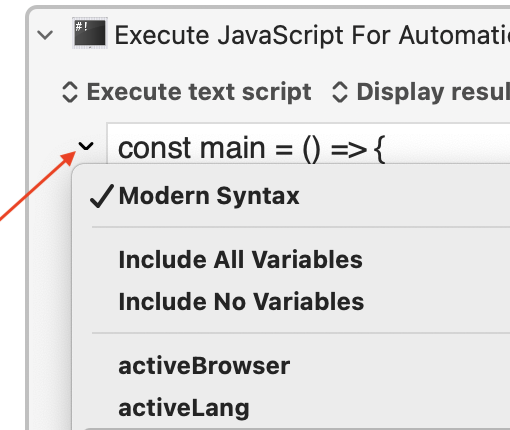
- Modern syntax: kmvar.Your_Variable_Name
- Non-modern syntax: document.kmvar.Your_Variable_Name
- Getting Data Back: And if you're trying to pull info out of the page and your script uses the "modern syntax", it needs to have a "return" statement at the end.
Does it not execute? Or does it execute but error, or execute and return an unexpected result, or something else?
Possibly not, since "it happens then it doesn't happen" sounds particular to the web page you are running it in and the context at the time.
If you can't link to the web site this is happening on and provide the macro (instructions on how to upload a macro: How to Post/Upload your Macros and Scripts), perhaps because it requires a login or there's "private" data involved, see if you can write a minimal web page and macro that demo the problem -- that shouldn't be difficult if you're a JS coder.
Hi @JuanWayri
Thanks for the reply. What
What I meant is that if I just select that trigger in my macro, and just run that 1 trigger, with the page open that should be targetted, it will select the menu item. However, letting the complete macro run, this trigger has no effect and does not click the button.
I did add a pause, and that made no difference. I also added a wait for chrome to finish loading for at least 3 seconds, and that too made no difference.
The issue is I know the element exists. The same button was pressed earlier in the same Macro, using exactly the same trigger (copied and pasted it) and the base HTML page has not changed, the element is always there.
I will attempt to create a small video showing this. Unfortunately the site is not a publicly accessible one, so I cannot share that, but I will supply the code when I can later.
Regarding variables, I am using them, and I construct the JS code as a physical file from a JS template on my Mac with the variables, then this variable-less JS is the one I load. I have had issues using the execute JS from using raw inline code inside the macro.
Thanks for the suggestions!
Hi @Nige_S
The JS does run, as I am seeing my Console logs saying whats happening, and even reports back the click was successful, but it wasn't.
I will provide the code, and a recording of what is happening a bit later, I may not be able to provide access to the site as it is a SAAS platform I am using this with.
Thanks for the reply!
Here is a quick video showing what I am doing:
And here is the JS file I am using...
script_class.js.zip (1.8 KB)
I can supply the Macro group if needed...
It might be a timing issue. Try inserting a delay before the click. This happens to me all the time and that's one way to fix it.
I can see what you mean. Could you try to use the script below, not as a JS file but just as a script? I have made some changes to deal with:
- Race Conditions (setInterval instead of setTimeout).
- Element Obscuration (Being Covered by Another Element).
- Element Not Truly Interactive. The element might be found and visible, but it may not be in an interactive state when the click is attempted.
- Framework-Specific Event Handling. Your script tries to detect framework attributes (ng-click, etc.), but it only logs them, it doesn't have a reliable way to trigger them.
Modified Javascript - VERSION 1
// --- CONFIGURATION ---
var TARGET_SELECTOR = ".Avatar"; // Use a full CSS selector for more precision. E.g., "#main-content .Avatar"
var MAX_WAIT_TIME = 5000;      // Maximum time to wait for the element to be ready (ms)
var POLLING_INTERVAL = 100;    // How often to check the element's state (ms)
// --------------------

console.log("Searching for element with selector:", TARGET_SELECTOR);

function performEnhancedClick(element) {
    // Get element's center coordinates
    var rect = element.getBoundingClientRect();
    var x = rect.left + rect.width / 2;
    var y = rect.top + rect.height / 2;

    // --- Pre-click verification ---
    // 1. Check if another element is on top (obscuring it)
    var elementAtPoint = document.elementFromPoint(x, y);
    if (!element.contains(elementAtPoint)) {
        console.error("Click failed: Element is obscured by another element:", elementAtPoint);
        return; // Stop if something else will receive the click
    }

    // 2. Check for disabled state
    if (element.disabled) {
        console.error("Click failed: Element is disabled.");
        return;
    }

    console.log("Performing enhanced click at:", {x, y});

    // Create and dispatch a full mouse event sequence
    var eventSequence = ['mousedown', 'mouseup', 'click'];
    eventSequence.forEach(function(eventType) {
        var event = new MouseEvent(eventType, {
            bubbles: true,
            cancelable: true,
            view: window,
            button: 0,
            buttons: 1,
            clientX: x,
            clientY: y
        });
        element.dispatchEvent(event);
    });

    console.log("Enhanced click sequence completed.");
}


var startTime = Date.now();

// Use a polling function instead of a fixed setTimeout
var intervalId = setInterval(function() {
    if (Date.now() - startTime > MAX_WAIT_TIME) {
        clearInterval(intervalId);
        console.error("Element not found or not ready within the time limit (" + MAX_WAIT_TIME + "ms)");
        return;
    }

    // Try to find the element
    var element = document.querySelector(TARGET_SELECTOR);
    if (!element) {
        // Fallback to partial match if exact selector fails
        var partialSelector = '[class*="' + TARGET_SELECTOR.replace('.', '') + '"]';
        element = document.querySelector(partialSelector);
    }

    if (element) {
        // Element is found, now check if it's ready
        element.scrollIntoView({ behavior: 'instant', block: 'center' });

        var style = window.getComputedStyle(element);
        var isVisible = style.visibility !== 'hidden' && style.display !== 'none' && element.offsetWidth > 0;
        var isClickable = style.pointerEvents !== 'none';

        if (isVisible && isClickable) {
            console.log("Element found and appears ready:", element);
            clearInterval(intervalId); // Stop polling

            // A tiny delay after scrolling can still help with rendering quirks
            setTimeout(() => performEnhancedClick(element), 100);
        }
    }
}, POLLING_INTERVAL);
This second version may be more robust.
VERSION 2
// Click Script

// --- CONFIGURATION ---
var TARGET_SELECTOR = ".Avatar"; // Use a precise CSS selector. E.g., "#main-content .user-profile .Avatar"
var MAX_WAIT_TIME = 5000;     // Maximum time to wait for the element to be ready (ms)
var POLLING_INTERVAL = 100;    // How often to check the element's state (ms)
// --------------------

console.log("Searching for element with selector:", TARGET_SELECTOR);

/**
 * Checks if an element is visible, not disabled, and not blocked by pointer-events
 * on itself or any of its parent elements.
 * @param {HTMLElement} el The element to check.
 * @returns {boolean} True if the element is ready to be clicked.
 */
function isElementReadyAndClickable(el) {
    if (!el) return false;

    // 1. Check for basic visibility and size
    var rect = el.getBoundingClientRect();
    if (rect.width === 0 || rect.height === 0) {
        // console.log("Element has zero size.");
        return false;
    }

    // 2. Check for explicit `disabled` property (for buttons, inputs, etc.)
    if (el.disabled) {
        // console.log("Element is disabled.");
        return false;
    }

    // 3. Walk up the DOM tree to check for `pointer-events: none`
    let currentEl = el;
    while (currentEl) {
        const style = window.getComputedStyle(currentEl);
        if (style.pointerEvents === 'none') {
            console.error("Click blocked: An element in the hierarchy has 'pointer-events: none'.", currentEl);
            return false;
        }
        if (style.visibility === 'hidden' || style.display === 'none') {
            console.error("Click blocked: An element in the hierarchy is not visible.", currentEl);
            return false;
        }
        currentEl = currentEl.parentElement;
    }

    return true;
}

/**
 * Performs a robust click by using multiple strategies to trigger framework event listeners.
 * @param {HTMLElement} element The element to click.
 */
function performRobustClick(element) {
    var rect = element.getBoundingClientRect();
    var x = rect.left + rect.width / 2;
    var y = rect.top + rect.height / 2;

    // Pre-click check: Ensure nothing is physically covering the element's center.
    var elementAtPoint = document.elementFromPoint(x, y);
    if (!element.contains(elementAtPoint)) {
        console.error("Click failed: Element is obscured by another element at its center:", elementAtPoint);
        return;
    }

    console.log("Element appears ready and unobstructed. Performing robust click...");

    // Strategy 1: Focus the element first. Some listeners are attached on focus.
    element.focus();

    // Strategy 2: Dispatch a full mouse event sequence for low-level listeners.
    ['mousedown', 'mouseup'].forEach(function(eventType) {
        var event = new MouseEvent(eventType, {
            view: window, bubbles: true, cancelable: true, buttons: 1, clientX: x, clientY: y
        });
        element.dispatchEvent(event);
    });

    // Strategy 3: Use the native .click() method. This is the most effective for triggering
    // high-level framework events (e.g., React's onClick, Vue's @click).
    element.click();

    console.log("Robust click sequence completed.");
}

// Main execution logic with polling
var startTime = Date.now();
var intervalId = setInterval(function() {
    if (Date.now() - startTime > MAX_WAIT_TIME) {
        clearInterval(intervalId);
        console.error("Element not found or not ready within the time limit (" + MAX_WAIT_TIME + "ms)");
        return;
    }

    var element = document.querySelector(TARGET_SELECTOR);
    if (!element) {
        // Optional: fallback to partial match
        element = document.querySelector('[class*="' + TARGET_SELECTOR.replace('.', '') + '"]');
    }

    if (element) {
        // Element is in the DOM, now check if it's truly ready
        if (isElementReadyAndClickable(element)) {
            clearInterval(intervalId); // Stop polling, we found our target

            element.scrollIntoView({ behavior: 'instant', block: 'center' });

            // A final, small delay after scrolling ensures the browser has finished rendering.
            setTimeout(() => performRobustClick(element), 100);
        }
    }
}, POLLING_INTERVAL);
Hi @JuanWayri Many thanks for that. Silly question, can you explain what you mean by:
I am sure its obvious to others, but I am fairly new to KM!
Thanks again
I wanted to say: "Execute text script".
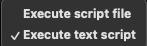
Gotcha! I will, but I have to say, I have had times where this was not executing as an inline script, thats why I opted for external scripts. I will try a bit later when I get a moment!
Thanks for the clarification!
I attempted with both your scripts, and I get the same results. No errors in the console, but the button was not selected. Again, if I right-click, and use the Try Action with the web page in the correct state it does trigger the button ok.
I am going to keep digging, but any more tips would be great!
Hey @JuanWayri It looks like I found the reason, for some reason navigating to the Avatar after the Settings button does NOT select the Avatar!! It needs either a second click! I will probably just change the order I am clicking the buttons for now! Thanks for your input, and sorry to have wasted your time..
I shouldn't speak for Juan, but I don't think you need to worry about wasting someone's time.
Otherwise I would have to apologize for you for giving you a faulty suggestion. I wasted your time.
Just gonna leave this here...
Not quite...
When you refresh the page the selected "tab" changes from "SETTINGS" back to "APPS" -- you're forcing a different context for the JavaScript. So a simple fix could be to do whatever on the "SETTINGS" tab, activate the "APPS" tab using a duplicate of that step from earlier, then click the avatar.
Edit to add:
B*gger -- I got so engrossed in the video I didn't see that OP had already come to the same conclusion!
Thanks mate! Much appreciated 
Thanks @Nige_S I am glad I created some engrossing content!!!