Question: Is there any way to trigger the Keyboard Maestro editor to jump to a specific subroutine?
Context: For my increasingly complex (well, at least for my current programming skill level) macros, I make excessive use of subroutines to separate my macros in smaller (and easier to manage) reusable code segments.
However, this means that in order to "read" my macro in the KM editor, I often have to change to my subroutine folder, search for the correct subroutine and open it. Then, I check the actions inside the subroutine and jump back to the main macro a couple of seconds/a few minutes later. I have to do this rather often.
Is there a faster way to do this?
Proposal: I was thinking of a KM feature available in the right-click menu of each "Execute Subroutine" action which triggers the KM editor immediately to open the called subroutine. However, this is just an idea. If there is another fast way to jump between macro and subroutines, I am happy to hear about that too.
I don't have a direct answer, but using a second editor window is how I manage the process. I keep the main macro in one, and browse other related macros in the other.
I have some advice, which works for me. Of course, you may already know this, but the KM Debugger lists every line of every active action in both the parent macro and the subroutine macro. In order for me to help identify which macro each line is located in, I often use the Group action to tell me the name of the macro, or I put some sort of ID as the title of the Group action, because the debugger shows me the title of the Group action, which helps me to know what I'm executing.
My only (minor) complaint is that the KM Debugger doesn't go deep enough, in terms of its indentation levels.
In the dropdown menu where you choose which macro or subroutine to execute, there’s a handy "Go to Macro" button:
While it would be great to have this directly in the menu bar, I’ve created a simple macro to trigger it manually. It just clicks the dropdown, then presses the right arrow and Enter.
@ComplexPoint has created a macro to Go To Subroutine/Macro here:
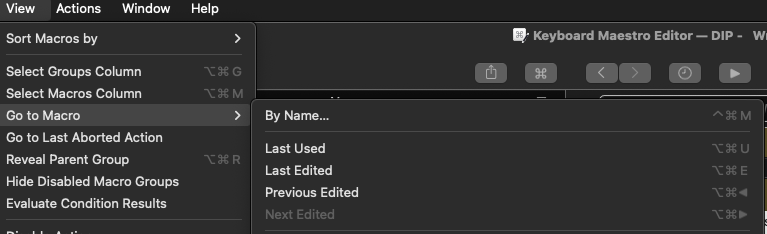
I also recommend getting familiar with the "Go to Macro" shortcuts, they’re useful for quickly jumping to the last used or recently edited macros:
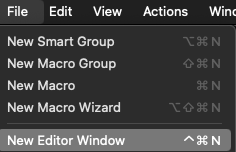
When working with multiple macros, I often open a New Editor Window and arrange them side by side or move them to another monitor. This makes switching between them much more efficient.
I have tried that route too, but have found that managing it all can get just a little tricky in KM, so I do not like have as many subroutines as I would otherwise. If complexity per macro is a greater issue than reusability (or perhaps of more significance, version control?), I would recommend using the group action to compartmentalize code. Groups of actions can then be named and collapsed so that the details need not be seen when they are not needed.
I used to rely on that method, but it requires clicking a dropdown and then selecting a small menu that disappears if the focus changes. To make it easier, I even created a simple macro that simulates a click, presses the arrow key, and hits Enter. However, the ComplexPoint macro is more accessible, thanks to Fitts’ Law. With it, I can click anywhere in the macro area and trigger it with a single shortcut. The larger target area greatly improves usability.
I really appreciate how feature-rich Keyboard Maestro is, and it’s a bit sad that many people don’t take full advantage of it. Often, it’s simply because we don’t realize what’s available. For example, the option to restrict which variables are included in a script: many assume it’s just for collapsing the script, especially because it uses the same icon, in close proximity, that collapses actions and groups.
I like the current icon because it's minimalistic and clearly expands a list of variables below, but newcomers might not realize it's not intended for collapsing.
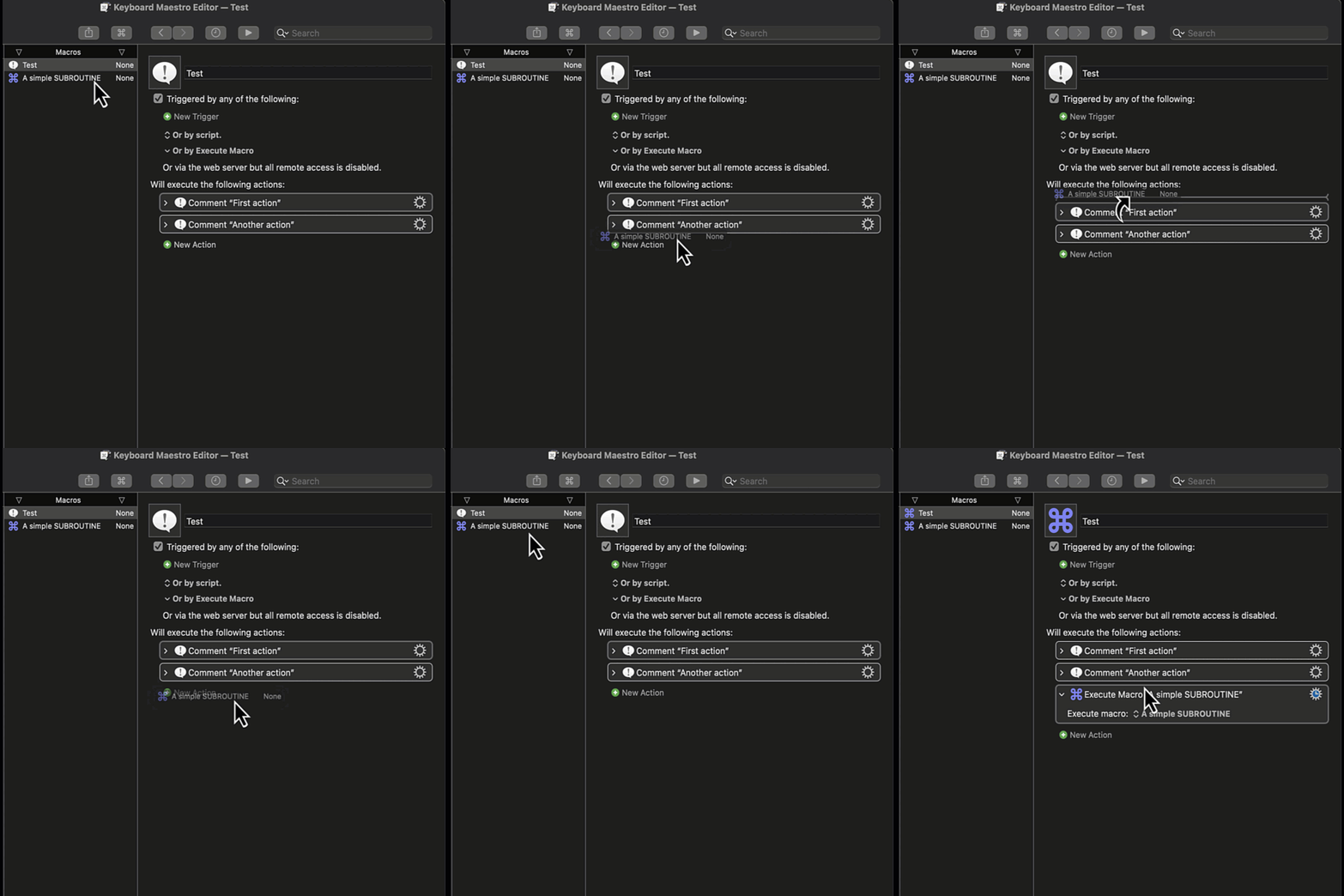
If you use @griffman's suggested method you can then drag the required subroutine to the correct place in the macro you are editing and the "Execute Subroutine" action will be created for you, set to execute sub you dragged in. Much faster than wading through many menu items!
Oh, I actually tried dragging a macro from the list once and it didn't work. After reading your post I tried again and found out that the space below the "+ New action" button isn’t a valid drop zone. It only works if you drop the macro above that button or between existing actions, then it gets recognized as a valid drop zone and creates a new Execute macro/subroutine action.
@peternlewis, it would be nice if we could drag and drop macros BELOW the "+ New action" button.
Try with bigger actions -- it's not obvious in your demo but it works anywhere between the "Will execute the following actions:" and the "New Action" UI elements, and if you're over another action the insertion point will be above if you are somewhere over the top half of the action and below if over the bottom half. You don't have to hit the gaps inbetween actions.
For anything but the shortest macro, below "New Action" is going to have the least affordance available.
I didn’t mean to suggest that dropping between actions was the intended behavior, that’s why I only recommended adding a valid drop zone below the “+ New Action” button.
And you are right, this is only relevant for short macros.
Just wanted to say thanks to all of you for the great advice and fruitful discussion.
Let's summarize: In order to quickly jump to a subroutine called by a macro, the following options are available (list most likely not exhaustive):
Opening a second editor window side-by-side (and displaying that specific subroutine) (^⌘N)
Using the "Go to Macro" button which is available in the drop down menu of the "Execute Subroutine" action (build-in feature) (Link to post)
Using a dedicated macro to make option 2) a one-hotkey action (Link to post)
Using one of the "Go to Macro" menu commands (Link to post)
Using the "back and forth" history buttons (but only works if the subroutine was last edited) (not mentioned yet, I think, so I just added this option)
Except for option 1) and 5) which I already use (option 1) not not so often ... as I often work on a 14" screen where two windows just take up to much space), I was not aware of any of these options. So thank you all again for the great new options!
Fun fact -- you can start your drag from one window and, without releasing the mouse button/trackpad click, ⌘` to cycle through the other app windows. Bring the one you want to the front and drop into it.
This isn't a KM-only thing, it should work with any proper Mac app that supports drag'n'drop.
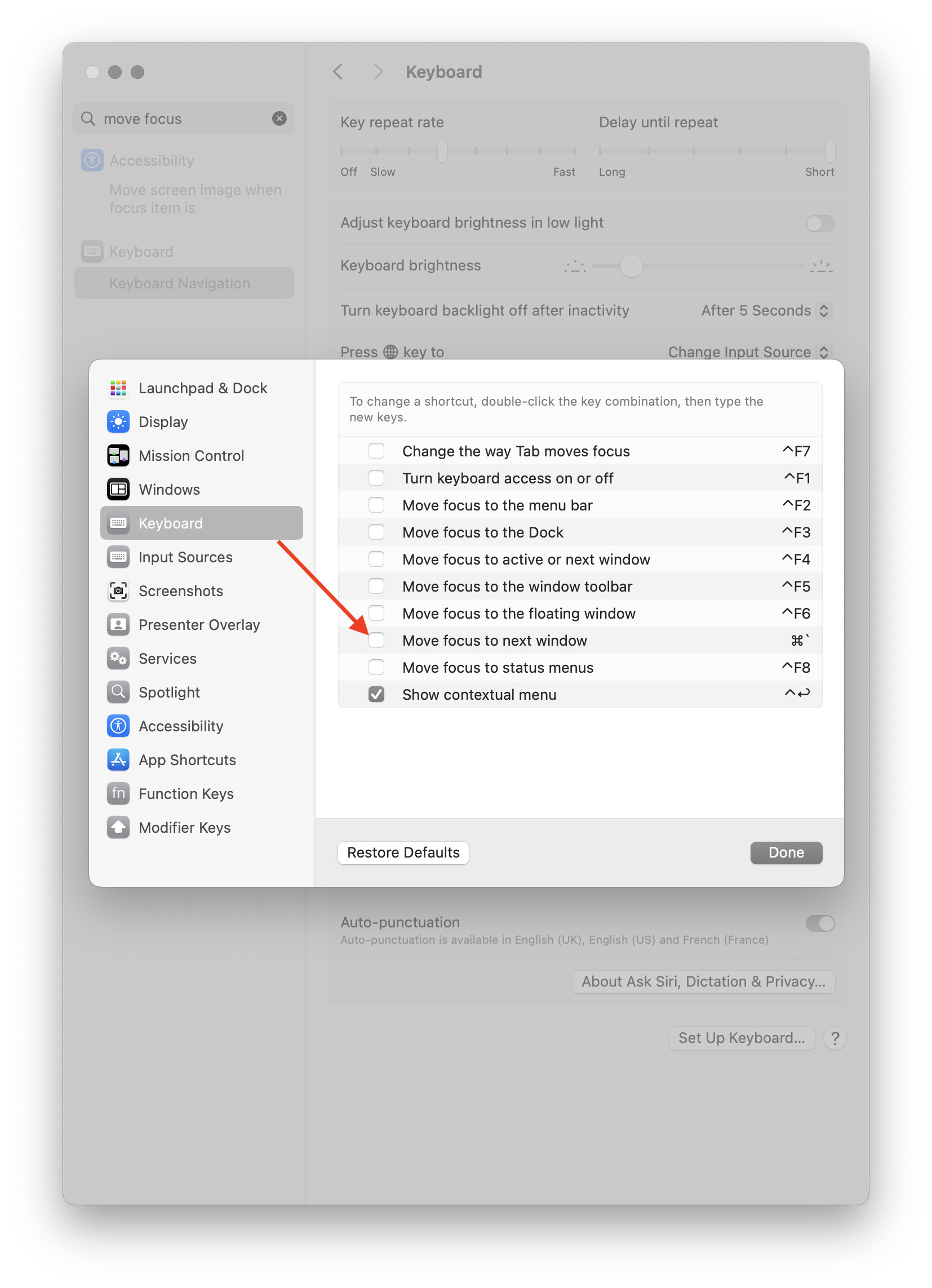
The default is for all those to be on, so you (or a utility) must have turned things off at some point.
Maybe, but the built-in is available to everyone on any machine (unless they've also turned it off!). IMO it's good to know what the base install can do, then decide if you want to expand on that.
I don't know why the "Cycle Through Windows" menu item appears in Finder but not elsewhere, but it does work in most apps. I've been using it in OSX for as long as I can remember -- here's a post from 2010, and I've a feeling it's been available since the very first release.
While I agree that it's useful to understand what a machine can do out of the box, I believe ComplexPoint, and most users on this forum, can implement a more robust long-term solution for something that it is as essential as switching apps/windows. IMO, the built-in "Move focus to next window" command has several limitations:
It CYCLES through other windows of the same app, as you noted, which means if you have multiple windows open, you'll need to press it several times. This might not be a big issue for KM, since it works best with fewer editor windows, but with apps like Finder, browsers, or office/code apps, it quickly becomes frustrating.
It does NOT cycle through MINIMIZED or hidden windows.