This doesn’t seem like a Keyboard Maestro issue, but juts in case it might be, I thought I’d post what’s happening.
I have want to monitor the status of two Mac minis, and my own MacBook Pro, which as a byproduct also monitors the aliveness of Keyboard Maestro engine running on those three machines.
Every minute, all three machines write the current timestamp to a file on a remote server, my executing a text script to ssh into the machine.
Then, every hour, my MacBook Pro reads those timestamps from the remote server, compares to the current time, and alerts me if the difference is greater than some threshold, maybe 30 minutes. (If a machine is possibly down, the macro won't alert me again until it’s back up.)
This works great, as long as I’m using the MacBook Pro. In the evening, when I retire for the night I get alerted by the script on my MacBook Pro that it failed to find any of the three timestamp files on the server, which would seem to indicate that the macro running on the MacBook Pro isn’t reaching the server.
As soon as I start using the MacBook Pro, and that script runs, it immediately alerts me that all three machines are back online.
Would anyone have any ideas why this might be happening? The MacBook Pro successfully does other network activity when I’m away, like downloading email, receiving messages in various chat apps, etc.
When you are not “using” the MBP (I presume that means using input devices, e.g. keyboard), does it sleep? Keyboard Maestro’s engine does not run while the Mac it is running on is sleeping so that could be a factor. Have you checked the Engine’s log for error reports there?
I wonder then what bearing “using” versus “not using” the MBP has on the issue, and if it really does.
Do the remote (monitored) Macs, or the connection to them, “sleep” or change state in some way after an extended period? I am just wondering whether we can be sure that the problem is solely to do with the MBP not being used, or whether it is connected with passage of time in some way!
The other two Macs are headless Mac minis. They continue to successfully write their data to the server 24/7.
Yes, thanks for the recommendation. I see this each minute, when I’m not actively on the MacBook Pro:
Permission denied (publickey,password)
Note that the server only allows SSH key access. The SSH keys of the user under which KM is running on each machine have been added to authorized_hosts on the server (and from the Terminal can successfully login, as well as KM, at least on the MacBook Pro, when I’m not using it. )
As a test, try disabling screen-locking if you can -- set "Require password after screen saver begins..." to "Never" in System Settings... Lock Screen. I've got a feeling your KeyChain is getting locked when the screen saver starts or the display sleeps.
See if you can set up "passwordless ssh" from the three clients to the server -- lots of guides out there, this one just happened to pop up first -- to avoid the problem altogether.
Yes, but that's "protected" by a passphrase, which is kept in your KeyChain, which is locked when your Mac is locked. Can you set it up again but without the passphrase? If only for a test?
Wrong thing -- I mean the Action you are using to connect to the remote server. Is that an "Execute Shell Script" containing an ssh command, an "Execute AppleScript" that then drives Terminal to do the ssh, something else?
Could you put the files into a webserver-readable directory and curl them instead (keeping ssh for the writes, obvs)?
OK, thanks (also @fap), this is likely what is happening. This is my primary SSH key, so would I need to create a second one (is that even possible) that is not passphrase protected, and then put that one on the server as well?
I have 1Password, with the SSH thing enabled, but have no idea how that works. Would that be a solution here? If so, would you be able to explain how it works and how to get it going? (And if it’s too long/complicated to explain, no worries!)
It does not help you in this case. The whole idea of using 1Password is that it is password protected to get access to your SSH keys.
Yes, indeed that is the solution. It is quite trivial to create another SSH key pair without a passphrase.
ssh-keygen
Generating public/private ed25519 key pair.
Enter file in which to save the key (/Users/fred/.ssh/id_ed25519): /Users/fred/.ssh/without-passphrase
Enter passphrase for "/Users/fred/.ssh/without-passphrase" (empty for no passphrase):
Enter same passphrase again:
Your identification has been saved in /Users/fred/.ssh/without-passphrase
Your public key has been saved in /Users/fred/.ssh/without-passphrase.pub
That’s it. I changed the name of the output file to prevent overwriting an existing key. Also by naming it 'without-passphrase' it is very clear what your intent is.
On the question of the passphrase just hit enter.
As a final task you have to add the public file in your server in the file .ssh/authorized_keys or .ssh/authorized_keys2 on some systems.
Thanks so much for taking the time to explain all that! I’ve followed the instructions and have installed the new key in authorized_keys. Looking forward to seeing if that works! (Interestingly, this hasn’t been a problem on the headless minis, so perhaps they simply don’t lock!)
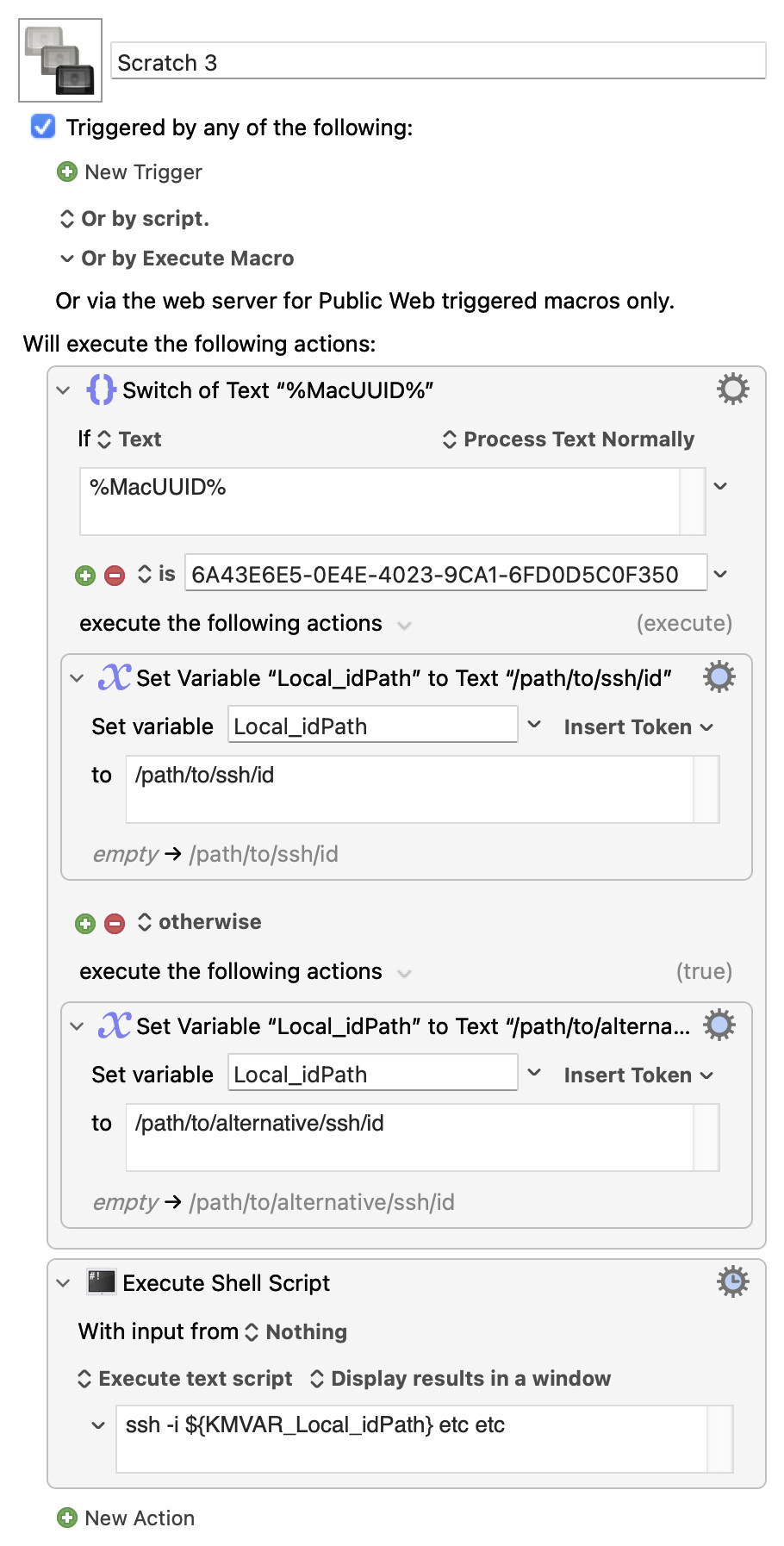
I didn't see it mentioned, but when you go to use ssh you tell it which of your key-pairs to use via the -i ("identity") option.
In future, consider whether you need a passphrase or not. If it's a compliance requirement then you must, end of discussion, unless there's an exemption procedure for certain use-cases. If the client machine, holding your private key, has admin-level users other than yourself then I would also use a passphrase -- not because I don't trust them, but because their credentials might get compromised.
But most Mac users have a single-user machine which should already be protected by a strong password and FileVault, and locked whenever unattended. Adding another layer of security above that is a good idea, but you're now into the "convenience vs security" balancing act and many factors are in play that could tilt you one way or the other.
Since the ssh command is used by all machines (since the macros are sync’d), I don’t think I can use that option, unless I named passphrase-free keys on all machines the same?
Well, it sounds like I don’t. Years ago, when I updated my old RSA key to this more modern format, and was asked for a passphrase, I guess I just presumed I would need one. From what you write, just single user machines, I suppose I don't!
You can still do it, though it is a little more complicated. In the macro, set a variable to the appropriate key for the machine the macro is running on (perhaps a "Switch/Case" Action testing the %MacUUID% token), then use that variable in your "Execute Shell Script" Action.
If, for some reason, ssh doesn't handle a variable for -i then just have a multiple "Execute Shell Script" Actions, each including the appropriate identity for one of the machine, and pick which script to execute with the Switch/Case.
I will give that a try. Separately I’ve been using $KMVAR_variable in my text scripts and I see you’re using ${KMVAR_variable}. Mine does not work if wrapped in single quotes; only double quotes. If your method more general, and should work everywhere?
Wrapping the variable name with { and } separates the variable name from whatever follows, making it easier to read and removing any ambiguity when the shell parses the command.
It isn't generally necessary, but I've got into the habit of using them all the time so I don't get caught out when they are needed.
This is something different. The shell treats everything inside single quotes as literal text, so the $ is just a "$" and not a "here comes a thing to evaluate" marker.
Double-quotes are for when you want to treat a space as a space within the string -- normally the shell treats a space as an argument separator. So if you have "My File.txt" on your Desktop:
~ % ls ~"/Desktop/My File.txt"
/Users/nigel/Desktop/My File.txt
(Notice that the ~ is outside the double-quotes -- if it is inside it doesn't get expanded!)
But:
~ % ls ~/Desktop/My File.txt
ls: /Users/nigel/Desktop/My: No such file or directory
ls: File.txt: No such file or directory
...and you can see that, because the path is split on the space it is treated as two separate arguments by ls and neither file exists.
Should do -- it really depends on where you like your customisations stored.
In this case, where you only need to customise for your laptop, it makes sense to do so in the ssh config file. But keep the "branch by %MacUUID%" trick in your back pocket for all those other synced macros that will have machine-dependent options.


 )
)