MACRO: Set Sound Input, v3.0

PURPOSE

This macro/subroutine, when executed from another macro using the Execute a Macro action, sets the Macintosh Sound Input to a specified name. This can include Apple HomePods and other AirPlay devices. Note that this shortcut uses AppleScript that automates the User Interface, specifically the System Preferences (Monterey or earlier) or System Settings (Ventura+). See Automating the User Interface (Mac Automation Scripting Guide: Automating the User Interface) for more information.

If this subroutine is called using Execute a Subroutine action, additional features are provided that can be useful if the macro is combined with Set Sound Output. See PARAMETERS below.

SUBROUTINE PARAMETERS

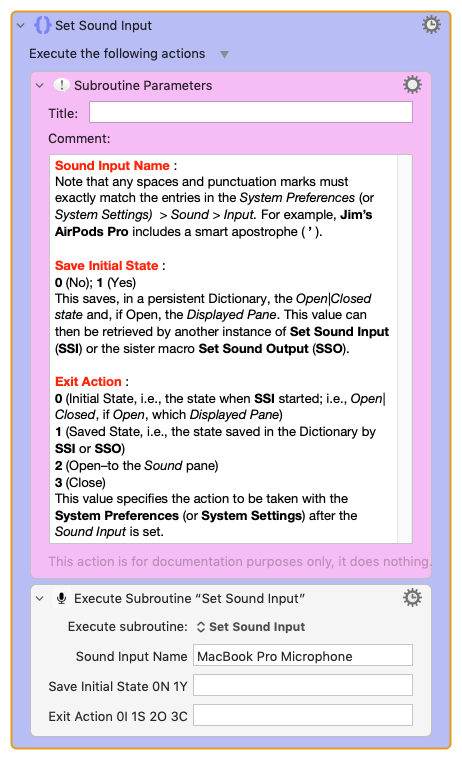
Sound Input Name :
Note that any spaces and punctuation marks must exactly match the entries in the System Preferences (or System Settings) > Sound > Output. For example, Jim’s AirPods Pro includes a smart apostrophe ( ).

Save Initial State :
0 (No); 1 (Yes)
This saves, in a persistent Dictionary, the Open|Closed state and, if Open, the Displayed Pane. This value can then be retrieved by another instance of Set Sound Input (SSI) or the sister macro Set Sound Output (SSO).

Exit Action :
0 (Initial State, i.e., the state when SSI started; i.e., Open|Closed, if Open, which Displayed Pane)
1 (Saved State, i.e., the state saved in the Dictionary by SSI or SSO)
2 (Open–to the Sound pane)
3 (Close)

This value specifies the action to be taken with the System Preferences (or System Settings) after the Sound Input is set.

CREATING A CALLING MACRO

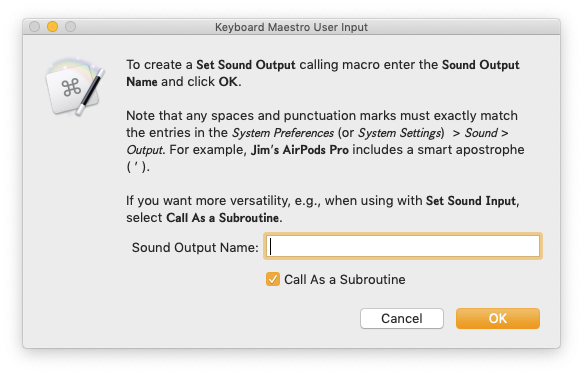
If the macro is executed directly (e.g., from the Keyboard Maestro Editor), a dialog will appear that presents an option to create a calling macro. The dialog will prompt for the Sound Input Name. Note that any spaces and punctuation marks must exactly match the entries in the System Preferences (or System Settings) > Sound > Input. For example, Jim’s AirPods Pro includes a smart apostrophe ( ).

If the Call As a Subroutine dialog checkbox is selected, the created macro will have the flexibility to use the SUBROUTINE PARAMETERS described above.

LOCALIZATION

By default, the AppleScript User Interface Scripting is set for English. If another Language is set under System Preferences (or System Settings) Language & Region, the variable local_Pane needs to be set to Sound|Geluid|Ton (English, Nederlands, or Deutsch). Other languages could be easily added.

LIMITATIONS

This macro requires Keyboard Maestro v10.0+.

TESTED WITH

• Keyboard Maestro 11.0.2
• Tahoe 26.0.1 (25A362)/MacBookPro18,2

VERSION HISTORY

( expand / collapse )

1.0 - Initial version; compatible with Set Sound Output, v6.0 or later. For more information see: Using 'Set Sound Output' and 'Set Sound Input' Together

2.0
a) Support for macOS 14 (Sonoma): new AppleScript UI script compatible with Sonoma (slightly different than Ventura).
b) For the local__Exit Action 0I 1S 2O 3C = 2 condition, removed the Cancel Just This Macro action as I discovered that this does not function as expected when used within a subroutine. This action might be changed in a future version of Keyboard Maestro (reference).

2.1
a) In one of the If Then Else actions "Sound" was hardcoded. This has been changed to local_Pane to properly accommodate the macro localization.
b) For some unknown reason, with Sonoma 14.2.1 (23C71), the gui hierarchy can differ on some some macs; the AppleScript within this macro now accommodates both. For more information, see: Why would UI scripting vary on two Macs with the same version of macOS? - AppleScript - Late Night Software Ltd. This issue was actually discovered and reported by @OneEyedJack for the sister macro Set Sound Output.
c) For all of the AppleScripts, to improve performance, changed fixed delays to 'repeat until exists'.
d) For Ventura and Sonoma AppleScripts, changed 'starts with' to "is' when checking for a matching Sound Input.
e) Deleted some disabled groups that had mistakenly been retained.

8.0
Updated for macOS Tahoe.


If upgrading from an earlier version of Set Sound Inout, please read the following before downloading:

From within the Keyboard Maestro Editor, delete your existing copy of Set Sound Input before you download and install the new version. On the other hand, do not delete your calling macros.


Download: Set Sound Input.kmmacros (174 KB)
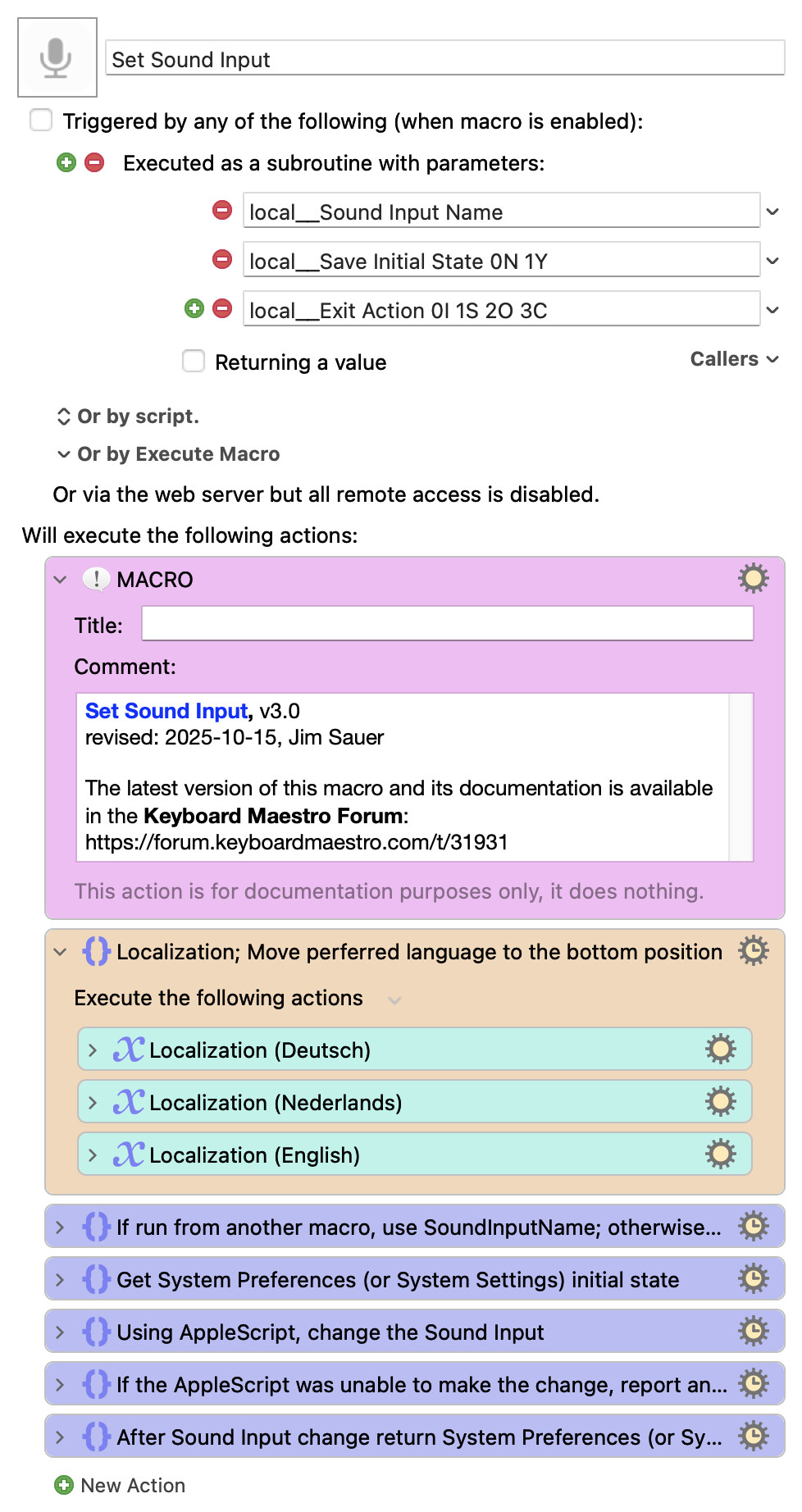
Macro-Image


Macro-Notes
  • Macros are always disabled when imported into the Keyboard Maestro Editor.
    • The user must ensure the macro is enabled.
    • The user must also ensure the macro's parent macro-group is enabled.

System Information
  • macOS 26.0.1 (25A362)
  • Keyboard Maestro v11.0.4

1 Like

Using 'Set Sound Output' and 'Set Sound Input' Together

When macros Set Sound Output (Version 6.0+) and Set Sound Input (Version 1.0+) are used together and called as subroutines, both sound settings can be set with minimal manipulation of the System Preferences (or System Settings).

For example, suppose the System Settings Privacy & Security pane is open. A macro that calls Set Sound Output (SSO) and Set Sound Input (SSI) could change the two settings and return to the Privacy & Security pane in just a few seconds.

Here are the steps:

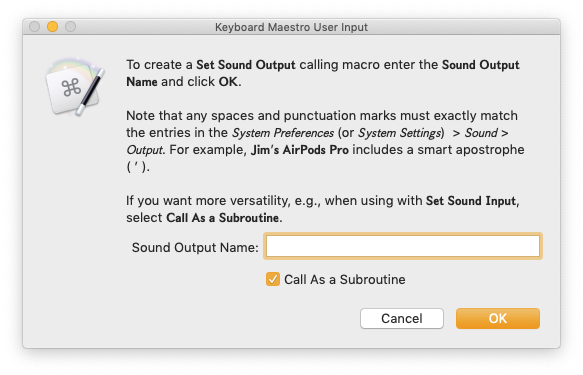
  1. Both SSO and SSI can create macros that call themselves by simply executing them from the Keyboard Maestro Editor. For example, if SSO is executed from the editor, the following dialog appears:

2023-05-09 01.40.19

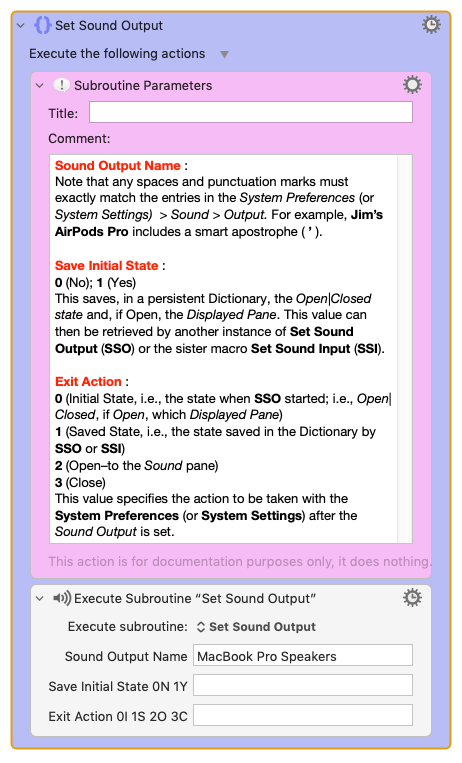
If MacBook Pro Speakers is entered, the following macro is created.

Keyboard Maestro Export

  1. Likewise, if SSI is executed from the editor, the following dialog appears:

2023-05-09 01.46.05

And if MacBook Pro Microphone is entered, the following macro is created.

Keyboard Maestro Export

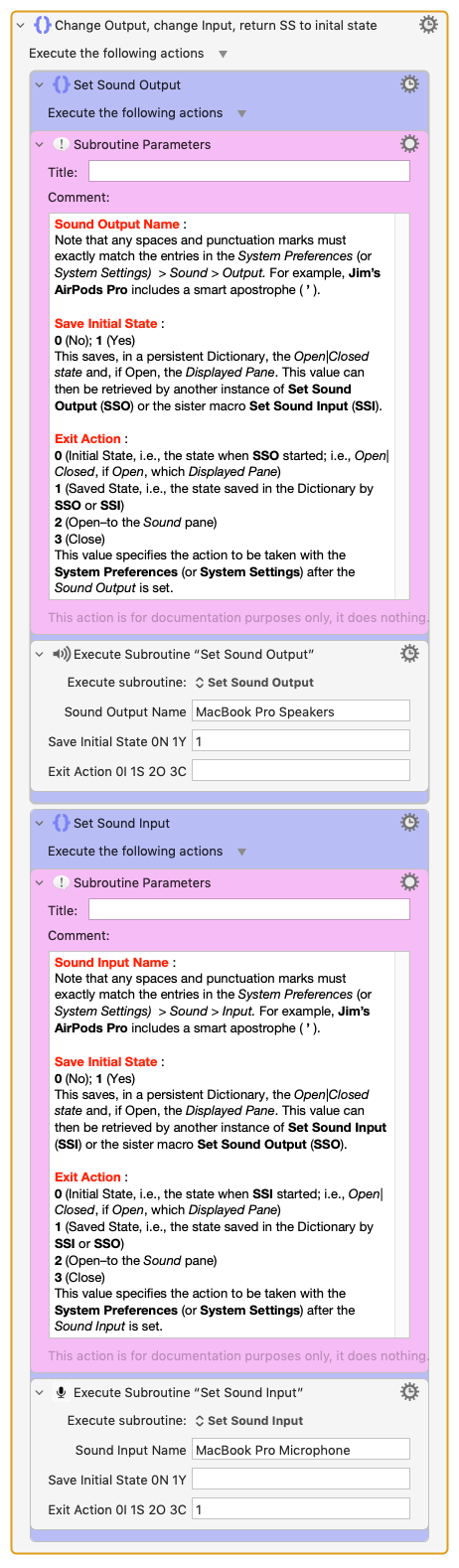
  1. If the two macro are combined and the parameters are set as depicted, the combined macro would save the current state of the System Settings (in this hypothetical, open to the Privacy & Security pane), change the Sound Output, change the Sound Input, and return the System Settings to the initial state.

Keyboard Maestro Export


The Save Initial State and Exit Action parameters provide several other possibilities. Refer to the comments in the calling macros for more information.

1 Like

Version 1.0 of this macro and Set Sound Output, Version 6.0 are not working properly for macOS Sonoma.

I'm modified and are testing new versions of both macOS. For more information, see: MACRO: Set Sound Output, v6.0 - #53 by _jims

I've updated the OP with Version 2.0 of Set Sound Input:

  • Support for macOS 14 (Sonoma): new AppleScript UI script compatible with Sonoma (slightly different than Ventura).

  • For the local__Exit Action 0I 1S 2O 3C = 2 condition, removed the Cancel Just This Macro action as I discovered that this does not function as expected when used within a subroutine. This action might be changed in a future version of Keyboard Maestro (reference).

I've updated the OP with Version 2.1 of Set Sound Input:

  • In one of the If Then Else actions "Sound" was hardcoded. This has been changed to local_Pane to properly accommodate the macro localization.

  • For some unknown reason, with Sonoma 14.2.1 (23C71), the gui hierarchy can differ on some some macs; the AppleScript within this macro now accommodates both. For more information, see: Why would UI scripting vary on two Macs with the same version of macOS? - AppleScript - Late Night Software Ltd. This issue was actually discovered and reported by @OneEyedJack for the sister macro Set Sound Output.

  • For all of the AppleScripts, to improve performance, changed fixed delays to 'repeat until exists'.

  • For Ventura and Sonoma AppleScripts, changed 'starts with' to "is' when checking for a matching Sound Input.

  • Deleted some disabled groups that had mistakenly been retained.

It looks like Apple macOS updates broke the macro again. When I run it, it seems to be stuck on the Sound Input tab. It tries to find the device name "Office Homepod" several times, and eventually gives up.

mac OS 15.5 and KM 11.04 here.

Hi, @majorgear. Sorry that you have encountered an issue.

The macro is working as expected for me. I'm using...

• Keyboard Maestro 11.0.4
• Sequoia 15.5 (24F74)/MacBookPro18,2
• Mojave 10.14.16/Macmini6,2
• High Sierra 10.13.6/iMac11,1445


If you haven't done so already, try rebooting your computer. If you are still encountering an issue, please see if the macro works for other input devices.

I got it working by not setting any of the options. initially, I assumed that I needed to enter something into each field, so I took my best guess for each one. One or both of my guesses caused the loop. I left the below field blank and the macro works as expected now.

Save Initial State :
0 (No); 1 (Yes)
This saves, in a persistent Dictionary, the Open|Closed state and, if Open, the Displayed Pane. This value can then be retrieved by another instance of Set Sound Output (SSO) or the sister macro Set Sound Input (SSI).

Exit Action :
0 (Initial State, i.e., the state when SSO started; i.e., Open|Closed, if Open, which Displayed Pane)
1 (Saved State, i.e., the state saved in the Dictionary by SSO or SSI)
2 (Open–to the Sound pane)
3 (Close)

1 Like

I've updated the OP with Version 3.0 of Set Sound Input:

Updated for macOS Tahoe.

Disclaimer: Please refer to the Version 2.1 update (specifically bullet 2) and notice that AppleScript GUI scripting is far from ideal. Sometimes there are issues that are difficult to reproduce. That might happen again; if you encounter problems, please report them to me and I'll do my best to troubleshoot with you and make the necessary adjustments to this macro.

what is the current version of Set Sound Output? The link in this thread downloads Set Sound Input.

Thank you.

The Set Sound Output thread says it is at v8.

Yes, thanks for sharing that, @Nige_S.

Both were recently updated for compatibly with macOS Tahoe.

Theoretically, both should also work with earlier versions of macOS. @KBM (or anyone else), if you discover otherwise, please let me know.

Thank you. But it can be hard to figure out what the right links are digging back through the threads.