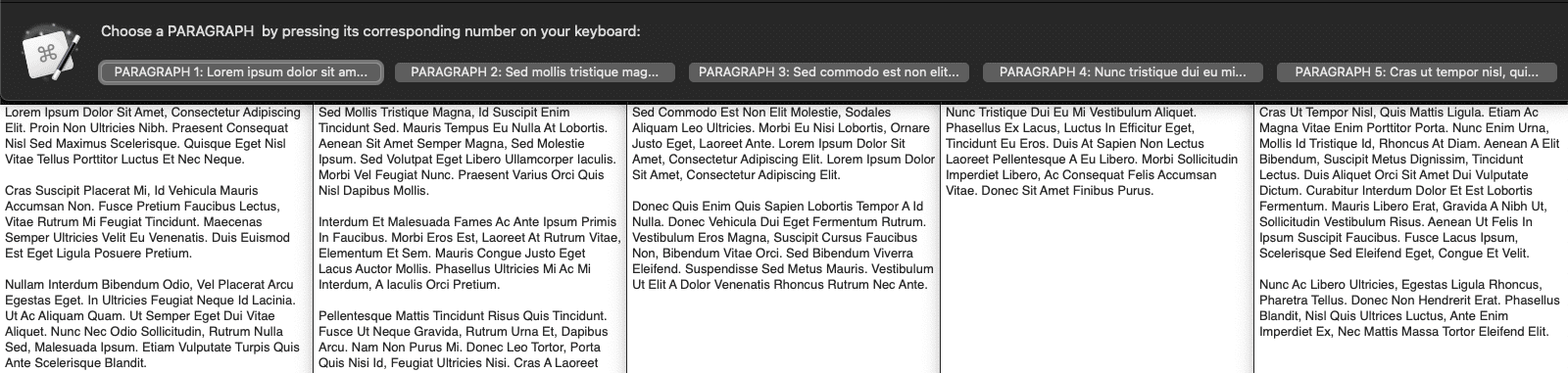
This macro, requested by @Macs_Productivity, helps you select a specific paragraph or section from a larger block of text. It splits the text into individual parts, displays each one in its own window for easy review, and lets you choose a section by pressing a number key or button (1 to 6 from left to right, depending on how many sections are detected).
Once selected, the chosen section is displayed and copied to your clipboard.
[PMW] Prompt with Multiple Windows.kmmacros (50.3 KB)

While a Custom HTML prompt would provide greater interactivity and flexibility, I created this macro to demonstrate how the same functionality can be achieved using only built-in actions in Keyboard Maestro.
EXPLANATION
1. SETUP
- Set Text to be processed: The macro begins by taking whatever text is currently on the system clipboard.
- Set Delimiter: You can define a character to be used as the delimiter (
~by default). This is the character it will look for to separate one section from the next. - Define Labels: It sets up variables for the text that will be shown to the user, such as the title "PARAGRAPH" and the instruction "Choose a PARAGRAPH by pressing its corresponding number...".
2. PROCESS TEXT
This is the core of the macro, where it processes each paragraph one by one.
- Splitting the Text: The macro loops through the
Local__FullTextvariable, treating each piece of text separated by the~delimiter as a new item. - Creating Display Windows: For each paragraph, it performs the following actions:
- Calculate Window Position: It dynamically calculates a position on the screen for a new window. It divides the screen width by the total number of paragraphs, so if there are 3 paragraphs, it creates 3 windows side-by-side, each taking up a third of the screen's width.
- Display Full Paragraph: It opens a new, temporary window at the calculated position and displays the full text of that paragraph.
- Save Window ID: It saves the unique ID of this new window into a variable (e.g.,
Local__MWP_PromptWindow1,Local__MWP_PromptWindow2, etc.). This is crucial for closing the correct windows later. - Prepare Button Text: It creates a truncated (shortened) preview of the paragraph to use as a button label in the final prompt.
- Store Full Paragraph: It saves the full, original text of the paragraph into its own variable (e.g.,
Local__Text1,Local__Text2, etc.).
By the end of this loop, your screen will be filled with several windows, each showing a different paragraph, ready for you to review.
3. PROMPT TO CHOOSE
Once all the paragraph windows are displayed, the macro presents a central prompt window for you to make a choice.
- Dynamic Buttons: This prompt contains a series of buttons. Each button's label consists of the name "PARAGRAPH", a number, and the truncated preview text created in the previous step (e.g.,
PARAGRAPH 1: Lorem ipsum dolor sit...). - Making a Selection: You press the keyboard number or click the button corresponding to the paragraph you want to select. The macro saves the number associated with your choice (e.g., if you click the first button, it saves the number
1).
4. CLEANUP AND RETRIEVAL
After you make your selection, the macro cleans up and prepares the final output.
- Close Windows: The macro uses the saved Window IDs from the main loop to close all the temporary paragraph windows it created, clearing up your screen.
- Retrieve Full Text: This is a key step. The macro uses the number from your button selection to find the variable containing the full text of the paragraph you chose. For example, if you chose button
2, it retrieves the content of theLocal__Text2variable that it saved earlier. The result is stored in a final variable calledLocal__ChosenText.
5. FINAL ACTIONS (What do you want to do with the chosen text?)
The macro concludes by delivering the selected text to you:
- Display Confirmation (Optional): It briefly displays a window confirming which text you chose.
- Update Clipboard: It sets your system clipboard to the full text of the paragraph you selected.
- Paste Text: It simulates a paste command, inserting the chosen paragraph into whatever application you were using when you triggered the macro.
- Return for Subroutines: If this macro was triggered by another macro, it can pass the chosen text back as a result, making it a reusable component in more complex workflows.