Wildly off topic….I've written a wallpaper changer using Apple Shortcuts on the Mac.It works very well and I'm very pleased with it.
However I've run into a macOS issue with it which is caused by the Apple Set Wallpaper shortcut command.What happens is that when a wallpaper is set it is added to an 'Wallpaper Desktop Library'' and the file itself saved in '/Users/myuser/Pictures/Shortcuts Desktop Pictures/'
Now I triggered my wallpaper changer every 10 minutes.... So that directory contains 26,234 files, taking up over 35Gb of file space.
The macOS Settings app also tries to show them all in the 'Your Photos' section of the control.
If you delete those files manually is screws up the 'Wallpaper Desktop Library' and it sets a default wallpaper to the desktop and the desktop Wallpaper system breaks.
So the question is, is there a way to prune the photos and update that database even better a way of resetting it?
I've searched the web and that references deleting plist files etc. None of those solutions are current for macOS Tahoe. Could KBM offer a solution? I’m really clutching at straws here.
I'm fairly sure macOS does that (makes a copy in that folder) because it needs a local copy. You can choose images from network drives, but macOS solves that problem by making a local copy, and then System Settings points to those files with a link.
When you delete the file, you aren't deleting the link stored in System Settings. It is possible to delete all the links, which would then permit you to safely delete all the files.
tell application "System Events"
    repeat with d in desktops
        -- Use a built-in wallpaper path; this one exists on every macOS install
        set picture of d to "/Library/Desktop Pictures/Solid Colors/Stone.png"
    end repeat
end tell
After you run that AppleScript, and close System Settings, make sure you then delete all the files.
WARNING: I got all this advice from AI, but I used my judgment and I think it makes enough sense that you can try it out.
Is this new in Tahoe? KM has changed my wallpaper (all custom images) several times per day for years, and I can't find that directory or anything similar. My images are stored in iCloud making sure to select Keep Downloaded because apparently using the image as a wallpaper is not sufficient for the system to keep it downloaded itself. Whenever I've had an image offloaded, mac just gives a random native wallpaper instead.
Re KBM’s set wallpaper function, I’ll look into that. Though if that worked I’d have to call the Apple shortcut from KBM, or call the KBM routine from the Apple Shortcut? I’m nota sure if either are possible?
Ref the Apple Script unless I’m missing something, where does the loop get the end repeat from?
Yep from what I’ve worked out this is indeed new in Tahoe as I never had the issue until I upgraded.
Yes, you can call a KM macro from macOS shortcuts. And there's more than one way to do that. You can either run an osascript command to call the Engine, or you can use the Keyboard Maestro action that you can find directly in Shortcuts.
That's why I asked. I didn't know if it was an OS thing or a Shortcuts thing because I'm not on Tahoe yet and have never experienced this behaviour, but I've also only ever used KM and never Apple shortcuts for this kind of automation on my system.
On the loop….The ‘d in desktops’ I get that is the repeat but where does it come from? From mu very poor knowledge of scripts I can see it just saving that same image out for each picture in there, so thereby setting all links in the database to that one image? So it doesn’t shrink the database? Worried here about running something that might damage the OS.
The wallpaper changer shortcut picks a random favourite image from the photos library, runs various sizing options to make it fit the screen properly, overlays a transparent widget on top of it giving locational data as well as camera and other info. Taken over 5 months of work so far as it has a lot of options as well as stripping data etc out to make it pleasant to use / see. I’d have no ideas as to how to duplicate it in KBM. Plus it is designed to be used by all Mac users not just those with KBM.
A soon as I get the chance though I’ll look at using KBM to make the final change, if it gives me a better interim solution it might well be good.
Is it possible for you to share the Shortcut? It does indeed sound very intricate, and I'm curious to see how it works. There might be a way for KM to do everything. If not, there might be a way to pass the final wallpaper from the shortcut to KM – all of this assuming that changing the wallpaper with KM doesn't result in the undesired behaviour.
If you are worried about damaging your OS, then you shouldn't have been deleting the files manually in the first place. However I did warn you (in all caps!) that this script was created by AI so you have been warned.
I don't use desktop images myself, because they may interfere with my macros which use a lot of OCR on the desktop. So I decided not to test the code I gave you above.
LOL understood. I had initially though it was just a ‘save out’ directory and deleted the files, then of course I emptied the trash. Then I found out it was somewhat more…. TimeMachine restore sorted that out thanks to the gods.
Just a bit nervy of messing it all up again
I suppose I could always reinstall a new copy of Tahoe over the top. Or rebuild the Mac. Normally that’d not bother me. However I’m waiting on eye surgery and at the moment am slowly losing my sight, so not in good condition to do a rebuild
That's massive. I've skimmed through, and, while some of it might be reproducible in KM, I don't think any of the image manipulation actions can be (except for executing a Shortcut from a macro). However, having seen the scope of it, I wouldn't even make the attempt, at least not as a means to resolve this particular issue.
The first thing to do is verify whether or not the same thing happens when setting a wallpaper from KM. Because if the result is the same, there'll be no use continuing until we reassess.
Assuming KM doesn't have the same issue at this stage, the next thing to try is modifying the Shortcut. At the very bottom of the Shortcut, delete the Set wallpaper to action, and insert these actions in its place:
desktops is the thing to be looped through -- the list of all desktops. d is the referenced item in that list for that turn through the loop.
You might understand it better when written as
set allTheDesktops to (get desktops)
repeat with eachDesktop in allTheDesktops
   -- do stuff with that particular desktop
end repeat
You should be able to delete ~/Library/Application Support/Dock/desktoppicture.db, delete the pictures, the restart your Mac to have the database rebuild to its defaults. But I have not tried this myself, so do your own due diligence first -- and make sure your backups are up to date!
Thanks for all the replies guys, appreciated…. I’ve done some testing…..
I’ve changed wallpapers using
Apple wallpaper changer from faves
Changing wallpaper from Finder, Bloom (File Manager), and KBM - None of them put images into the '/Users/myuser/Pictures/Shortcuts Desktop Pictures/ folderf
When I do any action to set a wallpaper it either does nothing or runs but takes 40-60 seconds to set the picture in place. That does not seem usual.
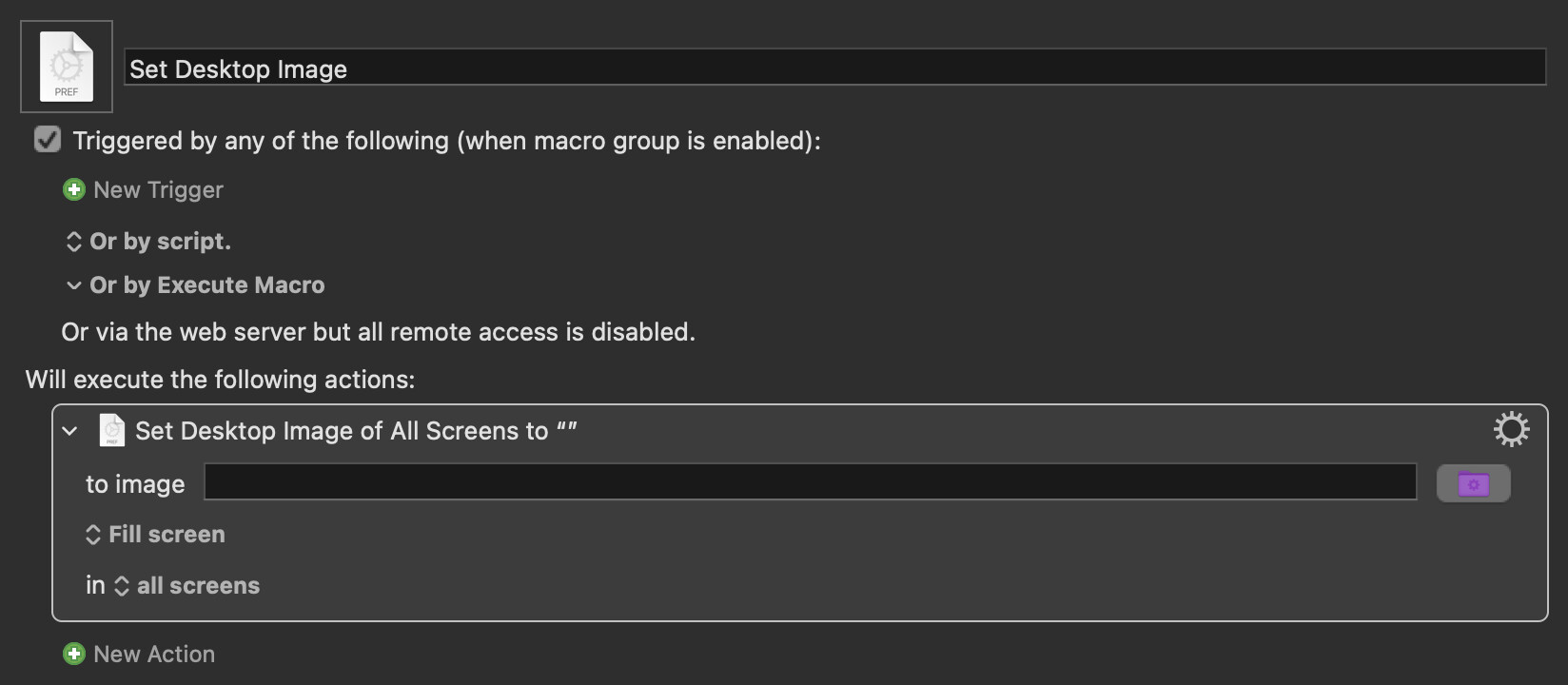
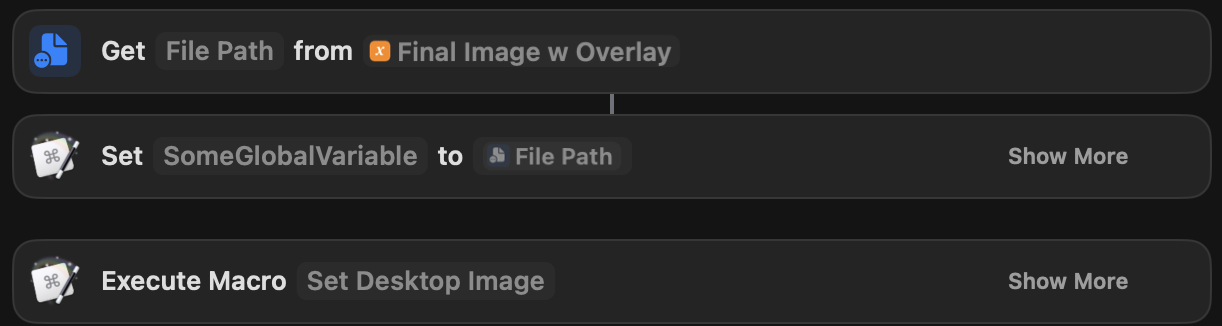
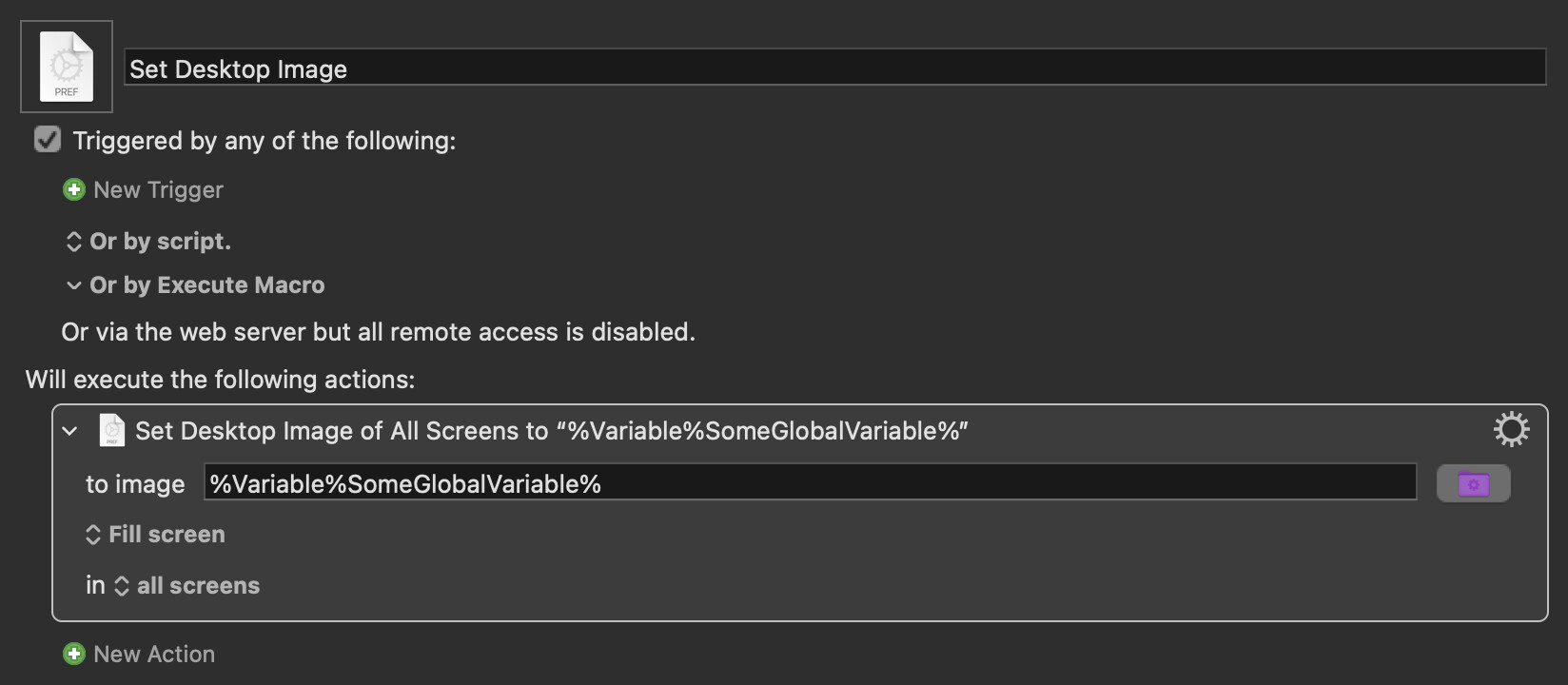
I first modified by shortcut to save out the image as a file and then KBM to put it in place via a Macro. It worked but only part of the time. Rebooting the Mac helped.
The next modification was to use the global variable as detailed in the thread:
That runs fine but even leaving it the for the ‘refresh seconds’ the wallpaper doesn’t change to my image. It sets it to the damned default picture again.
Concerning deleting the /Library/Application Support/Dock/desktoppicture.db - No go I’m afraid, the Dock folder doesn’t exist.
Ref the AppleScript I understand it more now but still loathed to run it (nervous about scripts)
The next step is pop into the recovery console and download a fresh copy macOS and install it on top of the existent version.
Breaking for lunch now before doing that……Just in case any other suggestion are posted


 However I did warn you (in all caps!) that this script was created by AI so you have been warned.