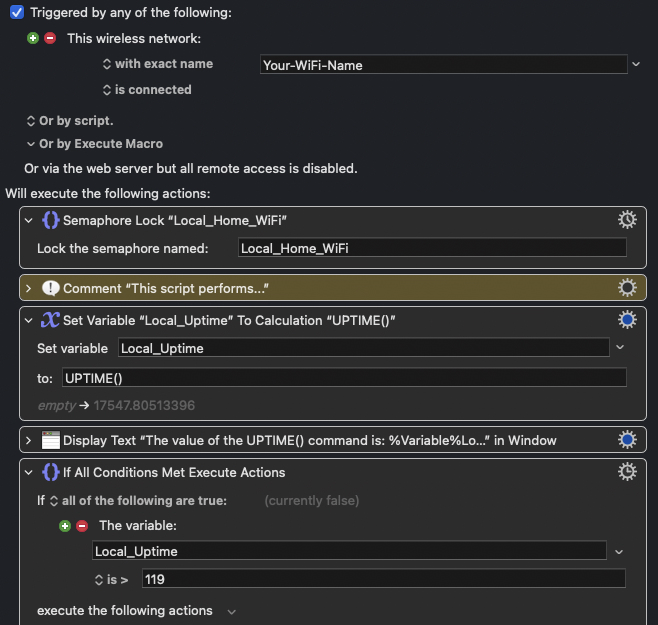
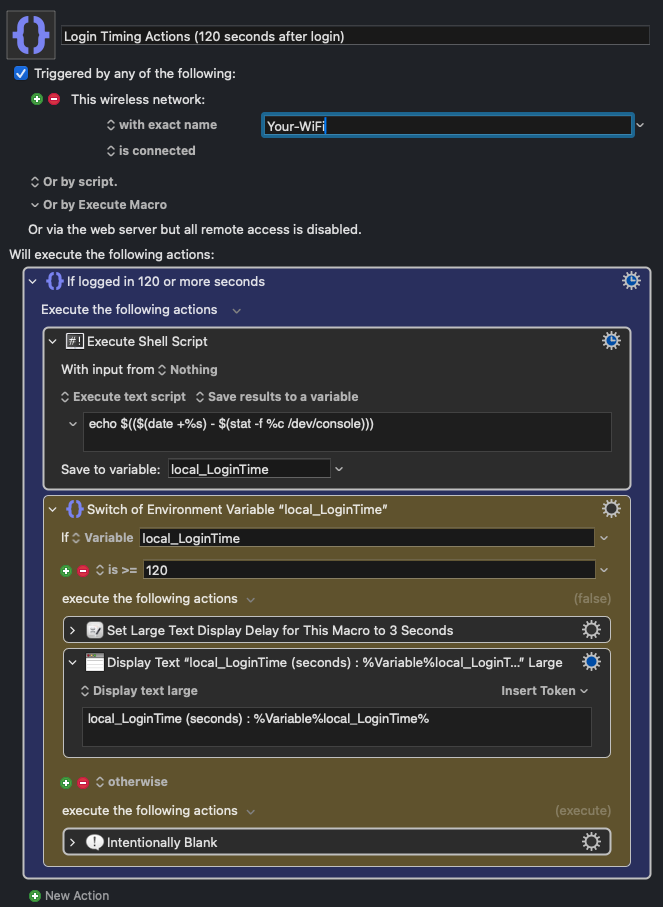
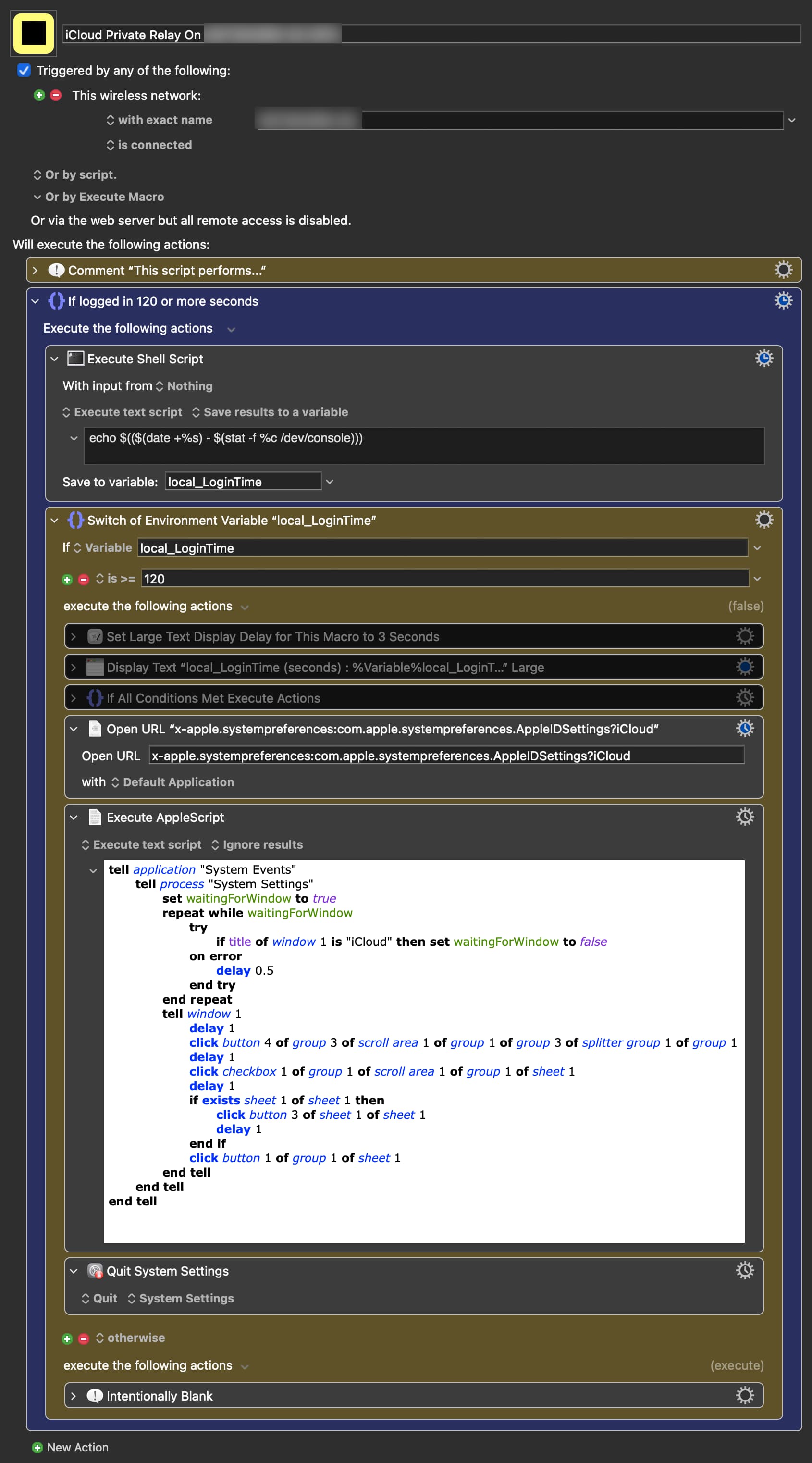
I'm looking for a way to run a macro after a recent macOS reboot activity has settled down using the trigger “This wireless network with exact name is connected”.
I am trying to enhance my local version of the macro discussed in
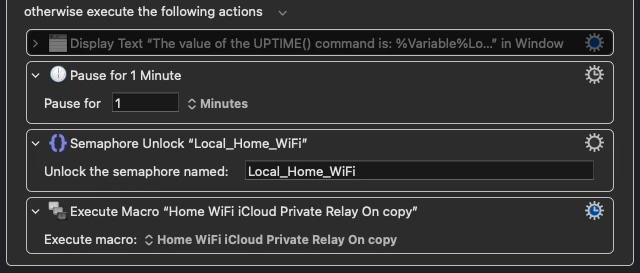
I found my version of the “Toggle iCloud Private Relay” macro works when the other applications I have launching at startup have "finished starting." If there are applications still starting and drawing their UI, etc., the System Settings > iCloud found image actions I have don't work well.
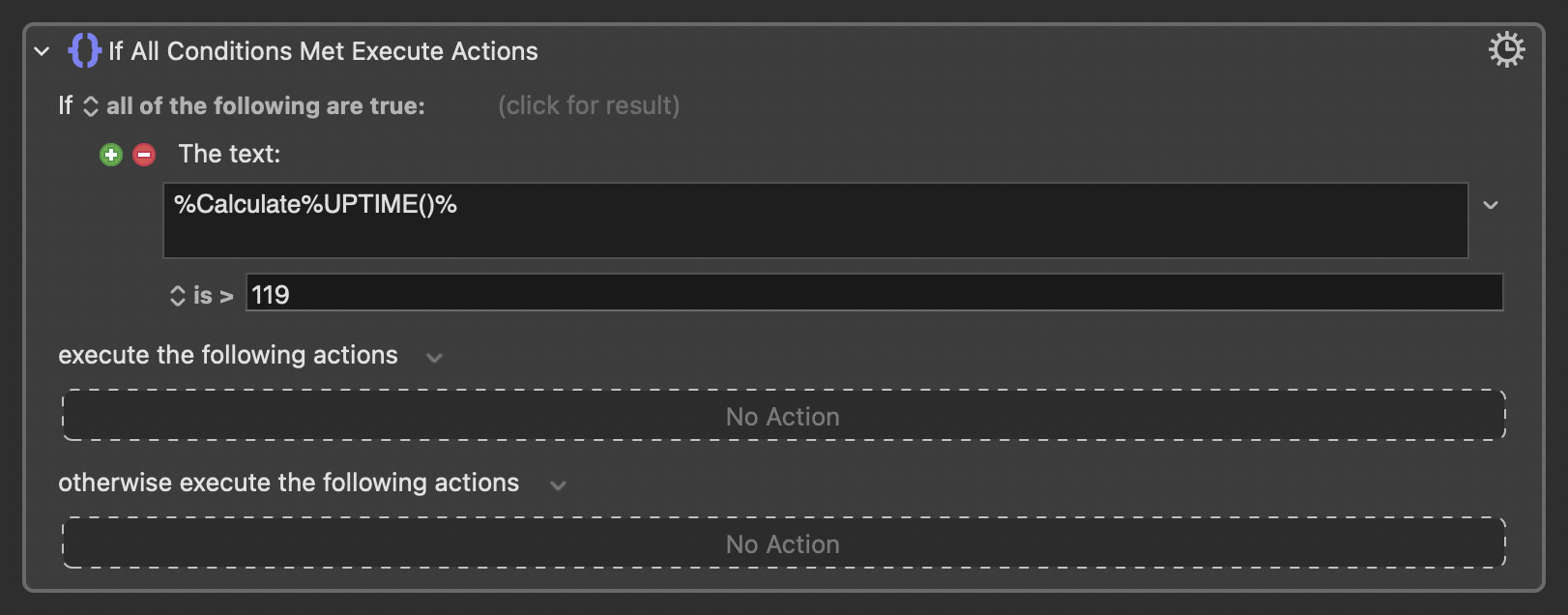
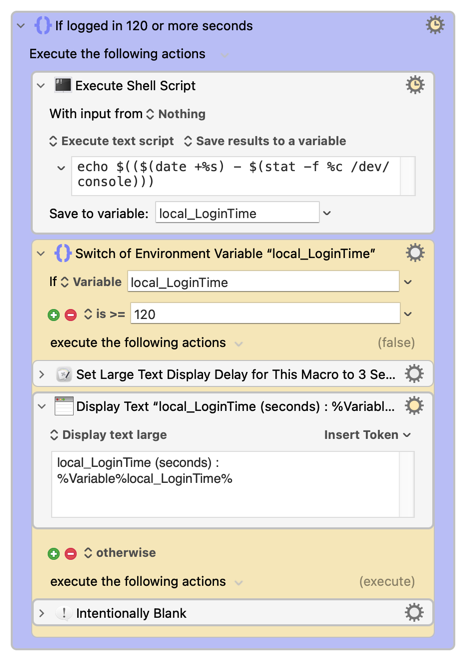
What I'm thinking is to continue using the same trigger (e.g., SSID = WiFI_Name) and then have an action to test if the system up time is greater than 2 minutes, or some value like that.
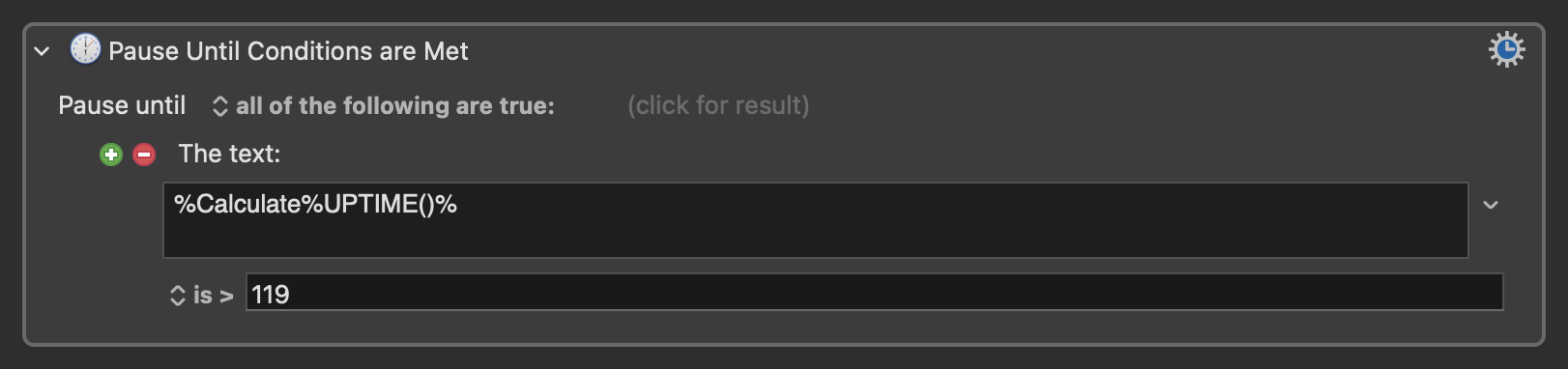
Not sure about a better method without some more thought, but I do see a few ways you could simplify this macro a bit. Instead of pausing for a minute and then re-running the macro, you could pause until the UPTIME() is greater than 2 minutes and then toggle your relay from there.
I cannot be 110% certain (my memory is like a sieve) but I think I tried the “Pause Until Conditions are Met” but didn’t think/realize/know about using the text calculation method.
I have added this and removed all of the other hack logic – much more simple.
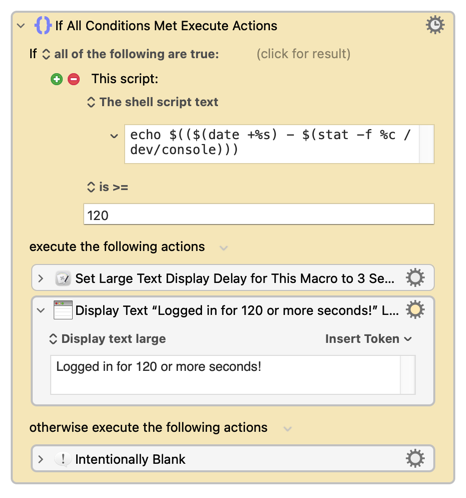
The If Then Else action provides an option to put a shell script directly in the action, but I prefer the above method because it is easier to debug and it is somewhat self-documenting.
I really appreciate you taking the time to reply and for sharing those examples. I’ll definitely file this approach away for future use.
In this case I’m working to “improve” my version of
The triggering event I need is the connection to a specific Wi‑Fi network that does not play nicely with iCloud Private Relay. The macro works great if my Mac is just doing its normal amount of work, but it can run into trouble if all of the “Open at Login” apps are still launching while it is trying to turn off iCloud Private Relay. My goal is to let the Wi‑Fi trigger fire and then wait for the startup “madness” to settle down before making the change.
So your solution is nicely tuned to the login event, whereas my use case is more tightly coupled to a particular Wi‑Fi network connection.
Still, many thanks again for the detailed examples — they’re very helpful, and I’m sure I’ll be able to put them to good use in another context.
I was going to off on one about "While" loops and "If"s -- then realised there's no need to complicate things!
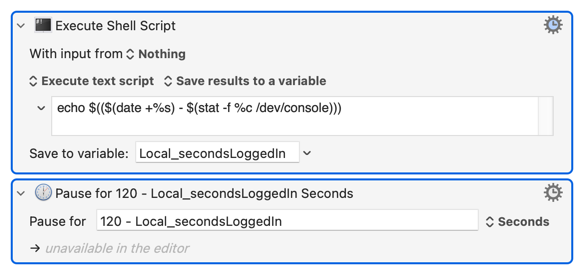
This isn't a situation where you need to make repeated state checks until something is true. You can simply need to "Pause" long enough that your macro will continue at loginTime + 120 seconds.
So you can play on:
The "Pause" Actions field is a Calculation field (not obvious when it's a "spinner" because the C doesn't show until you enter a non-digit)
This is always an issue when using image detection.
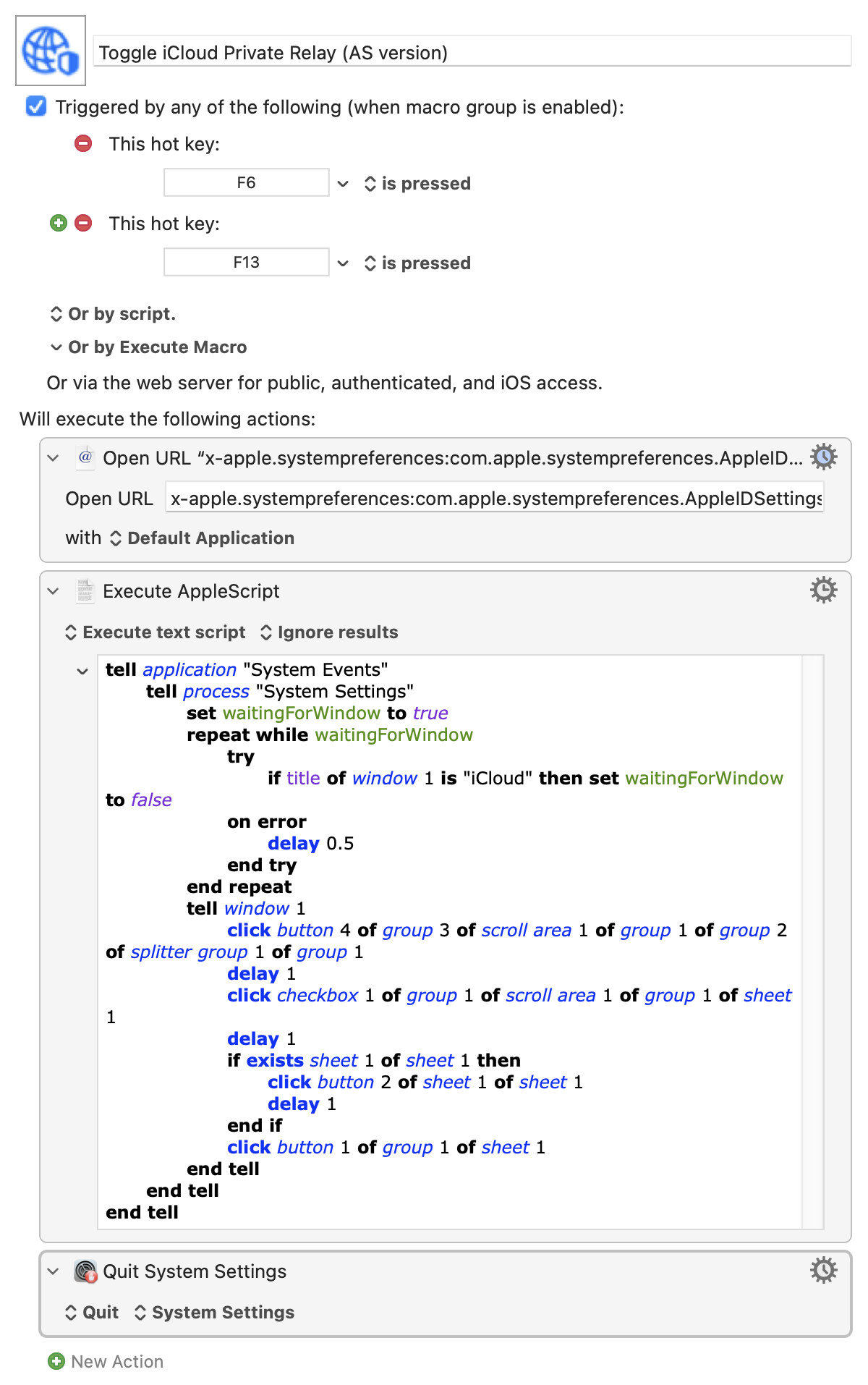
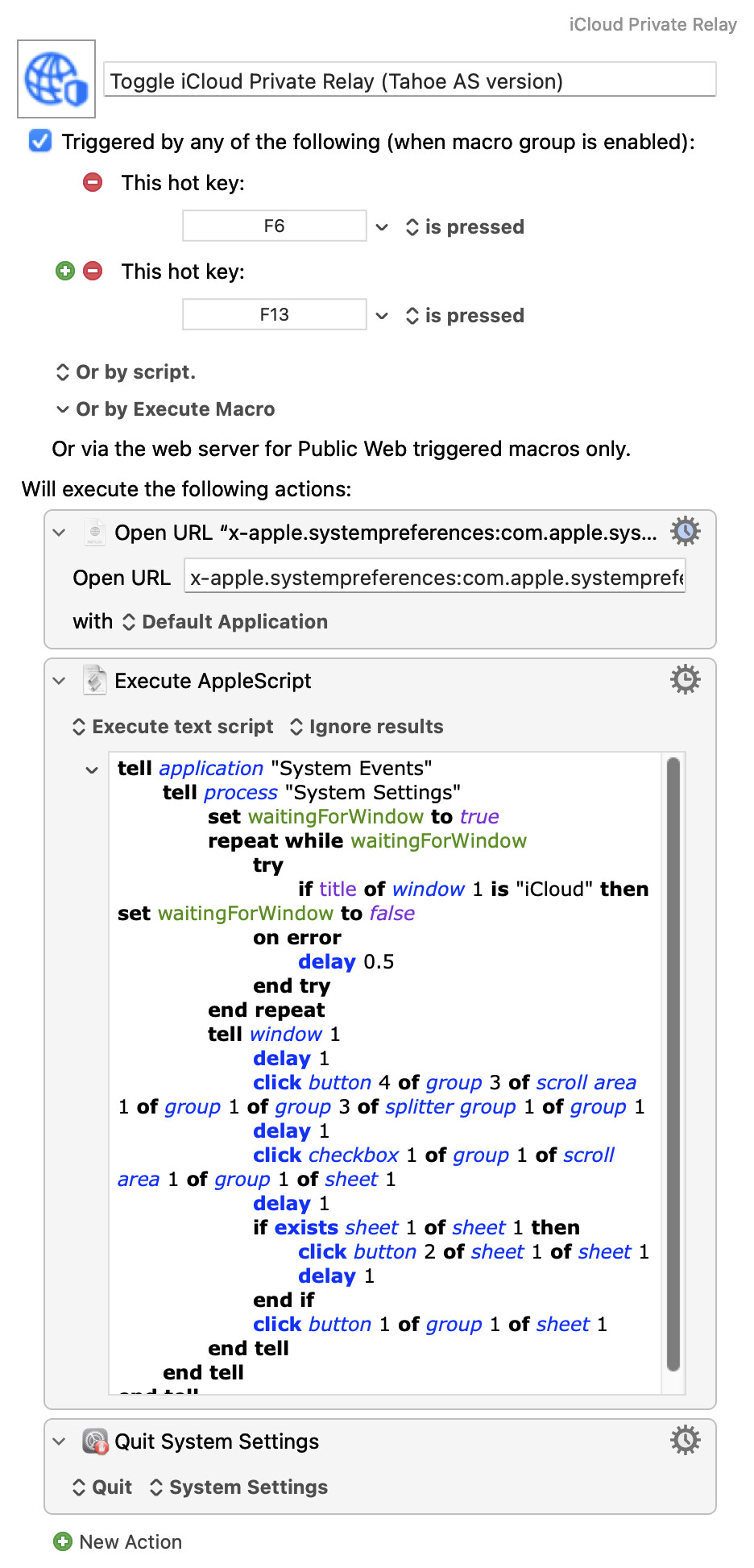
So here's a version that replaces all the clicky-image bits with a single AppleScript that uses System Events to do the clicking. Unfortunately System Events can't do this in the background, it will re-foreground System Settings if another app gets in the way, but that shouldn't be too annoying.
Unfortunately, when I run the AppleScript I get this
error "System Events got an error: Can’t get group 1 of group 2 of splitter group 1 of group 1 of window 1 of process \"System Settings\". Invalid index." number -1719 from group 1 ofgroup 2 ofsplitter group 1 ofgroup 1 ofwindow 1 ofprocess "System Settings"
That's the downside of using System Events in this way -- if Apple (or your own configuration settings) change the UI element hierarchy you'll get an error. And Apple don't always follow their own Accessibility Guidelines, so elements often don't have targetable names.
What OS version are you on? I'll find a test system that matches and see if I can make the script more robust.
I even went down the path of looking into Xcode → Open Developer Tool → Accessibility Inspector to see if I could figure out what the UI elements are for my iCloud system settings but I have no clue what I am doing.
It was the recommendation from @_jims of the shell script command to determine if the system has been “up” long enough for the other login items to have completed and the bespoke Tahoe friendly AppleScript from @Nige_S to perform the button clicks in the iCloud System Settings controls.
I still am using the Wireless Network Trigger when the mac connects to the WiFi network that does not play nicely with iCloud Private Relay. At least that part of my original macro survived.
This was a great learning experience for me. I thank everyone who helped move this along.
I have run into some problems using this command. I have read that the use of change time (%c) on /dev/console as the boot time is not guaranteed to be the actual kernel boot time. On some systems it may be updated by other events.
I am not sure what is causing this to happen to my system but I am definitely seeing it. The macro check to see if the computer has waited long enough since the last reboot will force the macro to pause even when the Mac has been up and running for quite some time.
Some action has "touched" the /dev/console on my system to cause it to update its change time (%c) value to 1403 seconds. The uptime was 1 hour and 52 minutes. The sysctl command returns the kernel boot time which matches uptime.
The command I am using now to help determine if the Mac has been up for at least 120 seconds is:
I appreciate your help and perspective on my request for support.
I am going to take a pause replying to this post. I am not certain what is interfering with the execution of the macro as compared to my expectations. At this point, I cannot state that I am 'chasing a ghost'; I do not want to add any more noise to this topic.