
BACKGROUND
As I mentioned in another recent thread, I'm a big fan of the Show Palette of Macros action. When rendered, these palettes mimic all of the powerful features of Conflict Palettes.
When configuring a Show Palette of Macros action, you can specify Macros, Macro Groups, and Smart Groups. For the latter two, the member macros of the respective groups are displayed on the palette rather than the groups themselves. This provides considerable flexibility when building palettes.
Note that a Smart Group entry is dynamic: the macros contributed to the displayed palette are determined when the palette is rendered, not when the action is configured. That is, as a Smart Group's membership changes over time, so does the displayed palette.
One drawback of the Show Palette of Macros action is that configuring can become increasingly slow as your macro library grows. In my case, clicking the + button to add an entry now takes several seconds to display the selection menu.
When a palette is rendered, macros appear in alphabetical order, not the order they appear in the configured action. For example, with this configuration:
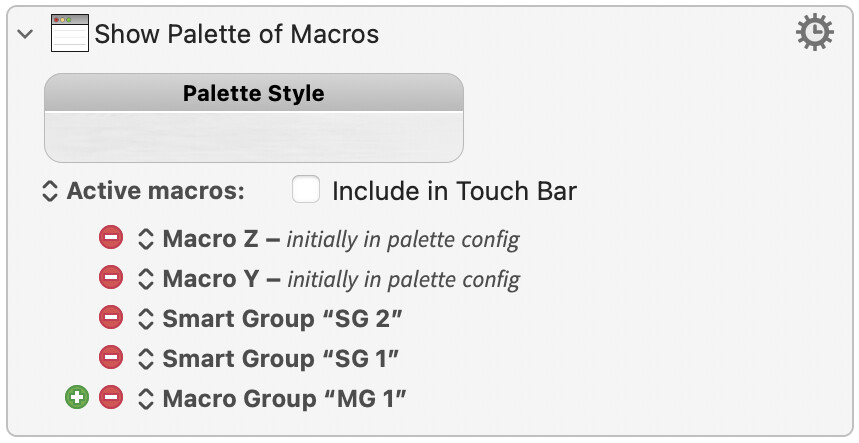
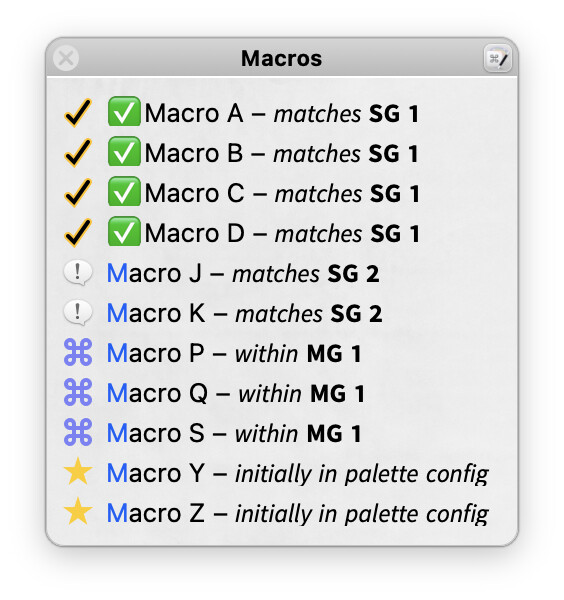
Below is the respective rendered palette. Note that macro Macro Y – 𝘪𝘯𝘪𝘵𝘪𝘢𝘭𝘭𝘺 𝘪𝘯 𝘱𝘢𝘭𝘦𝘵𝘵𝘦 𝘤𝘰𝘯𝘧𝘪𝘨 appears before Macro Z – 𝘪𝘯𝘪𝘵𝘪𝘢𝘭𝘭𝘺 𝘪𝘯 𝘱𝘢𝘭𝘦𝘵𝘵𝘦 𝘤𝘰𝘯𝘧𝘪𝘨 even though the order is reversed in the action configuration.
PURPOSE
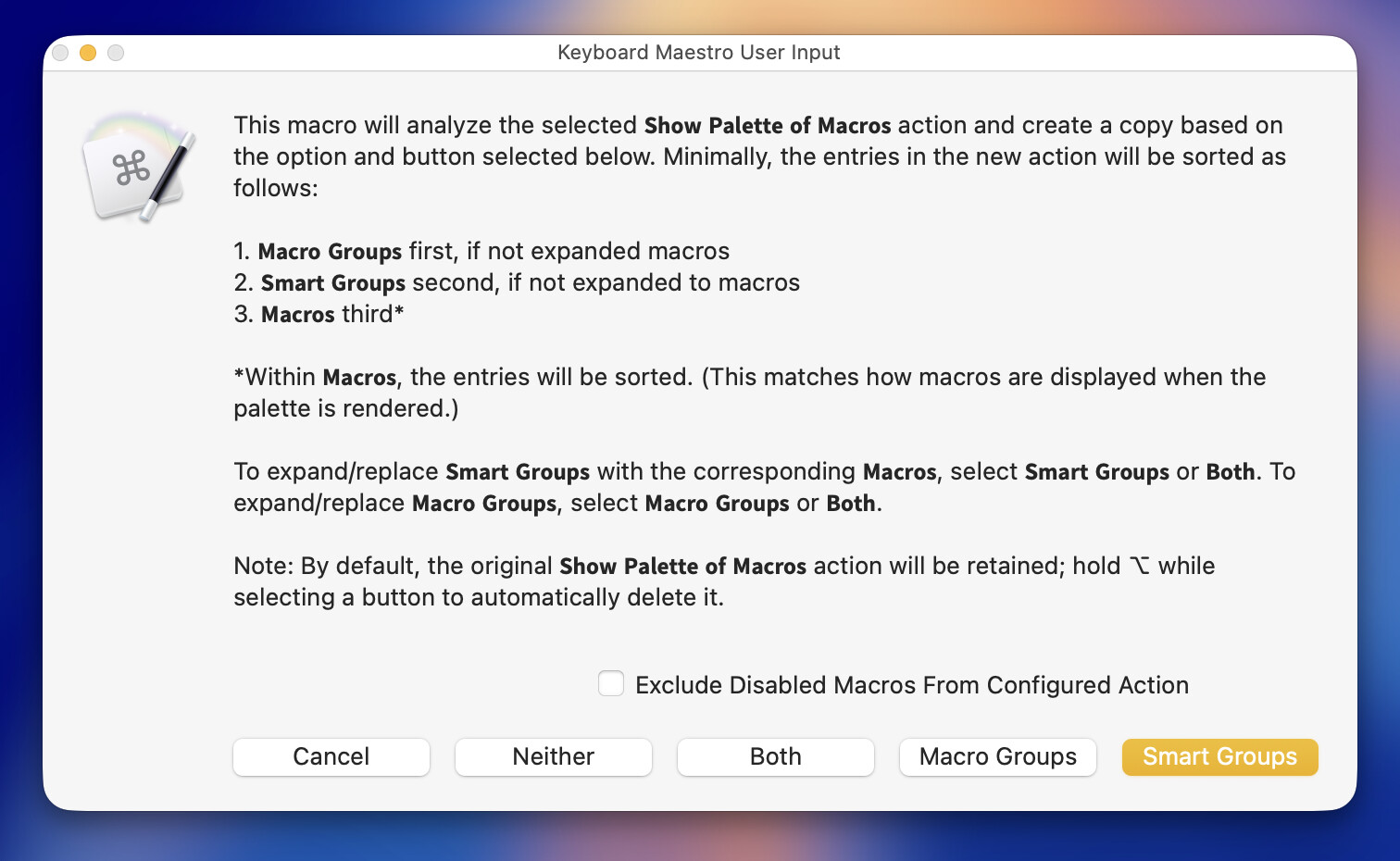
This macro assists during the configuration of a Keyboard Maestro palette. When a Show Palette of Macros action is selected and the macro is triggered, this dialog appears:
Here again, Smart Groups provide some interesting flexibility. For example, if you had several macros scattered across different macro groups that you wanted on a common palette, you could do the following:
-
Create a Smart Group (e.g., SG 1) with the search string
name:✅(or some other character you don't typically use in macro names). -
Locate the macros you want on the palette and add
 as a prefix to their names.
-
Add the SG 1 Smart Group to the Show Palette of Macros action.
-
Run this macro and select the Smart Group button. This creates a new Show Palette of Macros action that includes the individual
macros expanded into its configuration. -
Go to the SG 1 Smart Group and remove the
prefixes. -
Delete the SG 1 Smart Group.
Here's another scenario. Suppose you've worked on several macros in the last three days and want to add them all to a palette:
-
Create a Smart Group (e.g., 3 Days) with the search string
cre:3d. -
Add the 3 Days Smart Group to the Show Palette of Macros action.
-
Run this macro and select the Smart Group button. This creates a new Show Palette of Macros action containing the individual macros from 3 Days.
-
In the new Show Palette of Macros action, remove any macros you don't want on the palette. Removing entries is easy and fast.
-
Delete the 3 Days Smart Group.
DIALOG BUTTONS
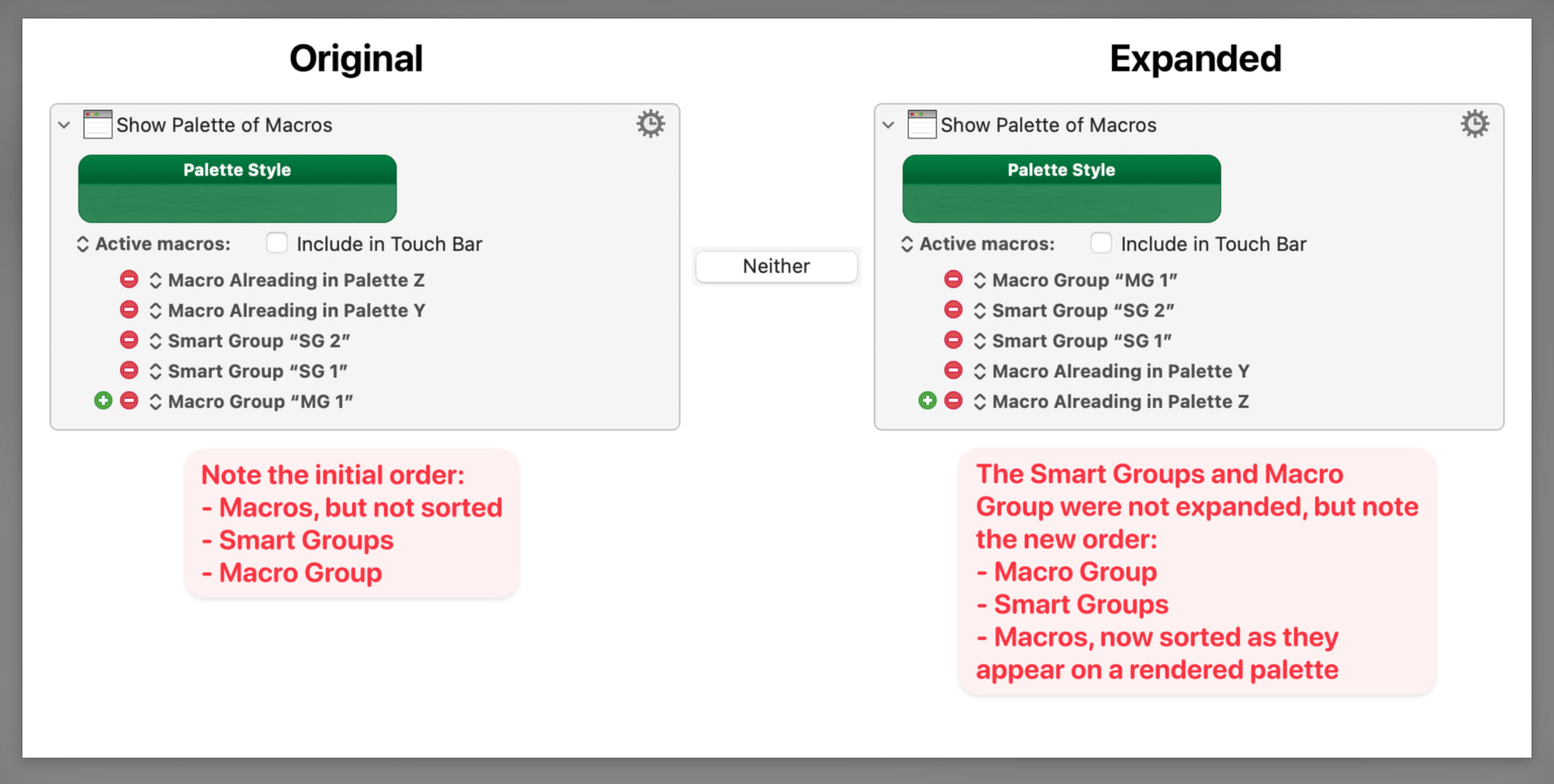
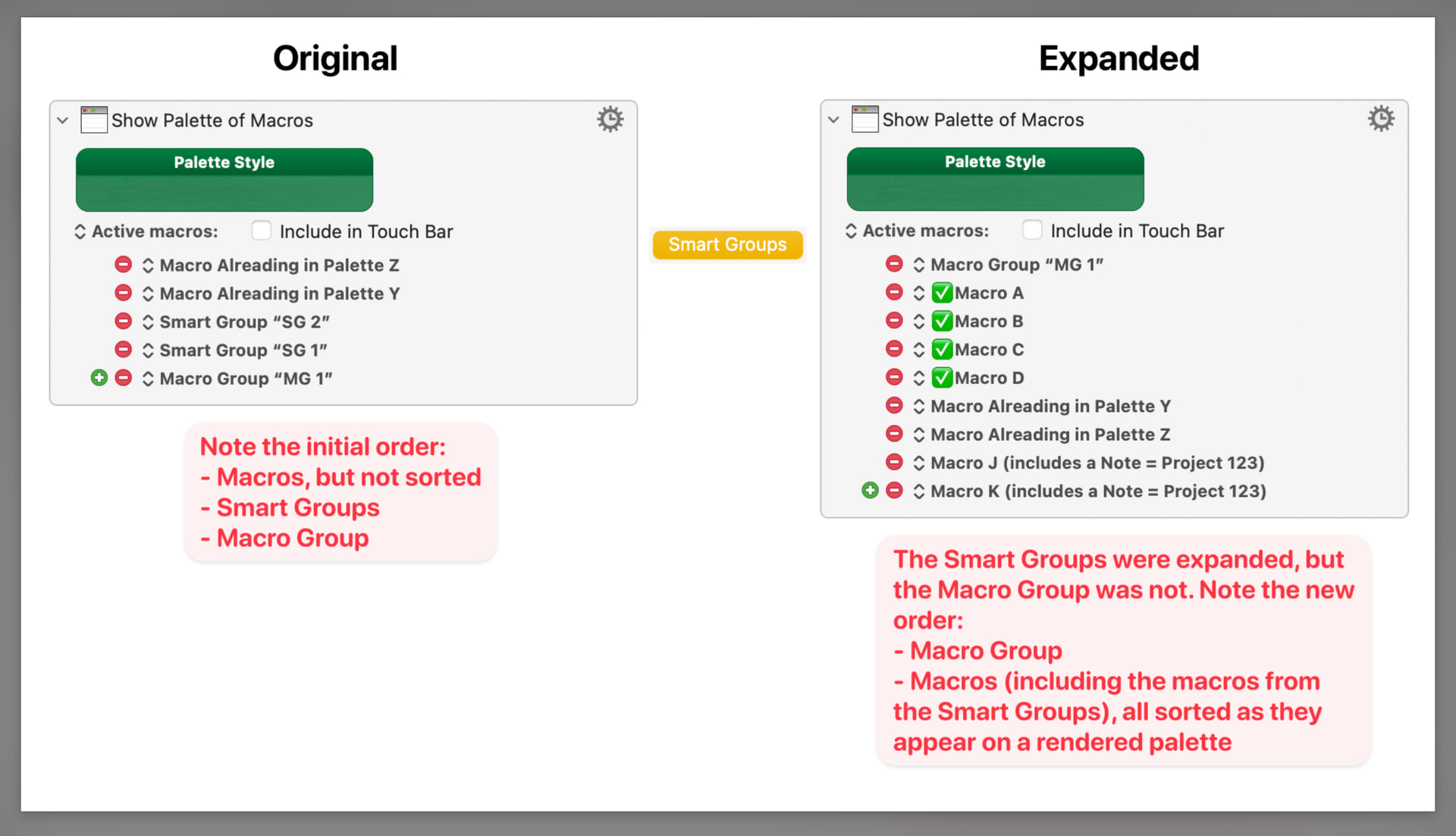
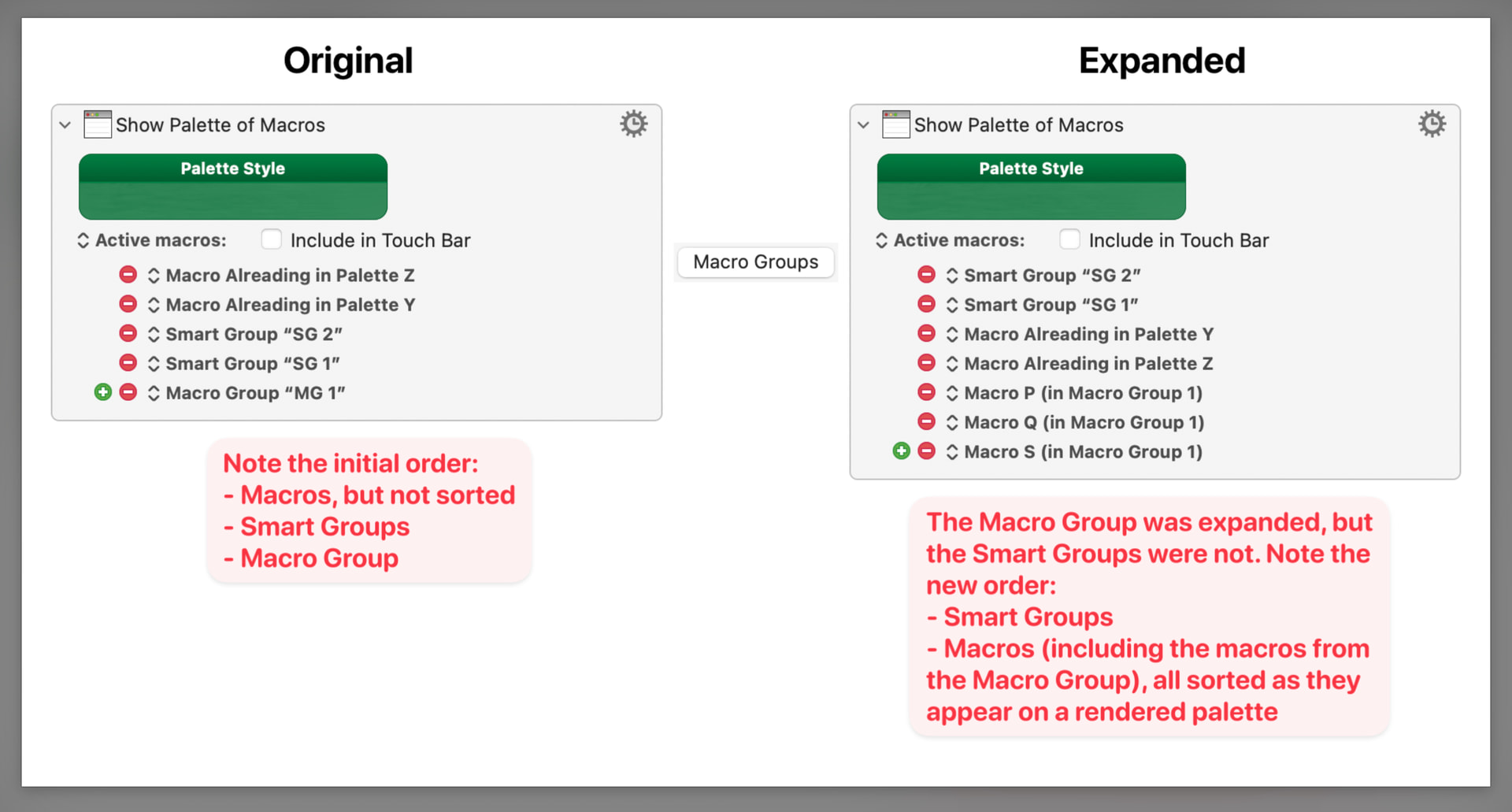
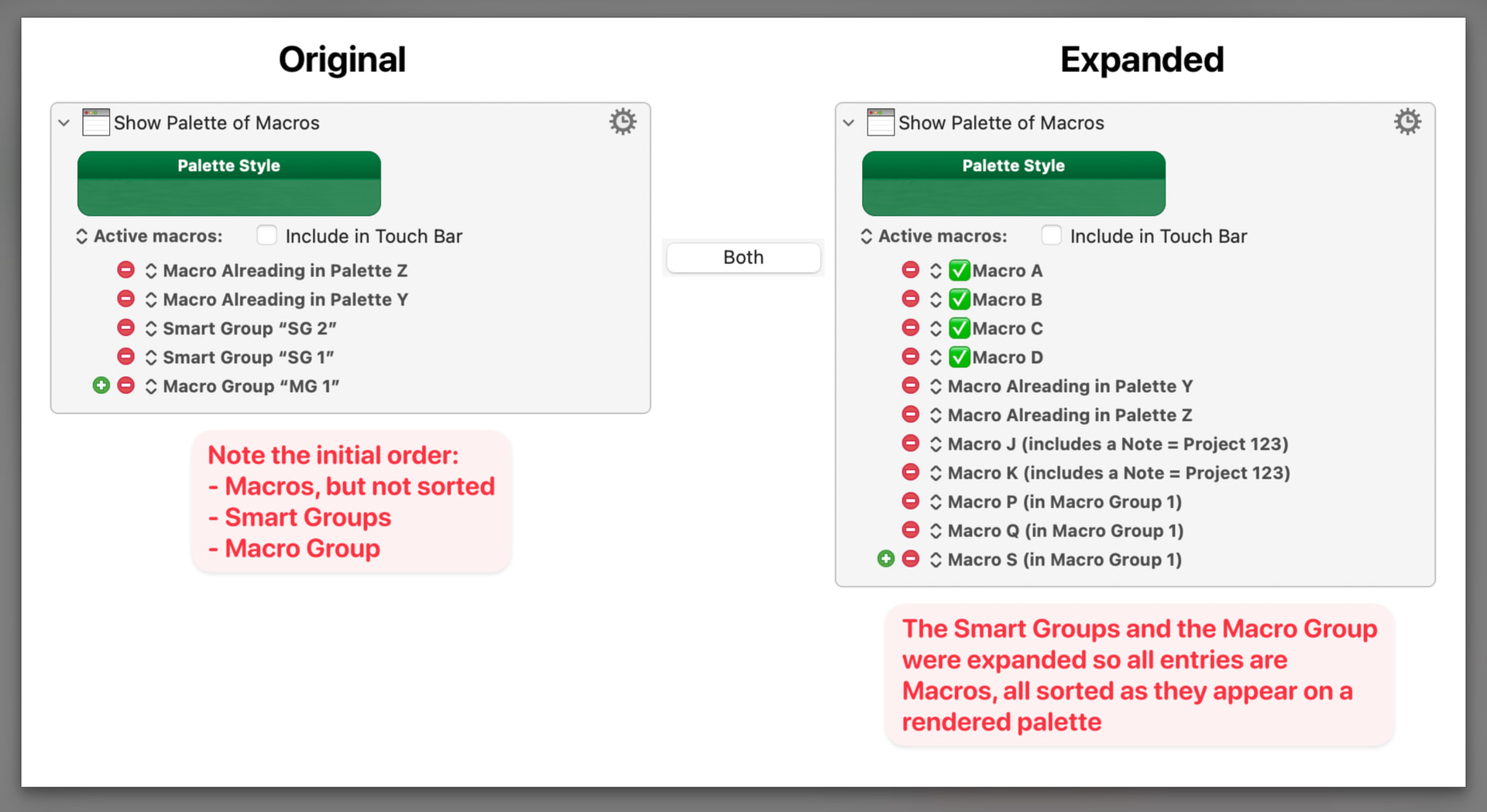
As shown above, the macro dialog includes Cancel along with four processing buttons: Neither, Smart Groups, Macro Groups, and Both. The screenshots below provide details for each.
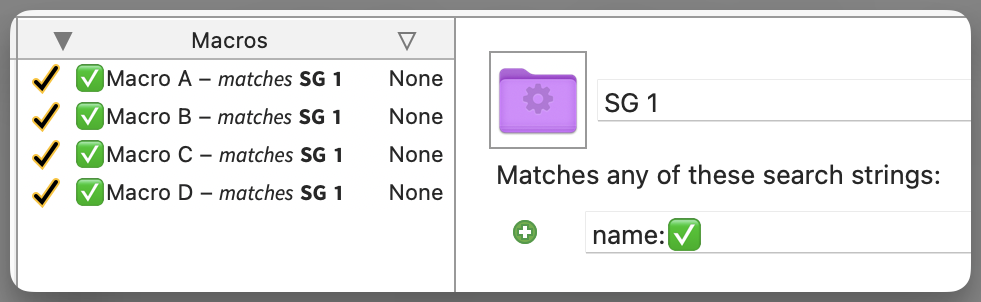
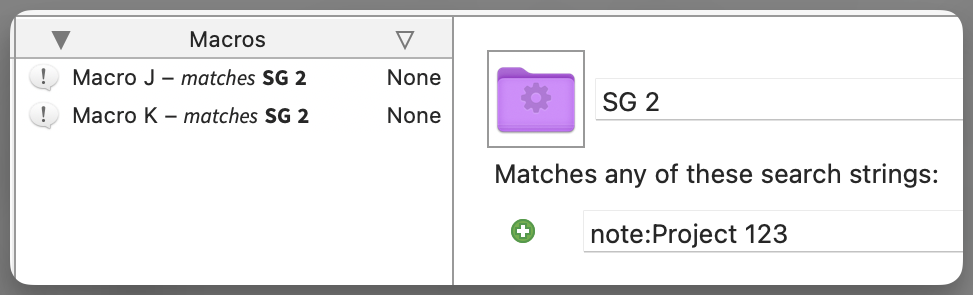
The Keyboard Maestro editor includes these two Smart Groups:
Neither:
Smart Groups:
Macro Groups:
Both:
MACRO USE
-
Select a Show Palette of Macros action and trigger this macro.
-
The dialog displayed above will appear. Once you select an option an expanded Show Palette of Macros action will appear above the selected action.
-
After confirming that the Show Palette of Macros action has been properly expanded, delete the original. (Once you are confident in the operation of the macro, you could consider automatically deleting the original Show Palette of Macros action by holding Option (⌥) when selecting a dialog button or by changing the macro setting local_RetainOriginal_default to
0.) -
Optionally modify the new action and rerun this macro as needed.
OTHER PALETTE CONFIGURATION MACROS
SETTINGS
local_RetainOriginal_default 0|1, default 1. Assuming the expanded Show Palette of Macros action is successfully created, if set (1), the original Show Palette of Macros action is retained unless Option (⌥) is held down when a main dialog button is selected. If unset (0), the original action is deleted unless Option (⌥) is held down.
TESTED WITH
• Keyboard Maestro 11.1.1
• Golden Gate 27.2 (26B123)/MacBookPro18,2
VERSION HISTORY
( expand / collapse )
1.0 - Initial version
2.0 -Added setting local_RetainOriginal_default 0|1, default 1. Assuming the expanded Show Palette of Macros action is successfully created, if set (1), the original Show Palette of Macros action is retained unless Option (⌥) is held down when a main dialog button is selected. If unset (0), the original action is deleted unless Option (⌥) is held down.
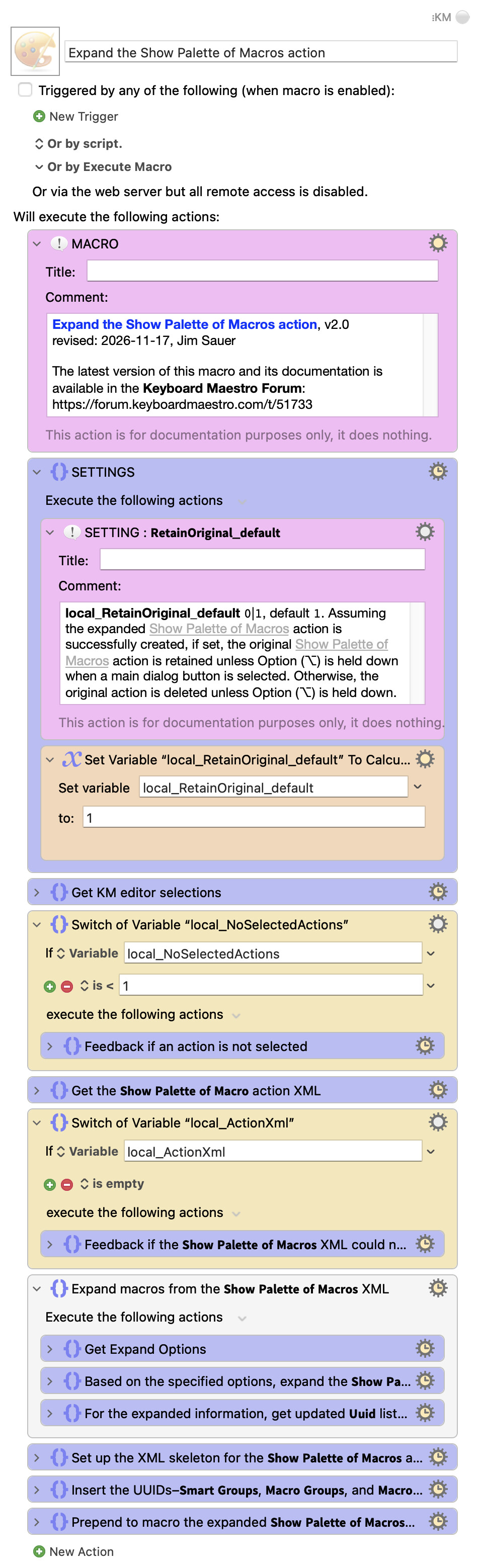
Download: Expand the Show Palette of Macros action.kmmacros (97 KB)
Macro-Notes
- Macros are always disabled when imported into the Keyboard Maestro Editor.
- The user must ensure the macro is enabled.
- The user must also ensure the macro's parent macro-group is enabled.
System Information
- macOS 27.2 (26B123)
- Keyboard Maestro v11.1.1

