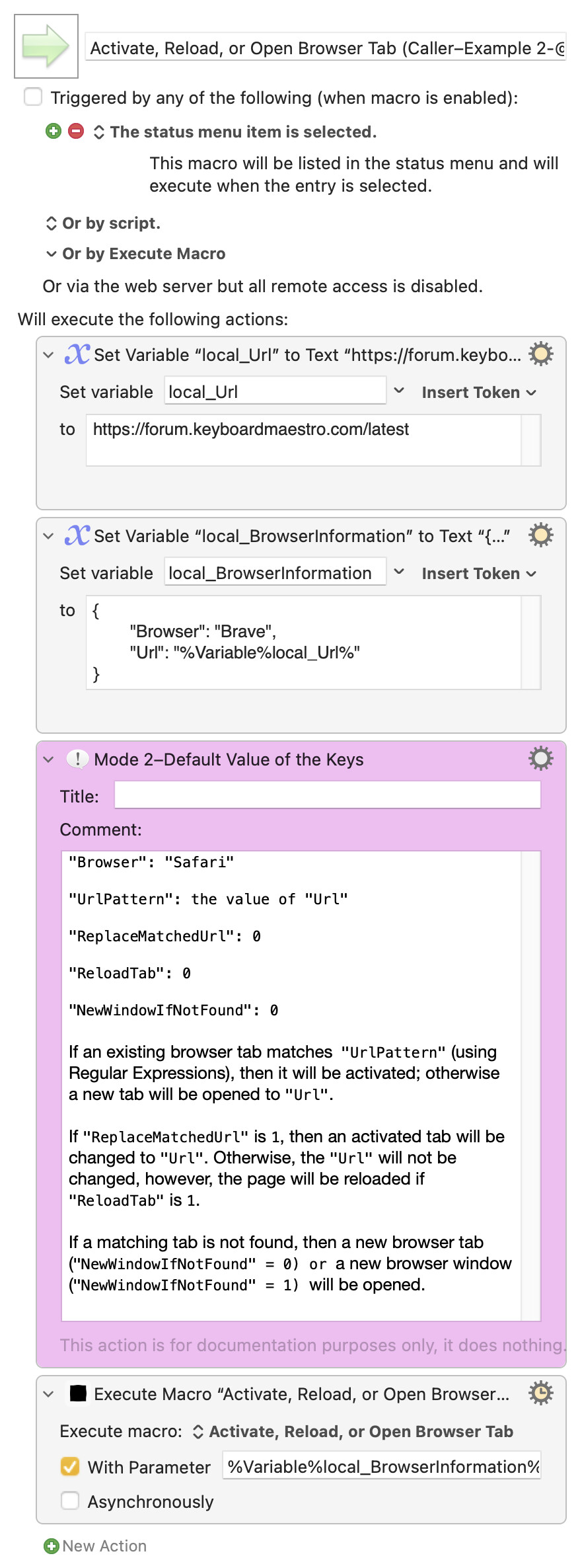
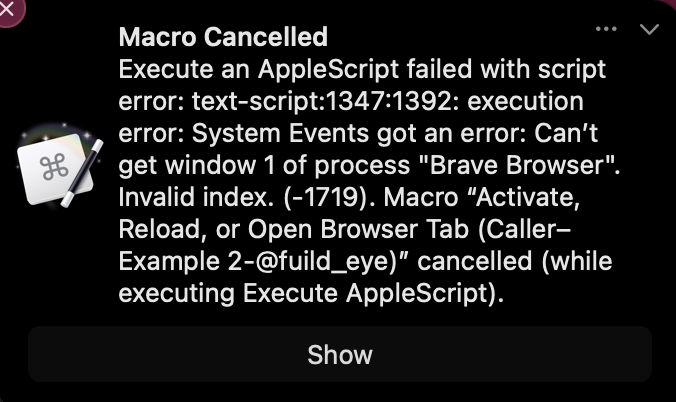
Note: This macro has been renamed and significantly improved. Prior to v5.0, it was named Activate, Reload, or Open Browser Tab. If you are transitioning from an older version, please refer to the UPGRADE AND INSTALLATION INSTRUCTIONS.
PURPOSE
This macro will open a URL in: Safari, Orion, Chrome, Brave, Edge, Vivaldi, Arc, or Firefox. In the simplest case, if a URL is already open in a browser tab, then that tab will be selected rather than opened in a duplicate tab.
The exact behavior of this macro will depend on one or more specified browser action keys—a compact instruction that tells the macro which browser to use, which URL to open, and how to handle existing tabs. See BROWSER ACTION KEYS for more information.
The macro is normally triggered by another macro using the Execute a Macro action. The invocation spec is set using the With Parameter in the Execute a Macro action.
Alternatively, the macro can be triggered, and the invocation spec supplied, via AppleScript (e.g., by Alfred or Bunch). See CALLING MACRO TEMPLATES for more information.
QUICK START
The examples below demonstrate how to use this macro as a sub-macro called from other macros. Each example shows an invocation spec passed via the With Parameter field of the Execute a Macro† action.
†To create an Execute a Macro action, right‑click the macro and choose Copy As → Copy as Execute a Macro Action. After pasting the action, reveal the With Parameter field using the gear icon in the upper‑right corner of the action.
Example 1: select/open a URL
From another macro, use an Execute a Macro action to trigger this macro; specify the URL using the Execute a Macro With Parameter.
https://forum.keyboardmaestro.com/latest
If a Safari† tab is open to the URL, it is selected. If not, a new tab opens to this URL.
†Safari is the preferred browser, but the preference can be changed—see MACRO SETTINGS.
Example 2: select/open a URL with a specified browser
Like above, but additionally, specify the browser application using a leading single letter† and colon.
a:https://forum.keyboardmaestro.com/latest
If an Arc tab is open to the URL, it is selected. If not, a new tab opens to this URL.
†Supported codes:
s(Safari),o(Orion),c(Chrome),b(Brave),e(Edge),v(Vivaldi),a(Arc),f(Firefox).
Example 3: select a Url tab or one from the same domain
Use YAML format to specify multiple keys.
Browser: Edge
Url: https://forum.keyboardmaestro.com/latest
UrlPattern: --domain†
If an Edge tab is open to the Url, it is selected. If not, and if an Edge tab is open to the Url's domain††, it is selected. If not, a new tab opens to Url.
†
--domain, or alternatively-d, is automatically expanded to a case-insensitive representation of theUrldomain. In this case, that would be:(?i)^https?://(www\.)?forum\.keyboardmaestro\.com(?:/.*)?$
††In this example
forum.keyboardmaestro.com
Example 4: match any tab from a website path and replace it with a URL
Browser: Arc
Url: https://github.com/home-assistant/core/issues/161212
UrlPattern: https://github.com/home-assistant/core.*
ReplaceMatched: 1
This finds any open Arc tab matching https://github.com/home-assistant/core.* and changes it to the specific issue URL. If a matching tab is not found, a new tab opens to Url.
Example 5: confirm keys
Browser: Edge
Url: https://apple.com/macOS
UrlPattern: -d
DryRun: 1
This processes the invocation spec and, because DryRun = 1, echoes the resolved browser action keys without actually opening any browser tabs.
In this particular case, the following would be displayed:
𝗦𝘁𝗮𝗴𝗲 𝟭 𝗢𝘂𝘁𝗽𝘂𝘁
𝘽𝙧𝙤𝙬𝙨𝙚𝙧 𝘼𝙘𝙩𝙞𝙤𝙣 𝗸𝗲𝘆𝘀: 𝗡𝗼𝗿𝗺𝗮𝗹𝗶𝘇𝗲𝗱 𝗳𝗿𝗼𝗺 𝗜𝗻𝗽𝘂𝘁 𝗦𝗽𝗲𝗰, 𝗣𝗿𝗲𝗳𝗲𝗿𝗲𝗻𝗰𝗲𝘀, and 𝗜𝗻𝗳𝗲𝗿𝗿𝗲𝗱/𝗗𝗲𝗳𝗮𝘂𝗹𝘁𝘀

Browser: Edge  ##> input
Url: https://apple.com/macOS  ##> input
NewWindowAlways: 0  ##> preference
NewTabAlways: 0  ##> preference
ReloadTab: 0  ##> preference
UrlPattern: (?i)^https?://(www\.)?apple\.com(?:/.*)?$  ##> input converted to regex
TitlePattern:   ##> default
MatchLogic: url-only  ##> inferred
ReplaceMatched: 0  ##> preference
NewWindowIfNotFound: 0  ##> preference
DryRun: 1  ##> input
Next Steps:
- See INVOCATION SPEC FORMATS for supported input formats
- See BROWSER ACTION KEYS for the complete list of available keys
- See Regular Expression Patterns for pattern matching syntax
- See MACRO SETTINGS to set preferred browser and other keys
INVOCATION SPEC FORMATS
This macro accepts the invocation spec in four formats:
Format 1 [Url]
The invocation spec is specified as a simple URL. For example:
https://forum.keyboardmaestro.com/latest
Format 2 [Browser:Url]
The invocation spec is specified as a browser identifier (single letter or full name), a colon, and a URL. For example:
a:https://forum.keyboardmaestro.com/latest
Format 3 [YAML]
The invocation spec is specified as YAML. For example:
Browser: Safari
Url: https://forum.keyboardmaestro.com/latest
NewWindowAlways: 0
NewTabAlways: 0
ReloadTab: 0
UrlPattern: --domain # match any tab from the forum
#TitlePattern: engine\.log # match any tab that includes "Engine.log" in the title
#MatchLogic: or # normally best to let this be inferred, but can be overridden with: none|url-only|title-only|or
ReplaceMatched: 0 # if a pattern match found, replace tab with Url
NewWindowIfNotFound: 0 # to segregate from existing tabs
DryRun: 0 # if set, echo values, but don't open the browser
YAML Notes:
- All keys are optional; if nothing is specified, Safari will open to the most recently displayed browser tab.
- Full-line and inline comments are permitted.
- In YAML, a backslash (
\) escapes regex special characters in a pattern. See Regular Expression Patterns for pattern syntax details.
Format 4 [JSON] (deprecated)
The invocation spec is specified as JSON. For example:
{
  "Browser": "Safari",
  "Url": "https://forum.keyboardmaestro.com/latest",
  "NewWindowAlways": 0,
  "NewTabAlways": 0,
  "ReloadTab": 0,
  "UrlPattern": "--domain", # match any tab from the forum
#  "TitlePattern": "Engine\.log",
#  "MatchLogic": "or",
  "ReplaceMatched": 0,
  "NewWindowIfNotFound": 0,
  "DryRun": 0
}
JSON Notes:
- All keys are optional; if nothing is specified, Safari will open to the most recently displayed browser tab.
- Full-line and inline comments are permitted (even though standard JSON does not permit them).
- In JSON, one or two backslashes (
\or\\) escape regex special characters in a pattern. (Standard JSON requires two.) See Regular Expression Patterns for pattern syntax details.
BROWSER ACTION KEYS
This macro accepts eleven browser action keys. None of the keys are required, and they can appear in any order.
Browser: The browser to use. Valid values: Safari, Orion, Chrome, Brave, Edge, Vivaldi, Arc, Firefox (or single-letter codes: s, o, c, b, e, v, a, f).
Url: The URL to open. Unquoted spaces inside the Url value are automatically converted to %20, e.g., https://example.com/search q=hello world → https://example.com/search%20q=hello%20world.
NewWindowAlways: If 1, always open a new window, bypassing all tab matching. This is the highest-precedence override—when enabled, the browser will create a new window regardless of whether a matching tab exists.
NewTabAlways: If 1, always open a new tab in the frontmost window, bypassing all tab matching. This is the second-highest precedence override. If both NewWindowAlways and NewTabAlways are 1, NewWindowAlways takes precedence.
ReloadTab: If 1, reload the tab after selecting it (only applies when a matching tab is found and selected without URL replacement).
UrlPattern: Regular expression pattern† to match against tab URLs. For example: https://forum\.keyboardmaestro\.com.* to match any tab from the Keyboard Maestro forum. See Regular Expression Patterns for pattern syntax and examples. This key also supports a special option, -d (or --domain), which automatically sets UrlPattern to a case-insensitive representation of the Url domain: (?i)^https?://(www\.)?<domain>(?:/.*)?$ e.g., (?i)^https?://(www\.)?forum\.keyboardmaestro\.com(?:/.*)?$
TitlePattern: Regular expression pattern† to match against tab titles. For example: engine\.log to match any tab that includes "Engine.log" in the title. See Regular Expression Patterns for pattern syntax and examples.
†User-specified regex patterns are automatically set to include leading
(?i)for case-insensitivity. You can override this by starting the pattern with(?-i). Note also that patterns are not automatically anchored with^and$, thus they need to be manually specified when needed. This contrasts with-d(or--domain) that gets translated to a pattern that is anchored to the beginning (^) and end ($):(?i)^https?://(www\.)?<domain>(?:/.*)?$
MatchLogic: Determines how patterns are matched. Valid values:
none: IgnoreUrlPatternandTitlePattern(inferred when neitherUrlPatternnorTitlePatternis provided)url-only: Only matchUrlPattern(inferred when onlyUrlPatternis provided)title-only: Only matchTitlePattern(inferred when onlyTitlePatternis provided)or: MatchUrlPatternorTitlePattern(inferred when both patterns are provided)
It is normally best to let this value be inferred, but you can override by setting a value. See Key Inferences and Defaults.
ReplaceMatched: If 1, and a pattern match is found, replace the matched tab's URL with Url. If 0, simply select the matched tab.
NewWindowIfNotFound: If 1, open a new browser window when no matching tab is found (useful to segregate from existing tabs). If 0, open a new tab in the existing frontmost window.
DryRun: If 1, process the invocation spec and echo the resolved browser action keys without actually opening any browser tabs. This is useful for debugging and inspecting how keys are resolved, inferred, and merged with preferences—see Key Inferences and Defaults. If 0, execute normally.
Key Precedence
The browser action key values are resolved in the following order, from highest to lowest precedence:
- Caller’s invocation spec — Key values you explicitly provide for the current macro invocation.
- Macro variable
local_Preferences— Key values applied when not supplied in the invocation spec. See MACRO SETTINGS. - Inferred or internal defaults (mutually exclusive; applied only when neither of the above provides a value)
- Inferred values — Determined automatically by the macro based on other key values.
- Internal defaults — Hard‑coded fallback values used as a last resort.
Key Inferences and Defaults
| Key | Inferred | Default |
|---|---|---|
Browser |
Safari |
|
Url |
||
NewWindowAlways |
0 |
|
NewTabAlways |
0 |
|
ReloadTab |
0 |
|
UrlPattern |
||
TitlePattern |
||
MatchLogic |
yes† | |
ReplaceMatched |
0 |
|
NewWindowIfNotFound |
0 |
|
DryRun |
0 |
†Based on
UrlPatternandTitlePattern, the macro infersMatchLogic. Although rarely required, override by explicitly setting: 1) the invocation spec, or 2) the macro variablelocal_Preferences(see MACRO SETTINGS).
Regular Expression Patterns
The UrlPattern and TitlePattern keys accept regular expressions for flexible tab matching. These patterns use ICU (International Components for Unicode) regex syntax via macOS's NSRegularExpression.
- Comprehensive guide: regular-expressions.info
- Official ICU documentation: ICU Regular Expressions
Common RegEx Patterns
| Pattern | Description | Example Match |
|---|---|---|
.* |
Match any characters (zero or more) | (matches anything) |
.+ |
Match any characters (one or more) | (matches non-empty text) |
https://example\.com |
Match literal URL (note escaped period) | https://example.com |
https://example\.com.* |
Match URL and any path | https://example.com/page |
[0-9]+ |
Match one or more digits | 12345 |
(Forum|Discussion) |
Match either word | Forum or Discussion |
^https:// |
Match URLs starting with "https://" | https://example.com |
Latest.*Topics |
Match "Latest" followed by "Topics" | Latest 25 Topics |
Pattern Matching Behavior
- Patterns (
UrlPatternorTitlePattern) match substrings of the page URL or page Title. That is, patterns are not automatically anchored with^and$, thus you need to include them when needed. - Patterns are automatically set to include leading
(?i)for case-insensitivity. You can override this by starting the pattern with(?-i).
Escaping Notes
- YAML format: Single backslash (
\) to escape regex special characters- Example:
UrlPattern: https://sub\.example\.com.*
- Example:
- JSON format: Double or single backslash (
\\or\) to escape regex special characters- Example:
UrlPattern": "https://sub\\.example\.com.*
- Example:
COMMENTS
The invocation spec supports comments.
- Format 1 [Url]: Allows inline comments only
https://example.com # Opens in default browser
- Format 2 [Browser:Url]: Allows inline comments only
a:https://example.com # Opens in Arc
- Format 3 [YAML]: Allows full-line and inline comments
# Configuration for production site
Browser: Safari  # Primary browser
Url: https://example.com  # Main URL
- Format 4 [JSON]: Allows both full-line and inline comments
{
# Configuration for production site
  "Browser": "Safari",  # Primary browser
  "Url": "https://example.com"  # Main URL
}
Quoted Values
When a value is quoted, any # inside the quotes is preserved as part of the value, not treated as a comment:
Url: "https://example.com#page"  # The #page is part of the URL
TitlePattern: 'Issue #123'  # The #123 is part of the pattern
FIREFOX LIMITATIONS
Due to Firefox’s extremely limited AppleScript dictionary, the macro will always open the URL in a new tab, even when a matching tab is already present. The NewWindowAlways key will attempt to open a new window; while this behavior is generally reliable, there may be occasional failures depending on Firefox configuration and system responsiveness.
Due to these limitations, the only keys relevant to Firefox are:
Browser: Firefox
Url: https://forum.keyboardmaestro.com/latest
NewWindowAlways: 0
DryRun: 0
MACRO SETTINGS
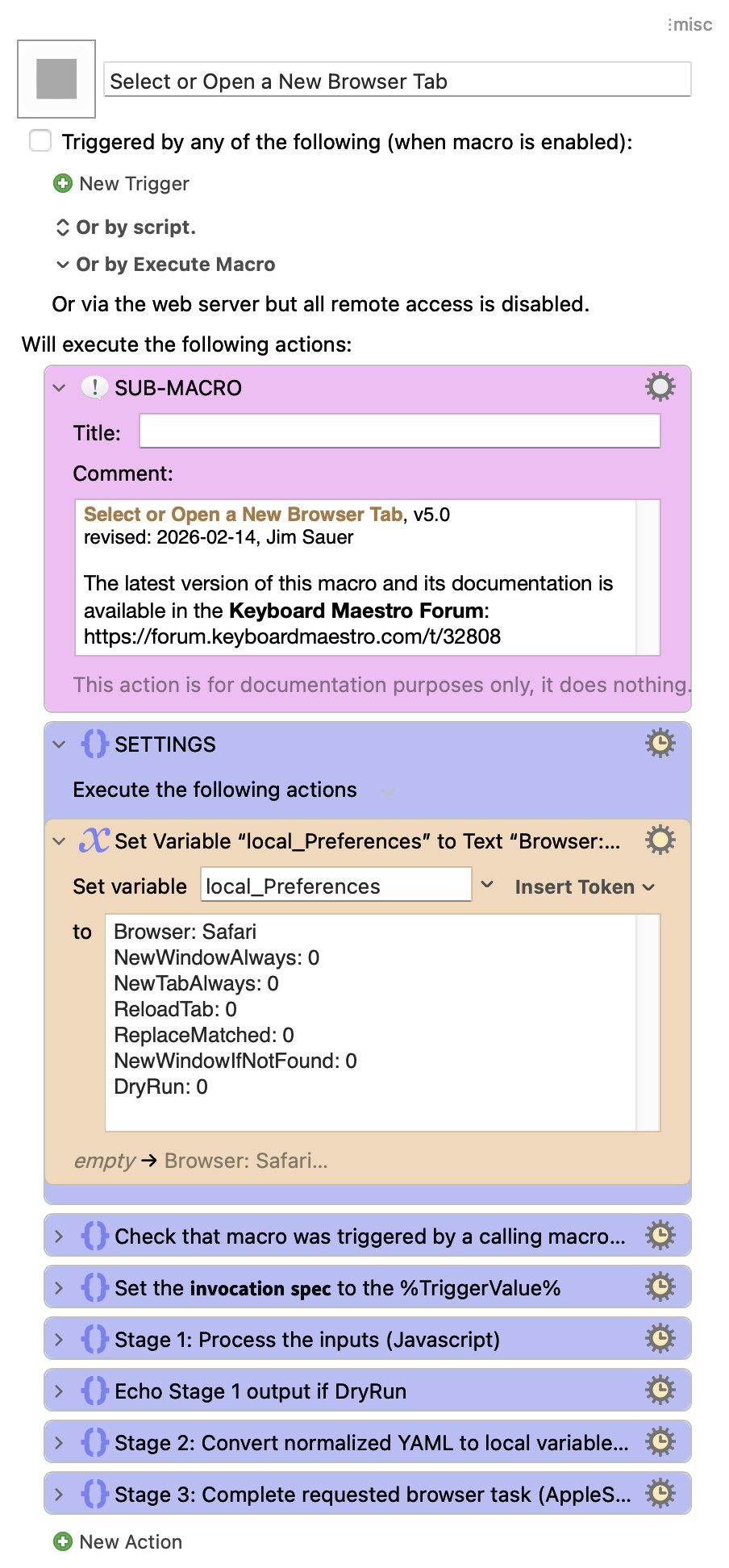
local_Preferences: Optional YAML-formatted values for any of the browser action keys. When the macro is downloaded and installed, the values are:
Browser: Safari
NewWindowAlways: 0
NewTabAlways: 0
ReloadTab: 0
ReplaceMatched: 0
NewWindowIfNotFound: 0
DryRun: 0
You can change the values with a macro variable or override them using the invocation spec. As with Format 3 [YAML] of the invocation spec, comments are permitted—see COMMENTS.
INPUT PARSING & NORMALIZATION
The macro is designed to be flexible when interpreting the invocation spec, accommodating a range of input conventions and common formatting inconsistencies:
- Smart quotes — Converts smart quotes to straight quotes in YAML and JSON.
- Boolean values — Accepts
1/0,true/false,yes/no,t/f, andy/nin YAML and JSON. - Case-insensitive input — Treats key names and values as case-insensitive in both YAML and JSON.
- Lenient JSON parsing — Handles imperfect JSON gracefully, including single backslashes in regular‑expression patterns.
BACKWARD COMPATIBILITY
Macros that called Version 4.0 of this macro will continue to function; however,
-
Key
ReplaceMatchedUrlis no longer recognized;ReplaceMatchedshould now be used. -
Format 4 [JSON] is deprecated but remains fully supported (notwithstanding removal of
ReplaceMatchedUrl), but Format 3 [YAML] is preferred due to its simpler syntax and improved readability.
IMPLEMENTATION OVERVIEW
( expand / collapse )
This macro uses a three-stage architecture that separates input processing from browser automation.
Stage 1: Process the inputs (Javascript)
This layer handles all input parsing, validation, and configuration resolution:
- Format Detection: Automatically identifies whether the invocation spec is a simple URL, browser:URL, YAML, or JSON.
- Multi-Source Merging: Combines the invocation spec (from
%TriggerValue%) with user preferences (fromlocal_Preferences), with invocation spec values taking precedence. - Normalization: Removes comments, converts browser identifiers to full names, normalizes boolean values, and handles smart quote corrections.
- Pattern Inference: Determines
MatchLogicvalue based on provided pattern keys. - Output: Produces the resolved browser action (YAML configuration) that is passed to Stage 2.
Stage 2: Convert normalized YAML to local variables (Javascript)
The individual key values are extracted from the resolved browser action. Each is set to a macro local variable. These variables are passed to Stage 3.
Stage 3: Complete requested browser task (AppleScript)
The AppleScript layer performs the actual browser automation:
- Tab Searching: With the exception of Firefox, efficiently scans open windows and tabs to locate matches using the browser's native AppleScript capabilities.
- Action Execution: With the exception of Firefox, based on search results and configuration, selects existing tabs, reloads pages, replaces URLs, or opens new tabs/windows as specified.
- Error Handling: Manages browser-specific limitations (particularly Firefox) and provides appropriate fallback behavior.
This three-stage architecture allows the macro to efficiently support multiple input formats and browsers with differing AppleScript dictionaries.
ADDING OTHER BROWSERS
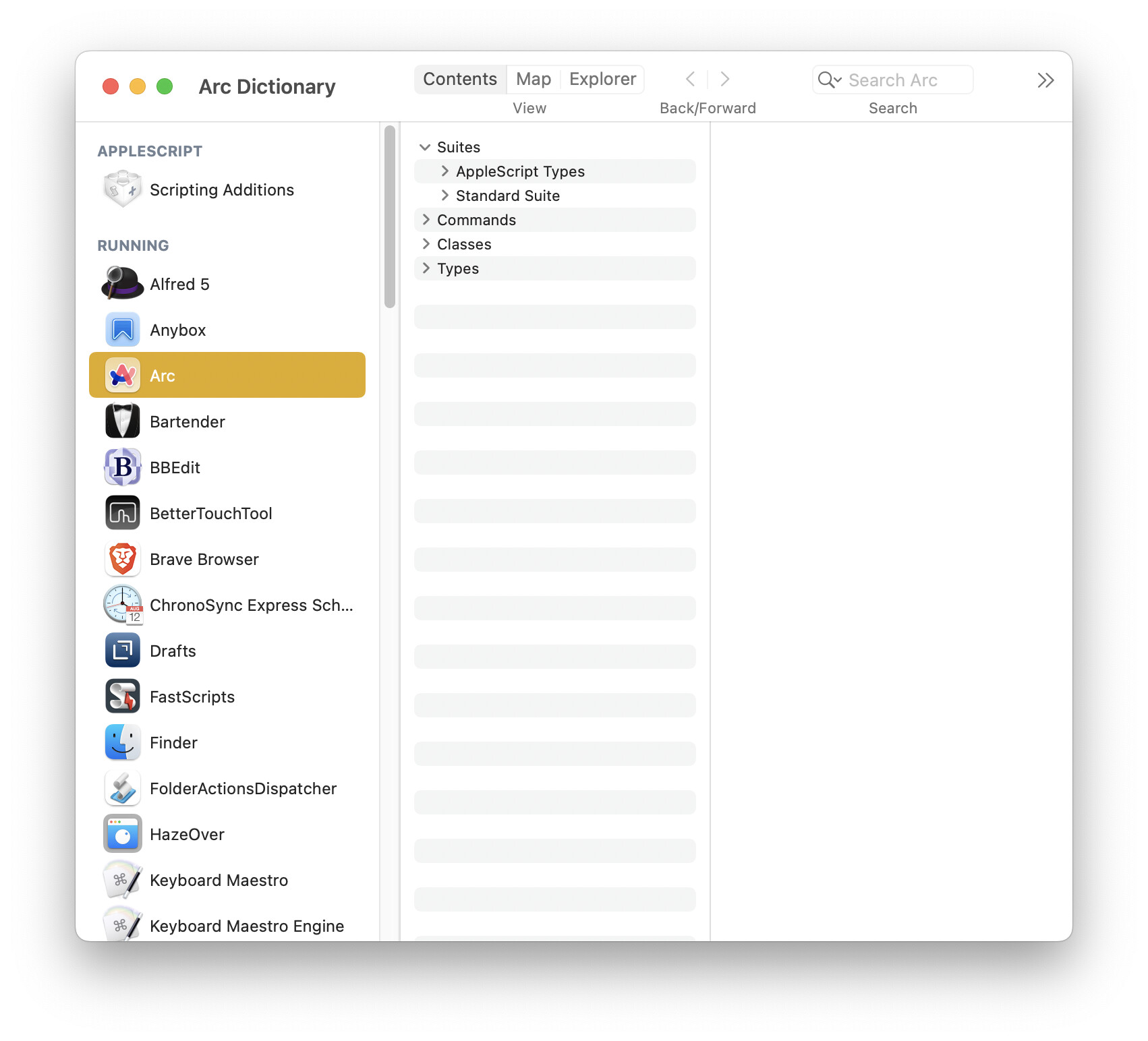
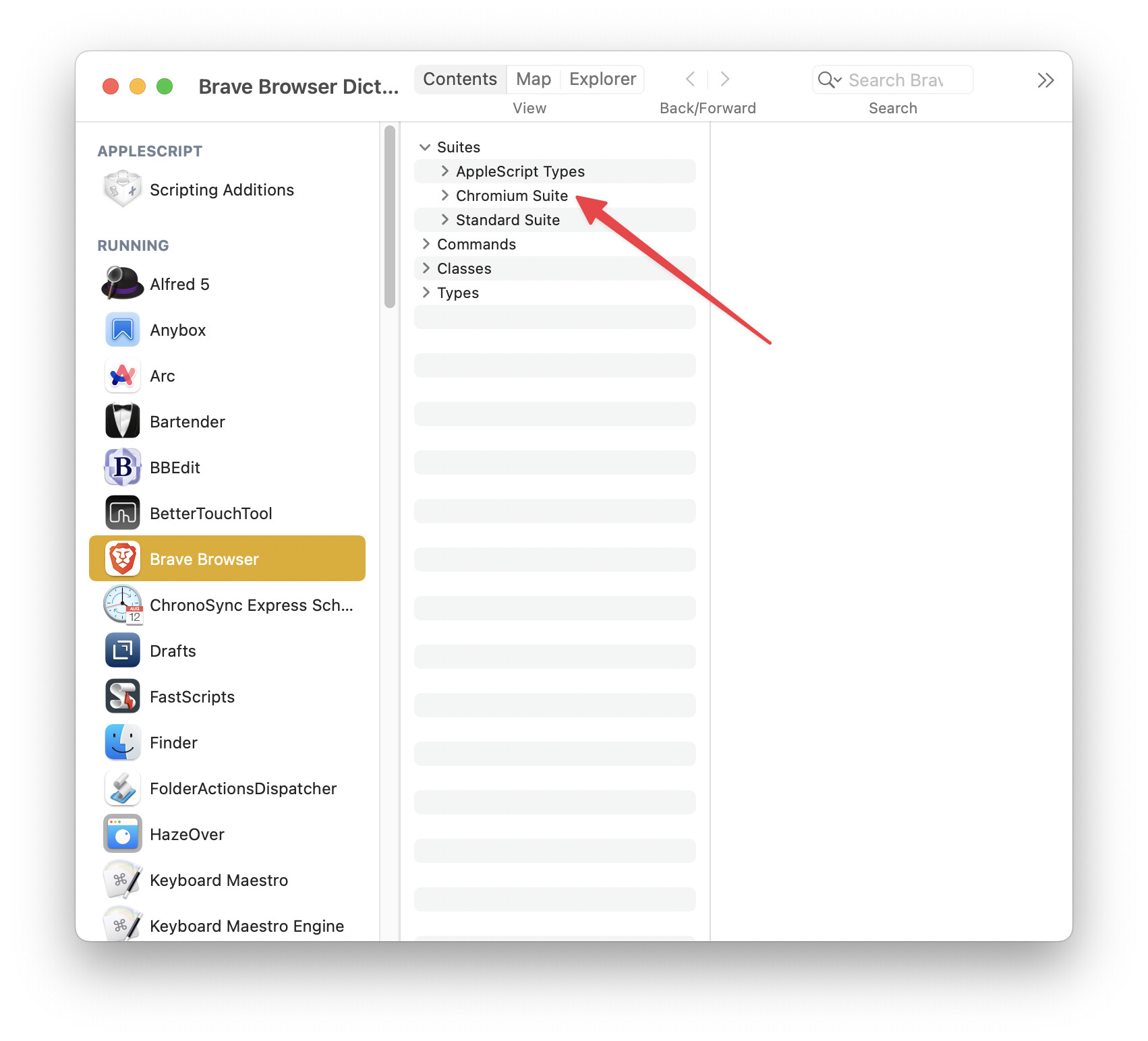
You can easily modify this macro to accommodate any browser that includes the AppleScript Safari Suite or Chromium Suite. For other browsers with unique AppleScript implementation (e.g., Arc), it would be more difficult, but possible. For more information refer to the Execute an AppleScript actions within this macro.
ACKNOWLEDGEMENT
This macro was inspired by Open or Refresh a URL in a Tab (Sub-Macro) by @DanThomas. Select or Open a New Browser Tab includes some overlapping features.
TESTED WITH
• Keyboard Maestro 11.0.4
• Tahoe 26.2 (25C56)/MacBookPro18,2
VERSION HISTORY
( expand / collapse )
5.0
-
Changed the macro name from Activate, Reload, or Open Browser Tab to Select or Open a New Browser Tab.
-
Browser Additions:
-
Input Format Enhancements:
- Made Format 3 [YAML] the recommended structured input method due to its simpler syntax and improved readability.
- Added support for both full‑line and inline comments.
-
Pattern Matching Enhancements:
- Added webpage title–based matching via the new
TitlePatternkey, enabling regular‑expression matching against tab titles. - Added automatic inference of match logic based on which patterns are provided, with optional explicit override via the
MatchLogickey:none— ignore both URL and title patterns (inferred when neitherUrlPatternnorTitlePatternis provided)url-only— match URL pattern only (inferred when onlyUrlPatternis provided)title-only— match title pattern only (inferred when onlyTitlePatternis provided)or— match either URL or title pattern (inferred when both patterns are provided)
- Added webpage title–based matching via the new
-
New/Enhanced Browser Action Keys:
- NewWindowAlways: If
1, always open a new window, bypassing all tab matching. This is the highest-precedence override—when enabled, the browser will create a new window regardless of whether a matching tab exists. - NewTabAlways — If
1, always open a new tab in the frontmost window, bypassing all tab matching. This is the second-highest precedence override. If bothNewWindowAlwaysandNewTabAlwaysare1,NewWindowAlwaystakes precedence. - UrlPattern — This key also now supports a special option,
-d(or--domain), which automatically setsUrlPatternto a case-insensitive representation of theUrldomain:(?i)^https?://(www\.)?<domain>(?:/.*)?$e.g.,(?i)^https?://(www\.)?forum\.keyboardmaestro\.com(?:/.*)?$ - TitlePattern — Regular expression pattern to match against tab titles. For example:
.*Engine\.log.*to match any tab that includes "Engine.log" in the title. See Regular Expression Patterns for pattern syntax and examples. - MatchLogic — Determines how patterns are matched. Valid values:
none,url-only,title-only,or - ReplaceMatched — (This key replaces ReplaceMatchedUrl.) If
1and a pattern match is found, replace the matched tab's URL withUrl. If0, simply select the matched tab. - DryRun — If
1, process the invocation spec and echo the resolved browser action keys without actually opening any browser tabs. This is useful for debugging and inspecting how keys are resolved, inferred, and merged with preferences—see Key Inferences and Defaults. If0, execute normally.
- NewWindowAlways: If
-
Settings / Preferences Architecture:
- Consolidated preferences into a single YAML‑formatted variable:
local_Preferences.
- Consolidated preferences into a single YAML‑formatted variable:
-
Usability Enhancements:
- Smart quotes — Converts smart quotes to straight quotes in YAML and JSON.
- Boolean values — Accepts
1/0,true/false,yes/no,t/f, andy/nin YAML and JSON. - Case-insensitive input — Treats key names and values as case-insensitive in both YAML and JSON.
- Lenient JSON parsing — Handles imperfect JSON gracefully, including single backslashes in regular‑expression patterns.
-
Macro Design Improvement—Introduced a three‑stage processing architecture:
- Stage 1 — Input processor: format detection, normalization, and inference
- Stage 2 — Normalized YAML (from Stage 1) mapped to macro local variables
- Stage 3 — Browser‑specific AppleScript execution
-
Backward Compatibility : Macros that called Version 4.0 of this macro will continue to function; however:
- Key
ReplaceMatchedUrlis no longer recognized;ReplaceMatchedshould now be used. - Format 4 [JSON] is deprecated yet remains fully supported—aside from the removal of
ReplaceMatchedUrl—while Format 3 [YAML] is now preferred for its simpler syntax and improved readability.
- Key
-
Documentation & Testing:
- Expanded documentation significantly, including new Quick Start and Implementation Overview sections.
- Added the DryRun key for testing configurations before browser interaction.
UPGRADE AND INSTALLATION INSTRUCTIONS
Upgrading From: Activate, Reload, or Open Browser Tab
If you have used a previous version of this macro†, then delete it before installing the new version. If the old version is not first deleted, then existing calling macros will no longer function as expected.
†If you are not sure if you have installed an older version, open the Keyboard Maestro editor, select all macros, and then search for
F993DABB-8E10-41C1-9CA7-97CA74E6F9F0. That should identify the old version of this macro and all calling macros.
Installing: Select or Open a New Browser Tab, v5.0
Download: Select or Open a New Browser Tab.kmmacros (179 KB)
Macro-Notes
- Macros are always disabled when imported into the Keyboard Maestro Editor.
- The user must ensure the macro is enabled.
- The user must also ensure the macro's parent macro-group is enabled.
System Information
- macOS 26.2 (25C56)
- Keyboard Maestro v11.0.4
CALLING MACRO TEMPLATES
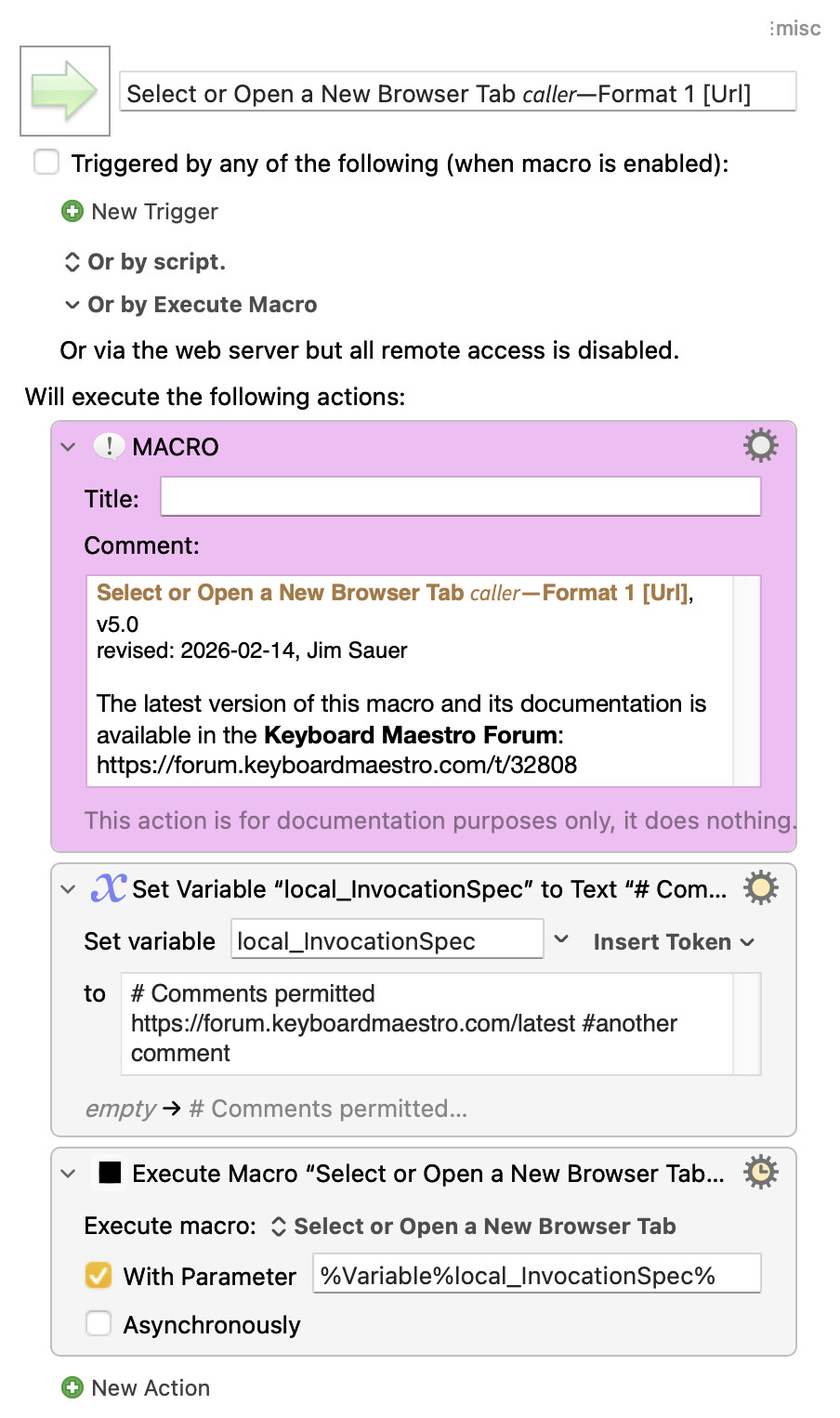
1. Select or Open a New Browser Tab 𝘤𝘢𝘭𝘭𝘦𝘳—Format 1 [Url]
Download: Select or Open a New Browser Tab 𝘤𝘢𝘭𝘭𝘦𝘳—Format 1 [Url].kmmacros (4.3 KB)
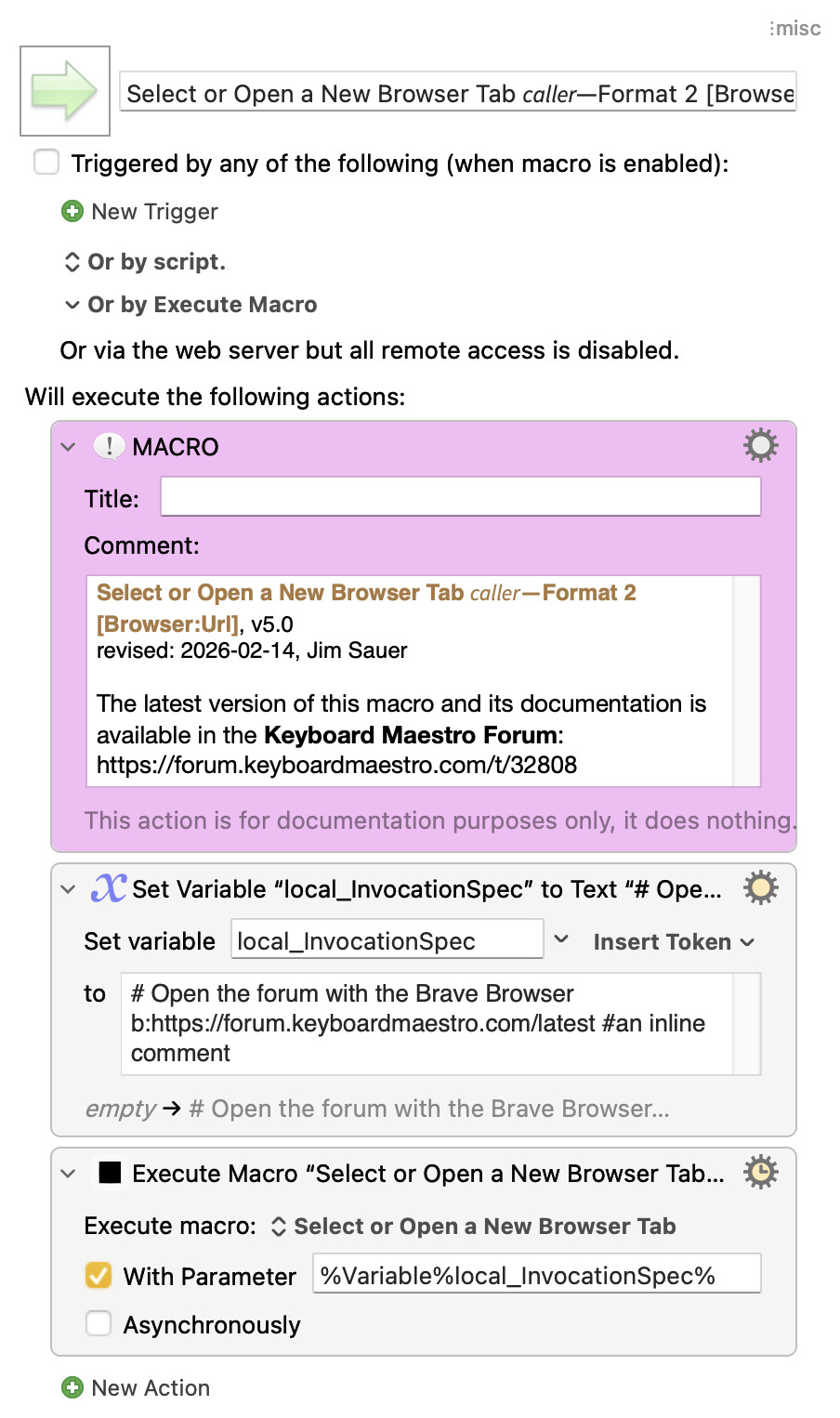
2. Select or Open a New Browser Tab 𝘤𝘢𝘭𝘭𝘦𝘳—Format 2 [Browser:Url]
Download: Select or Open a New Browser Tab 𝘤𝘢𝘭𝘭𝘦𝘳—Format 2 [Browser-Url].kmmacros (4.4 KB)
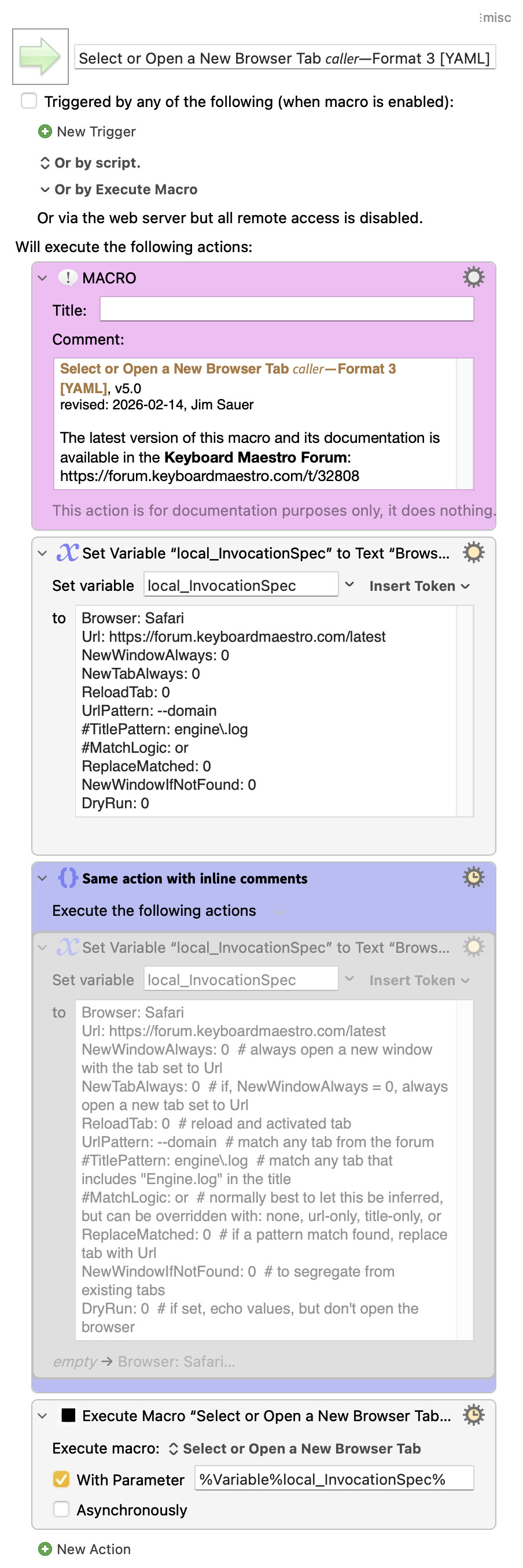
3. Select or Open a New Browser Tab 𝘤𝘢𝘭𝘭𝘦𝘳—Format 3 [YAML]
Download: Select or Open a New Browser Tab 𝘤𝘢𝘭𝘭𝘦𝘳—Format 3 [YAML].kmmacros (5.9 KB)
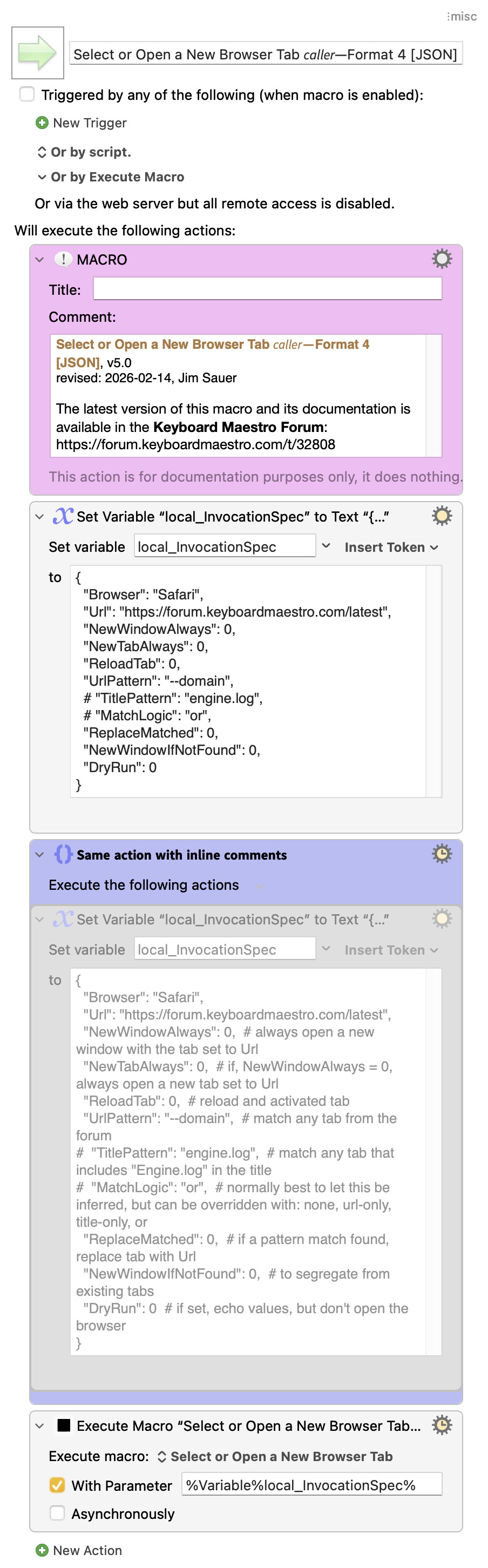
4. Select or Open a New Browser Tab 𝘤𝘢𝘭𝘭𝘦𝘳—Format 4 [JSON]
Download: Select or Open a New Browser Tab 𝘤𝘢𝘭𝘭𝘦𝘳—Format 4 [JSON].kmmacros (6.1 KB)
5. Select or Open a New Browser Tab 𝘤𝘢𝘭𝘭𝘦𝘳—Format 4 [JSON] via AppleScript
AppleScript ( expand / collapse )
-- Keyboard Maestro macro: Select or Open a New Browser Tab, v5.0+
-- revised: 2026-02-14, Jim Sauer
-- more info: https://forum.keyboardmaestro.com/t/macro-select-or-open-a-browser-tab-v5-0/32808

property theMacroUuid : "C9576AB8-64AB-4EEF-B6E3-572291399828"

property theInvocationSpec : "
	Browser: Safari
	Url: https://forum.keyboardmaestro.com/latest
	NewWindowAlways: 0
	NewTabAlways: 0
	ReloadTab: 0
	UrlPattern: --domain
	#TitlePattern:
	#MatchLogic: or
	ReplaceMatched: 0
	NewWindowIfNotFound: 0
	DryRun: 0
"

tell application "Keyboard Maestro Engine"
	do script theMacroUuid with parameter theInvocationSpec
end tell