Update UIElementInspector, a handy KM helper, for modern Macs

Over in this topic…

...@Nige_S recommends using a handy old Apple app, UIElementInspector, to get values for various UI elements. It's a great tip, and the app is much easier to use than the full-blown modern replacement, Accessibility Inspector.

However, it has an issue: UIElementInspector's code is ancient, last updated in 2010. As such, it's Intel-only, which means its life expectancy is limited. for those upgrading to macOS 27 (Golden Gate), which drops support for Intel code—and Golden Gate might be released within a couple hours, but certainly within the next couple of weeks. Golden Gate drops support for Intel Macs, and Apple has made it clear that Rosetta 2, the tech that lets Intel apps run on Apple Silicon Macs, has a limited future, though they haven't said exactly how long it will be around.

To prepare for that time, whenever it is, I updated the UIElementInspector app to run in ARM 64 native code. But as I'm not a developer, I used AI in Xcode to get this done. You must (duh) have Xcode installed, and must have configured one of its supported agents (Claude, Codex, or Gemini).

Assuming you meet those requirements, open the Xcode project file (it ends in .xcode) for the UIElementInspector project, go to the AI input section of Xcode, and give it a prompt to update the app—here's the exact wording I used:

this is an old apple tool to provide accessibility API information. it is intel only. can you update it to run on apple silicon? (it doesn't need to support intel at all any more.)

Claude then worked for a few minutes, had me make a few changes in the project's settings, and ... it was done:
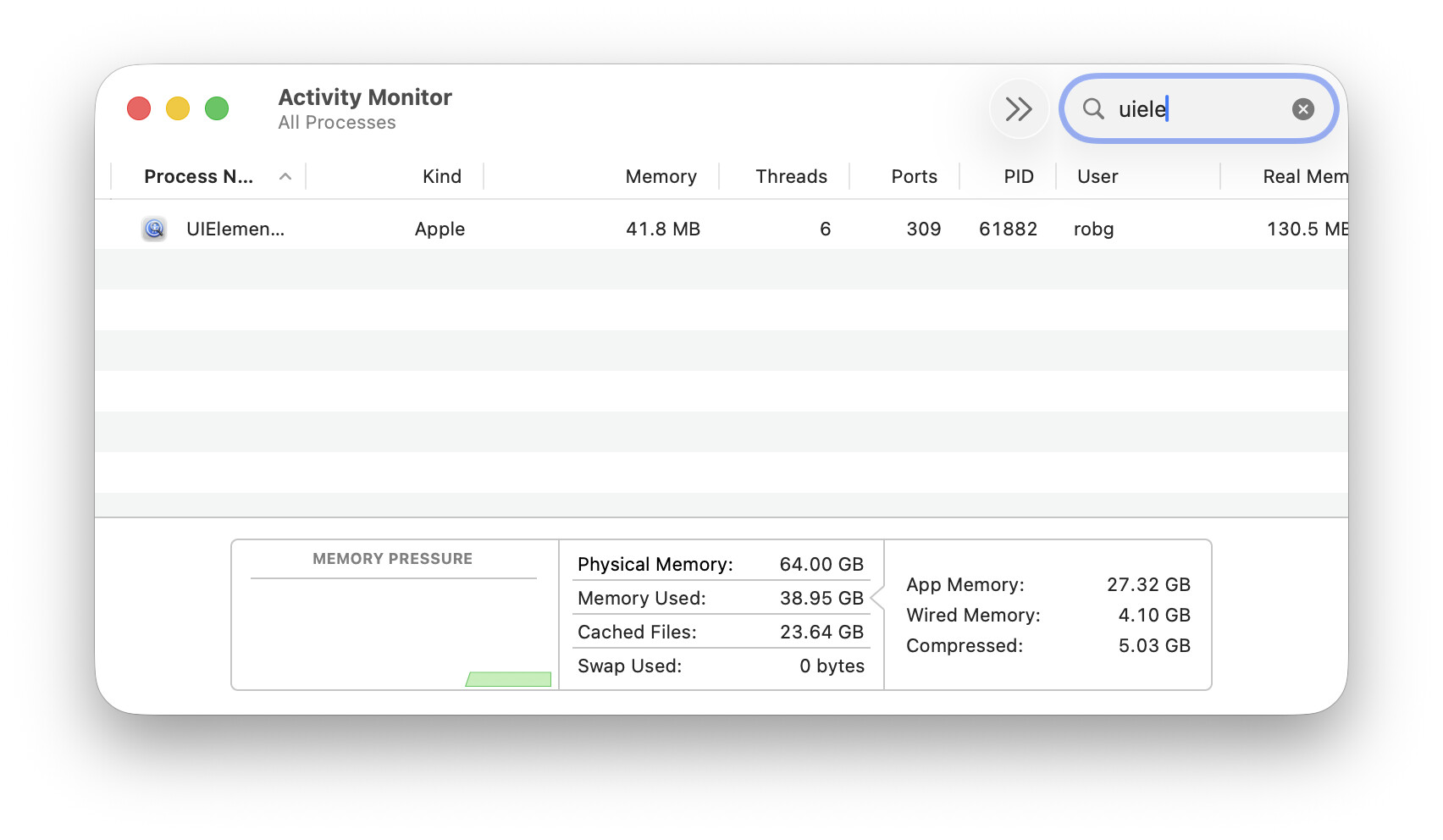
The Apple value in the Kind column shows that the app is running natively on Apple Silicon. So now I have a native UIElementInspector that I can keep using after I update to Golden Gate Rosetta 2 dies, whenever that may be.

I cannot distribute the modified code, as it's under Apple's copyright.

But it took just that one prompt and a couple minor edits (as directed by Claude) to turn the Intel-only ancient code into future-proof ARM-64 native code.

-rob.

2 Likes

Isn't it macOS 28 when Rosetta is removed? UIElementInspector should still run in Golden Gate.

But yes, because it is actually an Xcode demonstration project it should be easy to (personally) update.

3 Likes

Ah, you're right—I confused end of Intel Mac support (Golden Gate won't support them) versus Intel app support, which should work through Golden Gate.

I'll edit the original - thanks!

-rob.

2 Likes

When might one use UIElementInspector rather than @noisneil’s UI Browser Lite? (In other words: how do the use cases differ?)

i haven't actually tried @noisneil's tool, because I've always relied on the full Accessibility Inspector app, as I need it for my day job as well as Keyboard Maestro use. @noisneil would have to chime in—it's quite possible their tool does more than Apple's, I don't honestly know :). (It almost assuredly does more to provide Keyboard Maestro-usable data, I would imagine; Apple's tool just dumps raw output.)

-rob.

It uses the same app for element info, parses the output and makes it interactive.

1 Like

I knew I bookmarked it for a reason :). Someday, I'll get around to trying it out...sigh.

So at some point in the future, if I understand, your macro will need to refer to an ARM64 version of the base app, right? I really wish Apple would have updated that code over the years; the full-blown Accessibility Inspector is overkill for most needs.

-rob.

Human note from me: I had Claude install the app which is an upgrade to the one it was using. I had it write the post below to share the value you shared. - Bern

--

Thanks, @griffman -- this sent me down a useful path. I have been working with Claude as an agent on my Mac (it can run shell commands and AppleScript through a small bridge), and UIElementInspector turned out to be a very good pair of eyes for it. A few notes in case they help others doing the same.

1. For me the port needed no code changes. My agent built Apple's sample with build settings alone:

xcodebuild -project UIElementInspector.xcodeproj -configuration Release \
  ARCHS=arm64 ONLY_ACTIVE_ARCH=NO SDKROOT=macosx \
  MACOSX_DEPLOYMENT_TARGET=12.0 ALWAYS_SEARCH_USER_PATHS=NO \
  CODE_SIGN_IDENTITY=- SYMROOT=$PWD/build

It built with warnings but no errors, and lipo -archs reports arm64. (Same caveat as yours: it is Apple's code, so I am not sharing a built copy.)

2. Two traps on the way to the permission:

  • On macOS 27 the pane is no longer called Accessibility: it is System Settings > Privacy & Security > Device Control and Data Access.
  • Apple's zip also contains the original 2010 Intel app, with the same name and bundle ID, one folder up from the build. I granted that one by mistake. The build then ran but could only read its own window. Grant the copy in build/Release/. A rebuild changes the app's signature, so it needs granting again.

3. How an LLM agent uses it. The inspector shows, for whatever is under the mouse, the whole path from the app down to the element, every attribute, and the element's actions. That is exactly what an agent needs before it writes a Keyboard Maestro "Press Button" or UI-element action, or an AppleScript UI path. The loop my agent runs:

  • put the mouse over the thing (cliclick m:x,y, or I point at it myself);
  • read the inspector's text with AppleScript: tell application "System Events" to tell process "UIElementInspector" to get value of text area 1 of scroll area 1 of window 1;
  • turn that path and action into the macro or script step;
  • quit the inspector.

For a Finder sidebar item it returned Finder > Applications > AXSplitGroup > AXScrollArea > AXOutline > AXRow > AXCell, with the action AXOpen. That is enough to script the click without guessing, and without screenshots.

4. Instructions you can give your own LLM (for anyone new or intermediate with an agent that can run commands on the Mac):

I have UIElementInspector built for Apple Silicon at [path], and granted under Privacy & Security > Device Control and Data Access. When I ask you to automate a click or read a value in an app:

  1. Launch UIElementInspector if it isn't running.
  2. Ask me to hover over the element, or move the mouse there yourself with cliclick m:x,y if you know the position.
  3. Read the inspector's output with: osascript -e 'tell application "System Events" to tell process "UIElementInspector" to get value of text area 1 of scroll area 1 of window 1'.
  4. From that output, use the element path, its role and title, and its listed Actions to write the Keyboard Maestro action (or AppleScript) that targets it. Do not guess at element names.
  5. Only read windows I have said are fine to read. Never use the Interaction window to change values unless I ask. Quit the inspector when done.

A word of care: this permission lets the tool (and whatever drives it) read any window. So I only point it at windows with nothing private open, and I would take the grant back if I stopped using it.

@noisneil -- UI Browser Lite looks like the friendlier front end for people. For an agent, the raw text output turned out to be the convenient part, because it can be read straight into the next step.

1 Like

Nicely done!

But can you explain one bit, or maybe provide a sample of the generated code? Because I can't see how:

...goes from "an AXRow", the output of UIElementInspector, to "a particular AXRow" as needed to target an item in the sidebar.

Here's Claude's reply. See if this satisfies your question. I'm just the messenger as this is well above my pay grade. -Bern

@Nige_S -- fair catch, and you're right: the path alone doesn't get you there. AXOutline > AXRow > AXCell tells you what kind of thing to walk to, not which row. I overstated it.

What closes the gap is the rest of what the inspector shows for that element -- here, the cell's text and its action. With the mouse over my "Downloads" sidebar item, the inspector lists the path, the cell's attributes, and Actions: AXOpen - Open Finder item. The agent uses the path to find the outline, then picks the row by its text, not by its position, and then performs the action it was told the cell has.

First it checks how the rows identify themselves:

tell application "System Events" to tell process "Finder"
	set o to outline 1 of scroll area 1 of splitter group 1 of window 1
	repeat with r in rows of o
		log (value of static text 1 of UI element 1 of r)
	end repeat
end tell

That listed my sidebar as Favorites, Desktop, Downloads, Projects, ... -- so the name lives in static text 1 of the row's cell. Then the targeted version:

tell application "System Events" to tell process "Finder"
	set o to outline 1 of scroll area 1 of splitter group 1 of window 1
	repeat with r in rows of o
		try
			if value of static text 1 of UI element 1 of r is "Downloads" then
				perform action "AXOpen" of UI element 1 of r
				exit repeat
			end if
		end try
	end repeat
end tell

Two things I learned doing it, which I think answer the spirit of your question:

  • select r is not enough. It set AXSelected to true, but the window stayed where it was. Only AXOpen on the cell -- the action the inspector listed -- actually navigated. That's the part the inspector earns its keep on: it tells you which element carries the action.
  • Match by name, and watch for duplicates. My sidebar has "Favorites" twice (the section header and a folder of that name), so a first-match loop can hit the wrong one. Row index is the fallback, but it breaks as soon as the sidebar changes.

So the honest version of my earlier line is: the inspector gives the agent the path, the identifying attribute and the action; the agent still has to write the "which one" test itself -- and check it.

My personal opinion is that you'll get what you want a fair bit quicker with UI Browser Lite, or even better, the Swift version which allows easy double or modifier clicks, smart value setting, automatic element existence pauses and a few other things.

YMMV

1 Like

That's the bit I was wondering about -- was it creating hard-coded "references" or doing run-time "filtering". And I'm very happy to see it's the latter!

And nice that the agent can get there by itself.

I do think a whose clause will be slightly quicker, especially for later entries in long lists:

tell application "System Events" to tell process "Finder"
	set o to outline 1 of scroll area 1 of splitter group 1 of window 1
	set theElements to every UI element of o whose (value of static text 1 of UI element 1) is "Documents"
	try
		tell item 1 of theElements to perform action "AXOpen" of UI element 1
	end try
end tell

But that looks like the usual AI "I know general patterns, I know some AS, so here's some AS that does a general pattern but misses an AS-specific trick".

I look forward to trying some of this -- but first I've gotta get off this Intel machine! :wink:

The effort from general to specific is exponential and it's still early days for generative software.

On a side (off topic) note, I've been focusing on discovering the controls and levers to move from generative to determinative operating while working this generative model as you do not want it to always be functioning in generative mode. I've found that rules and protocols as constraints end up being hand-waving as it easily flows around them. The only reliable way I’ve found is to use directional means by putting what you want it to do in the path it must take to get there. Only "in-path gates" make it function determinatively as much as possible for code desgined to operate in a generative mode.