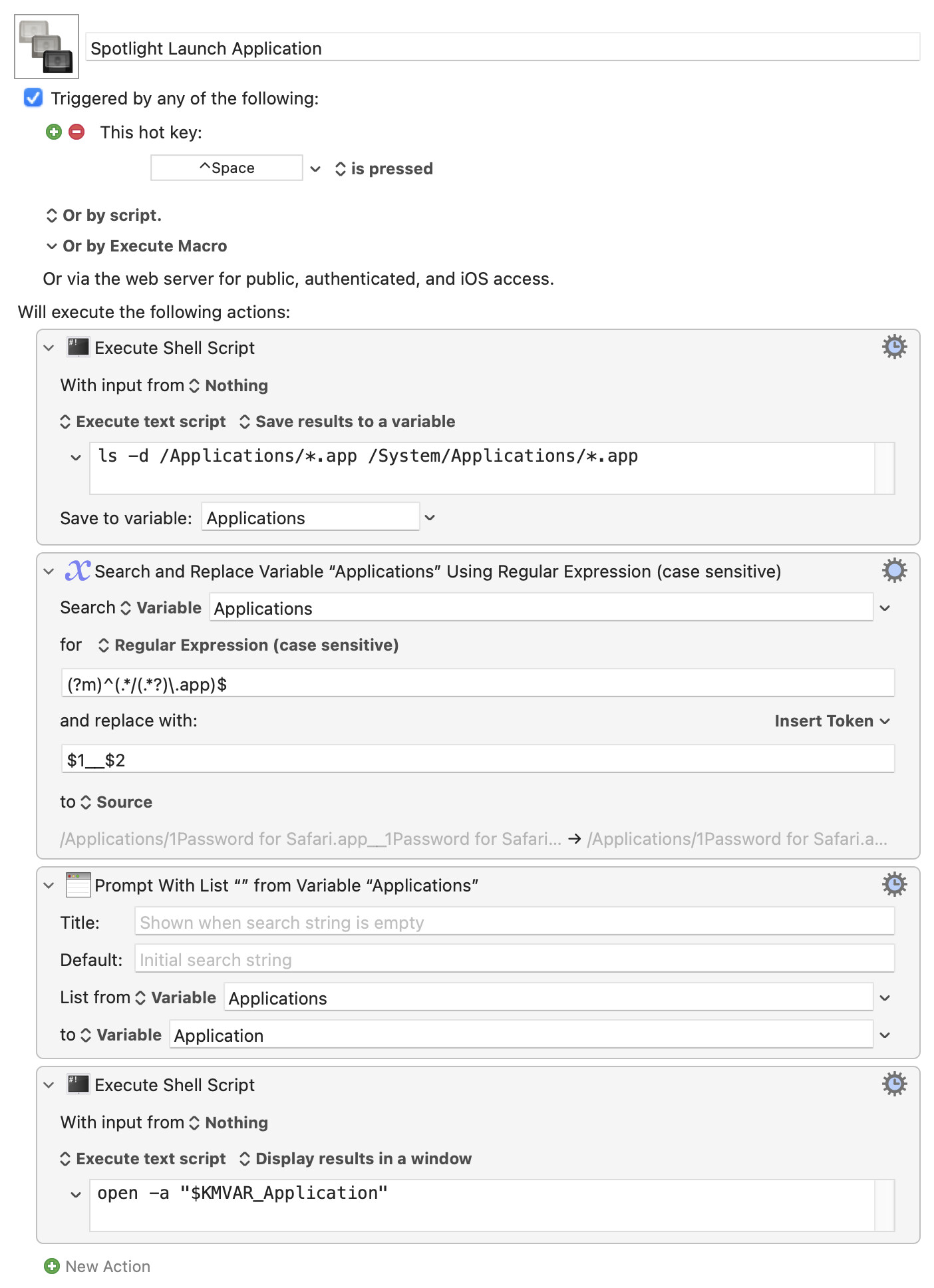
I generally use Spotlight to launch applications, and sometimes that works well, and sometimes it gets into a state where the application is not what it wants to match, instead matching web pages or documents. So I made this little macro to be a basic Application Launcher and nothing else - it gets a list of all the applications in the Applications folder (and System Applications folder), and prompts for that and launches/activates it.
It could easily be adapted for various needs, such as finding applications elsewhere, or actively removing some applications from the list.
I am modifying it to work with Parallel's apps and am close but I must be missing something.
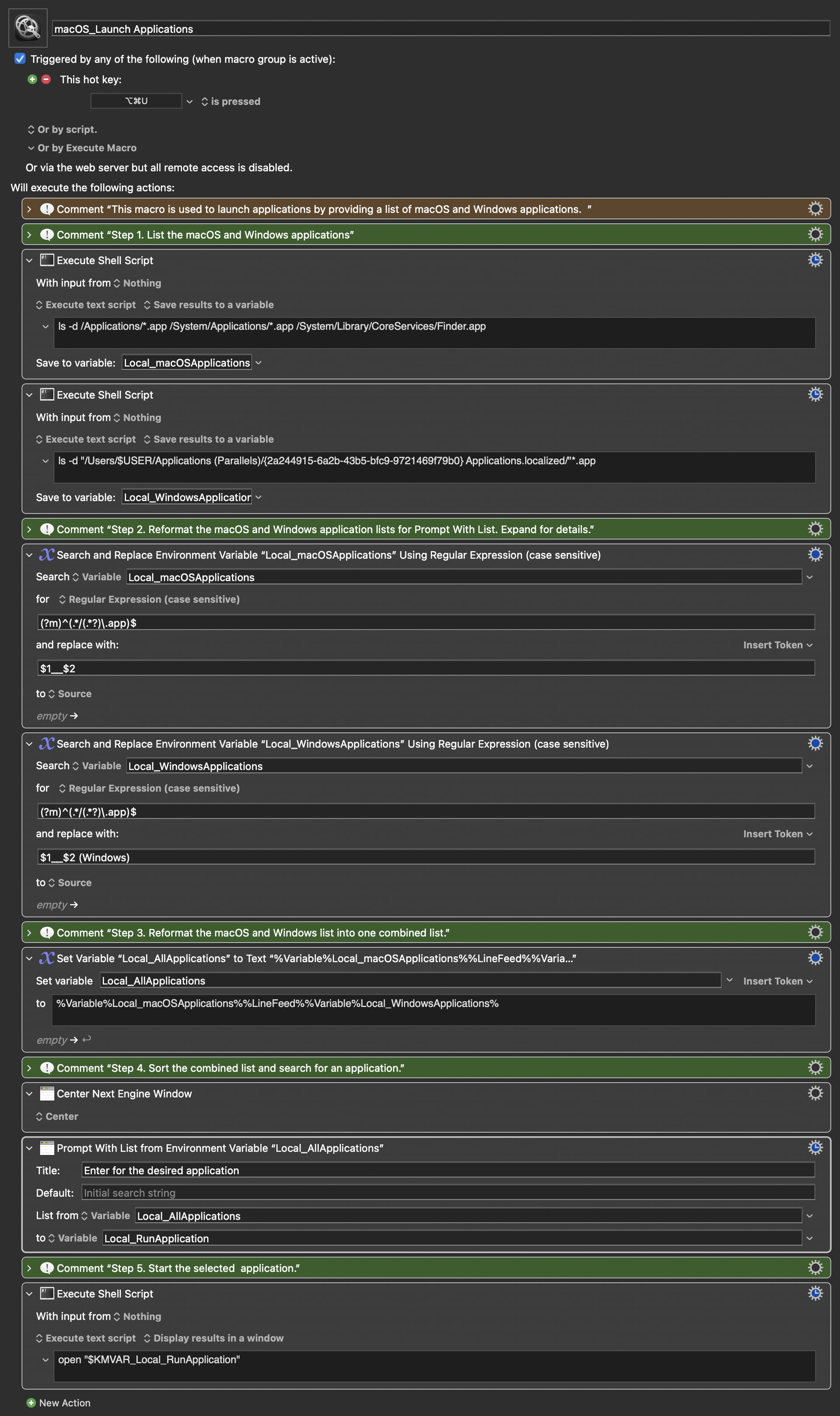
Why does the macro only work when the Prompt With List output variable is Application (i.e., I tried others that are more descriptive but they fail [and yes, I did change it in the Shell Script that follows])?
As a start, it is Peter's macro and is posted above.
Second, I have solved problem. Peter had the gear icon set to Applications only!
Third, when I get this working with Parallels -- tomorrow -- I will post the macro should anyone else want to leverage it. Worth noting, I also sorted the apps in my version.
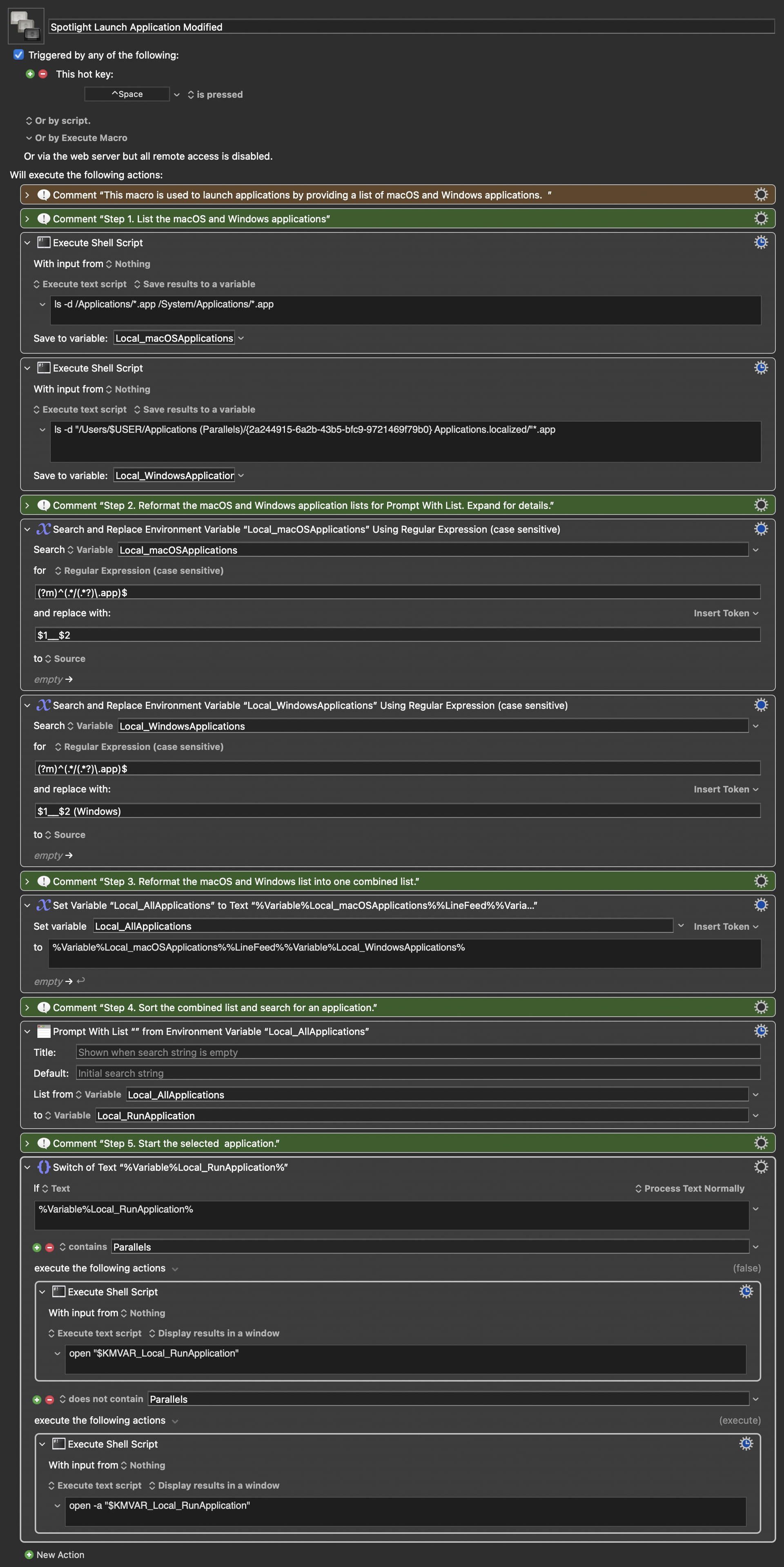
I made a few small edits to Peter's macro in that I:
Added Parallel applications.
Added the word "(Windows)" after the Paralells apps so that the user knows which version is being opened (i.e., I have 1Password on both the macOS and Windows side).
Sorted the applications list.
The macro and a screen shot of the Prompt With List follows:
People are free to adjust this as desired. I guess I never use it for that just click on the desktop probably (with that desktop clearing feature turned off of course).
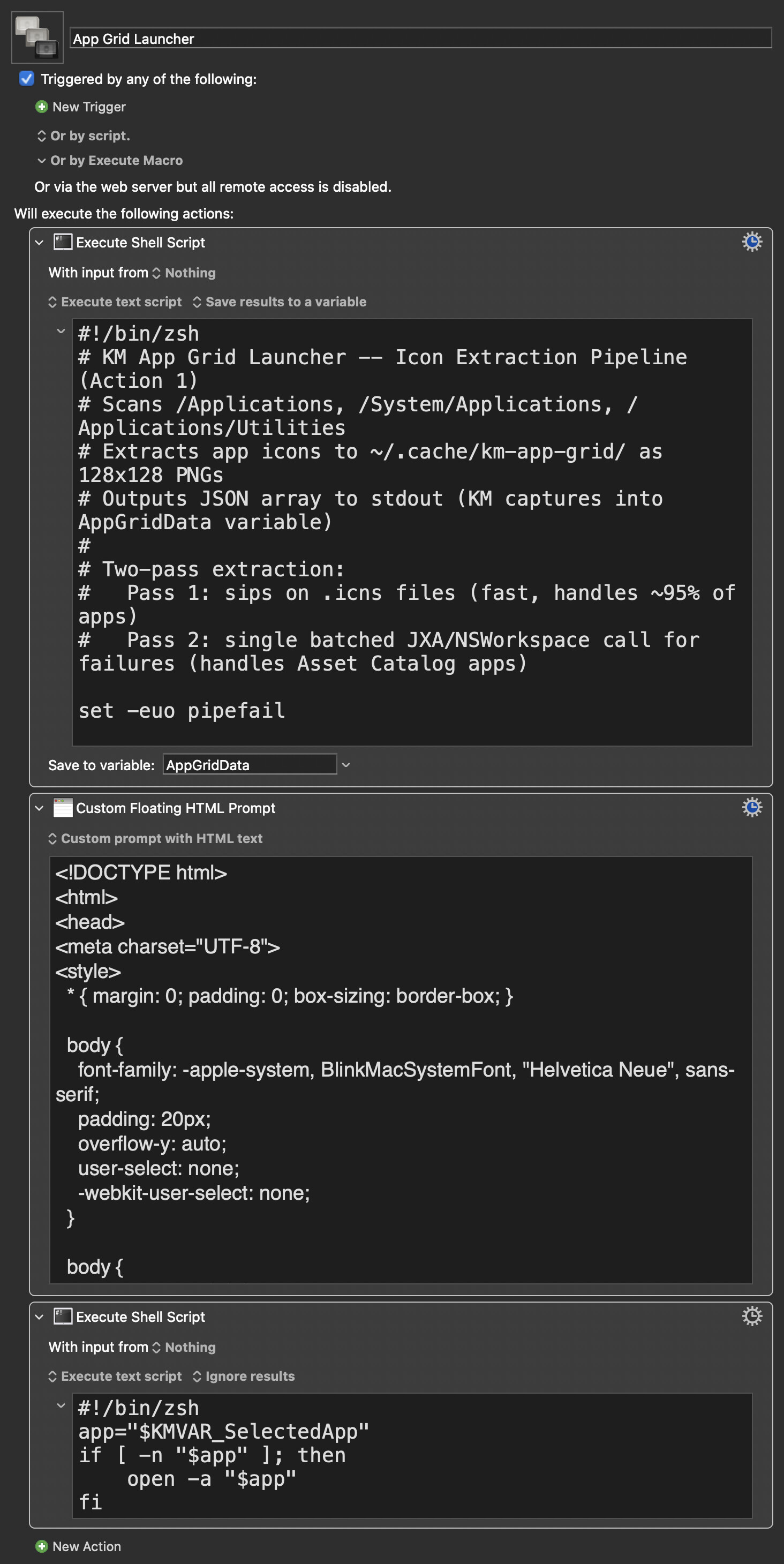
I took Peter's macro in a different direction and built a visual grid launcher on top of it using the Custom HTML Prompt action.
It scans the same application folders (Applications, System Applications, Utilities), extracts the actual app icons, caches them as PNGs, and displays them in a CSS Grid layout. Click an icon to launch the app. The window is resizable, adapts to light/dark mode, and remembers its size between launches.
I also added a manage mode -- click the Manage button to toggle visibility of apps you don't want cluttering the grid. Hidden apps are remembered across sessions via a KM variable. In manage mode, hidden apps appear dimmed and you can click to toggle them back. Clicking an app in manage mode only toggles its visibility, it doesn't launch anything.
The icon extraction uses a two-pass approach: sips handles most apps quickly from their .icns files, and a JXA/NSWorkspace fallback picks up anything that uses Asset Catalogs (like Books.app). A fingerprint cache means subsequent launches skip the scan entirely if no apps have changed.
The macro has three actions:
Shell script (zsh) -- icon extraction and JSON output
Custom HTML Prompt -- the grid UI
Shell script -- launches the selected app
The first launch is slow because it has to scan all folders and extract icons. Subsequent launches are much faster.
For me it’s ⇧⌥⌘F, which is the height of convenience if, like me, one is using home rows mods, and even not so bad on the “conventional” (legacy!) keyboard layout.